Read Tag Content: see which crops stood on a row, and when
Read a row's tag with the Agromigo Admin app and see every crop that stood on that row, with its dates, right where you stand.
A worker taps a row’s tag, and Agromigo books the work to the crop that stands there. That only goes right if the row is registered to the right crop on that day. The person who can see what really grows there is in the greenhouse, not at the dashboard.
With the Agromigo Admin app, you read the row’s tag and see at once which crops stood on it, and when.
In this video
Migo shows you how to read a row’s tag with the Agromigo Admin app and see which crops stood on that row, and when.
The screen. NFC Tools in the Agromigo Admin app reads and writes the tags your team taps during work. Standing at a row, you can check which crop it is registered to before anyone records work on it.
- Read a tag. Read Tag Content, the first option, shows what a tag holds. Hold a row’s tag against the back of the phone.
- The row. The tag names its row with the block above it, and the card Crops on this work area lists every crop that stood there, the latest first.
- Standing there today. These come first, marked From and the day they went in: young Tomato 2027 plants since November, sharing the row with the Tomato crop at 30% and 70%.
- Earlier stays. Below them, earlier stays show both their dates: Tomato on the whole row from February to the start of November, and Tomato 2024 on this block until December 2024.
The card is read from what the phone holds, so it works without a connection.
Tips
- Check before the first scan. Read a row’s tag when a new crop goes in. If the crop you see planted is missing, its placement needs this row before the crew records work.
- A QR code works too. Scanning the row’s QR code in QR and barcode tools shows the same card.
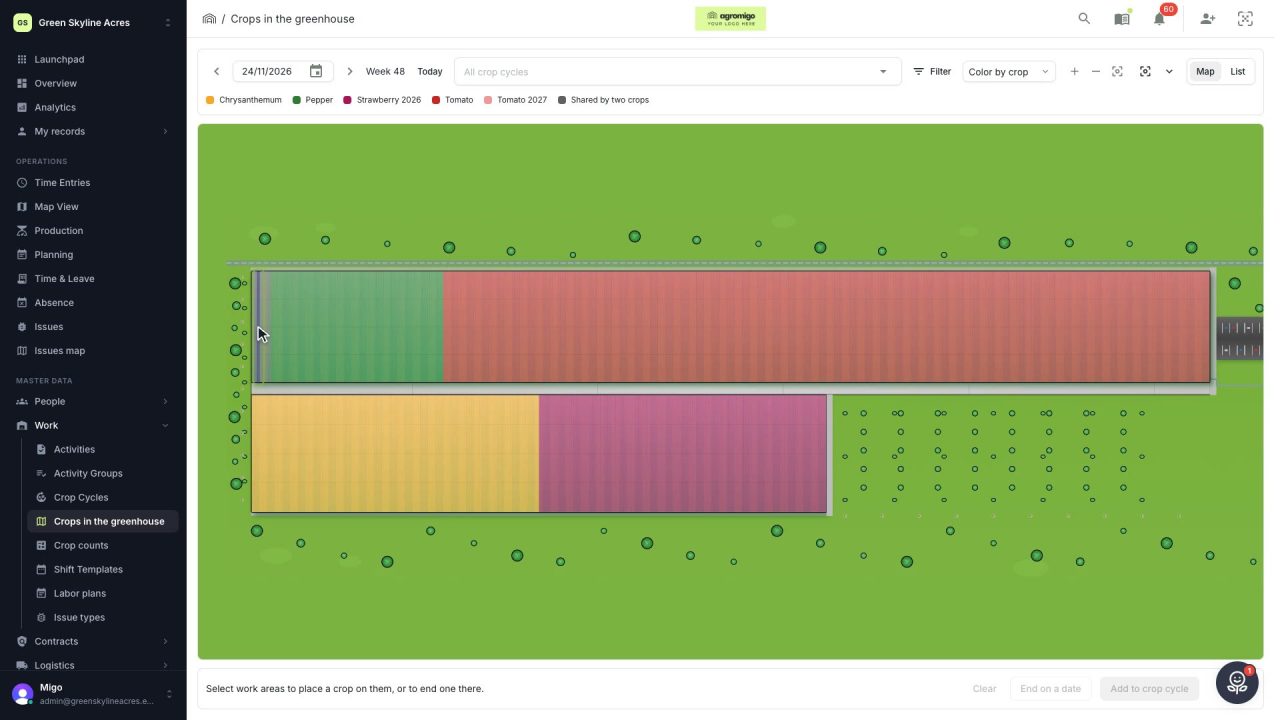
- Fix it on the dashboard. Placements are changed on the crop cycle’s Where is this growing? card or on Crops in the greenhouse; the Admin app shows them.
Read more
The user guide covers the Agromigo Admin app and how a work area is identified by its tag.
Try it free for 1 month.
More stories
-
No repair forgotten, from the first photo to the fix
Your workers see damage first. With Agromigo they report it in a WhatsApp chat, and you see every open repair on one list and one map.
-
 4 min
Issues: from a WhatsApp photo to a finished repair
A worker reports torn netting with one photo on WhatsApp. The technician is notified, takes the repair on, finds it on the map and resolves it, and you see every repair that is still open.
-
 2 min
Crops in the greenhouse: see which crop stands on every row, any day
Crops in the greenhouse colors every row by the crop standing on it on the day you choose, and lets you place a crop on rows straight from the map.