Issues: from a WhatsApp photo to a finished repair
A worker reports torn netting with one photo on WhatsApp. The technician is notified, takes the repair on, finds it on the map and resolves it, and you see every repair that is still open.
Torn netting, a broken pane, a leaking hose: a worker sees it first, but the person who can fix it is somewhere else. A repair that is passed on in the canteen is easily forgotten, and nobody knows which repairs are still open.
In Agromigo, the worker sends one photo on WhatsApp. The repair becomes an issue with a place, a photo and someone who is responsible for it. This video follows one repair in a chrysanthemum crop, from the report to the fix.
In this video
Migo shows you one repair from start to finish, first on a worker’s phone and then in the dashboard.
- Reported in a chat. Hana works in the chrysanthemums and sees that the netting that holds the stems up is torn. She sends a photo with a short caption to Agromigo on WhatsApp, shares her location and taps Row 2010.
- Recognized from the photo. The photo clearly shows one of her operation’s issue types, so the chat asks: Is it Damaged netting? She taps Yes, and Agromigo confirms the report with its name.
- The technician is notified. In the dashboard, a notification is waiting under the bell icon: Damaged netting, Row 2010 is waiting for you. A notification that stays unread is also sent by email within the hour.
- Everything in one place. The notification opens the issue. The key facts say where it is, who reported it and when, and that it came in via WhatsApp. The Photos card holds her photo, and the Location card marks the spot where she stood on the greenhouse map.
- Scheduled and taken on. The Follow-up card says who the issue is waiting on. The Plan a task button puts the repair on your labor plan. With the Start button the technician takes it on, so everyone can see that someone is working on it.
- Every open repair on the map. The Show on map button opens the Issues map. Narrowed to the Repair category, it shows only the repairs that are still open. A click on Row 2010 opens the issue beside the map.
- Resolved. The netting has been repaired. The Resolve button closes the issue with a short note that says what was done, and Row 2010 loses its colour.
- What is still open. Back in Issues, the Open filter lists everything that still needs work. The Resolved filter keeps the finished repairs, with who resolved each one, when, and the note.
From a photo in a chat to a finished repair. Every open repair is on one list and one map, so nothing is forgotten.
Tips
- Send repairs straight to your technicians. Give an issue type a group, such as technical services, and new reports of that type go straight to that group.
- Urgent repairs are emailed at once. An issue with High severity is emailed immediately to the people it is waiting on.
- Follow up from a phone. A technician finds the repairs assigned to them under My Issues, with the same Start and Resolve buttons.
- Plan a task needs a labor plan. The button appears when your subscription includes labor planning and the site has a labor plan.
- Switch on WhatsApp first. An administrator turns on WhatsApp reporting on the organization page.
Read more
The user guide explains how you follow up an issue and reporting by WhatsApp.
Try it free for 1 month.
More stories
-
No repair forgotten, from the first photo to the fix
Your workers see damage first. With Agromigo they report it in a WhatsApp chat, and you see every open repair on one list and one map.
-
 1 min
Read Tag Content: see which crops stood on a row, and when
Read a row's tag with the Agromigo Admin app and see every crop that stood on that row, with its dates, right where you stand.
-
 2 min
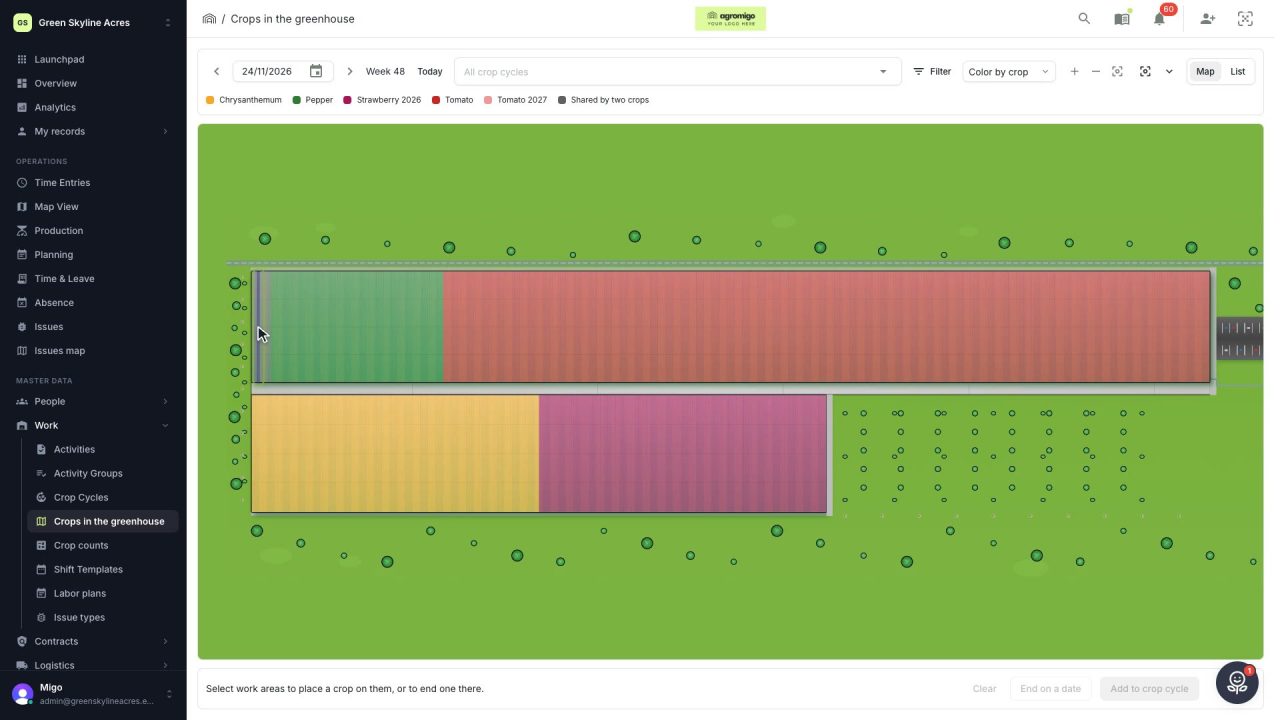
Crops in the greenhouse: see which crop stands on every row, any day
Crops in the greenhouse colors every row by the crop standing on it on the day you choose, and lets you place a crop on rows straight from the map.