Reach any person or record in a few keystrokes
One box finds people, records, screens and answers from the guide, and takes you straight to a worker's day, their balances or their details without walking the menu.
A supervisor stands in your doorway asking about one worker’s hours. You know the answer is three clicks away, but which three depends on which screen holds it, and by the time you are there the question has turned into a conversation.
Quick search collapses that. One box covers people, records, screens and the manual, and a person’s row carries the actions you were heading for anyway.
In this video
Migo shows you how to reach any person, record or screen with a few keystrokes.
The page. Quick search is one box for the whole dashboard. The magnifier in the top right corner opens it on every screen. A supervisor asks about one worker’s hours.
- Open it anywhere. The magnifier in the top right corner, or Ctrl + K on any screen.
- Type a few letters. Results appear as you type, grouped by kind, with the best match first.
- Actions on the row. Point at a person and three icons appear: today’s time entries, time balance ledgers, and edit.
- Their day. The clock opens Time entries with the date set to today, ready to check or correct those hours.
- Their balances. From any screen, Ctrl + K and the name again: the second icon opens that person’s ledgers, leave and time balances on one page.
- Their details. The pencil opens the edit sheet. Cancel closes it unchanged.
- A typo does not matter. "scoutng" still finds Scouting, and the pencil edits every other kind of record too.
- Ask a question instead. The Manual group comes first, answering from the guide rather than from your records.
- The answer, beside your work. Choosing one opens the guide on the right at the exact paragraph.
One shortcut and a few letters instead of walking the menu: a person’s day, balances or details, and answers, in seconds.
Tips
- Learn the one shortcut. Ctrl + K works on every screen, so it is the only route you have to remember.
- Type what you remember, not what is correct. Near enough matches still find the record.
- Use the row’s icons rather than opening the record first. They land you on the screen you were going to anyway.
- Ask a question when you want the guide. Searching words rather than a name puts the manual’s answers at the top.
Read more
The user guide covers the support tools, time entries and the ledger screen the row’s icons open.
Book a Demo.
More stories
-
 2 min
2 min See whose day went differently from the plan
Check a work day against the labor plan, see who worked something else or did not show up, and accept a change of plan that had a good reason.
Read the story -
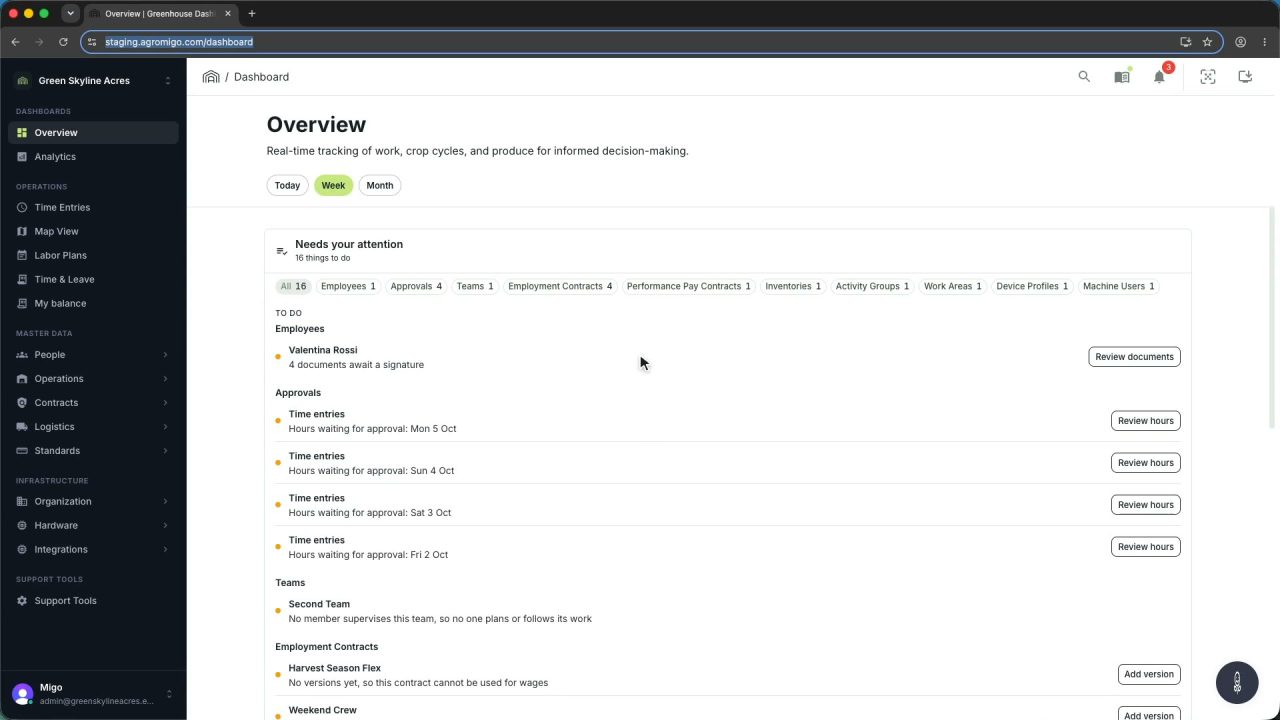 1 min
1 min Agromigo on your computer, in a window of its own
One click on the install icon and Chrome's Install button put the dashboard among your programs, opening in its own window, straight to your dashboard, always the latest version.
Read the story -
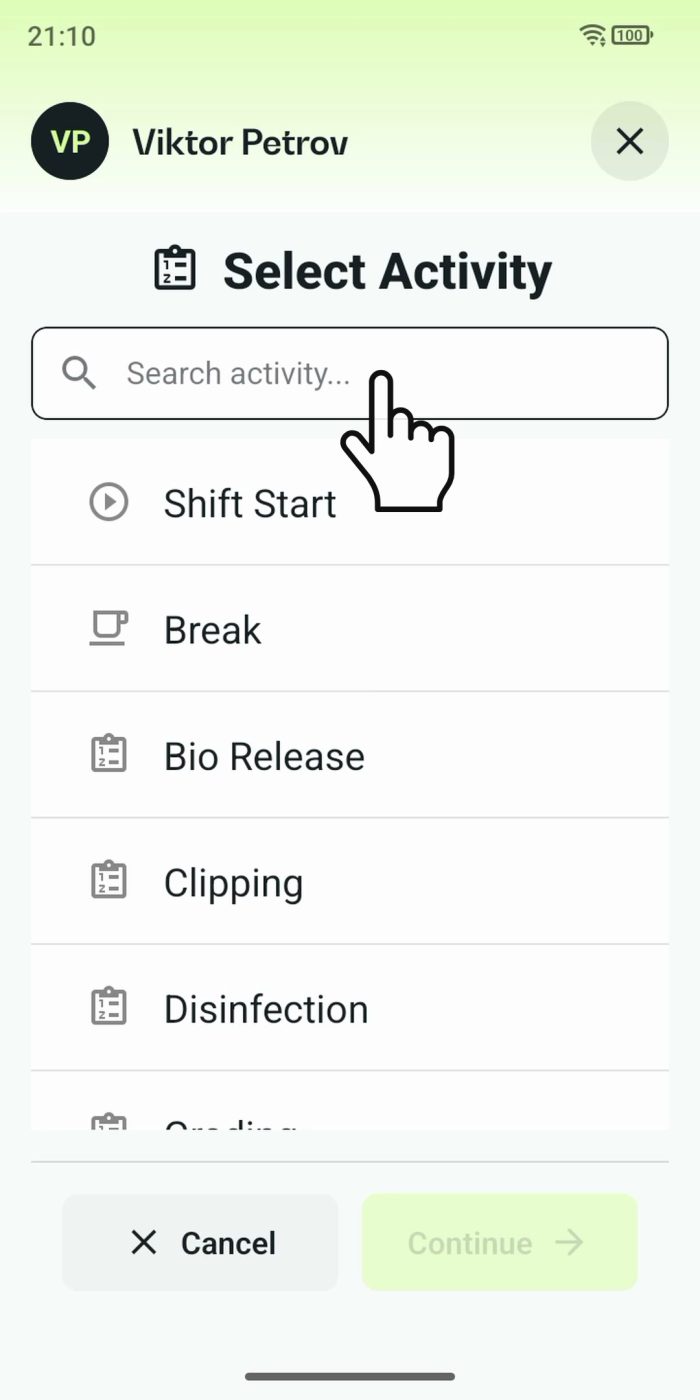 2 min
2 min One shared phone where the crew taps in with a tag
Terminal mode turns one phone into a terminal for a whole crew, at a fixed spot or moving with the team. Workers tap their personal tag, choose the task they finished, answer a few questions, and the screen resets for the next person.
Read the story