Agromigo on your computer, in a window of its own
One click on the install icon and Chrome's Install button put the dashboard among your programs, opening in its own window, straight to your dashboard, always the latest version.
Agromigo is open from the first shift start to the last approval. In a browser that means a tab, and a tab that lives all day gets buried among thirty others, closed by accident and found again by hunting through history.
Installing it ends that. The dashboard gets its own icon and its own window, and you switch to it the way you switch to any other program.
In this video
Migo shows you how to install Agromigo on your computer.
The page. Your dashboard in Chrome on a computer: for now a website, in a tab between your others.
- The install icon. In the top bar, at the right, a small icon of a screen with a download arrow.
- Chrome’s question. Chrome asks if you want to install Agromigo Workforce. Select Install, and that’s it.
From then on Agromigo opens in its own window, straight to your dashboard: no address bar and no tabs, just your work. It sits with your other programs and always opens the latest version.
Tips
- Put it on a second screen. A window of its own sits next to the spreadsheet or payroll export you’re checking against.
- Use the shortcut. Alt + I (Option + I on a Mac) opens the same question without the mouse.
- No icon in the top bar? Then it’s already installed on this computer, or the browser doesn’t offer it.
- Nothing changes but the window. Same account, same sign-in, same permissions, and nothing to keep in sync.
Read more
The user guide explains installing Agromigo as an app on a computer or a phone.
Book a Demo.
More stories
-
 2 min
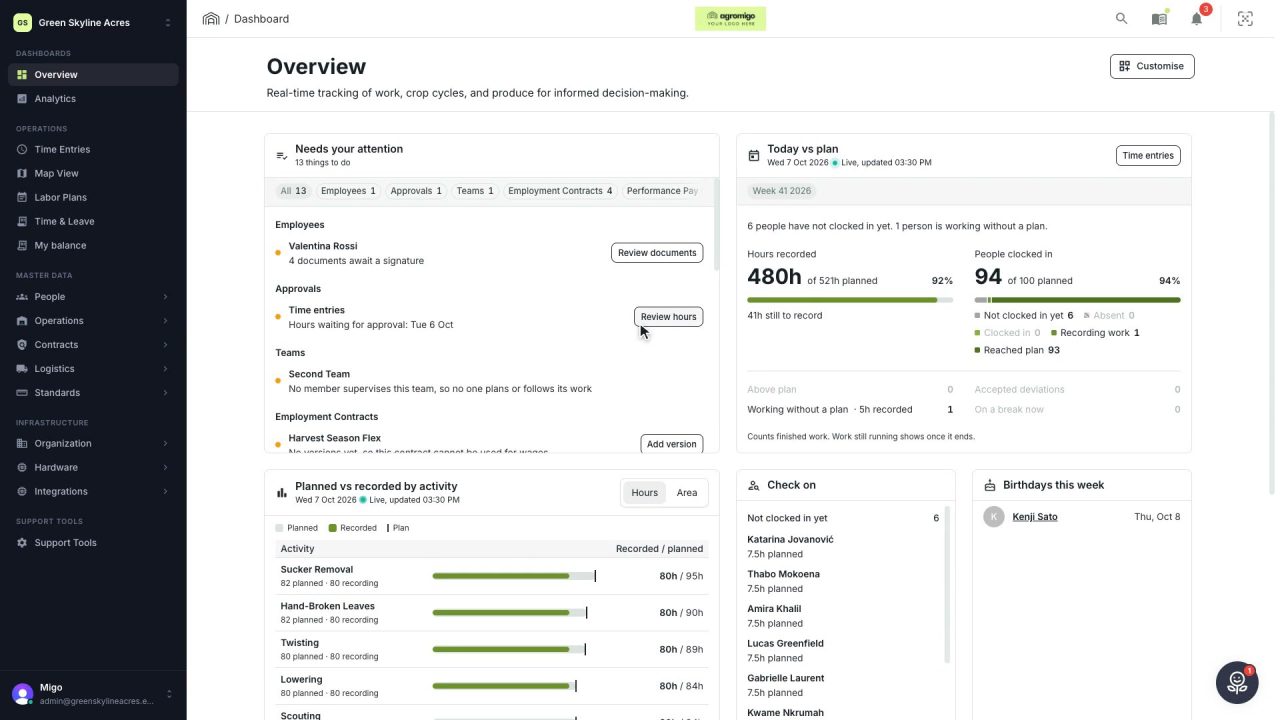
2 min See how today is going against the plan, while it is still going
The Today vs plan card on the Overview follows today's labor plan live. You see whether the day is on track, who is in and who to check on, without opening the plan or the time entries.
Read the story -
 2 min
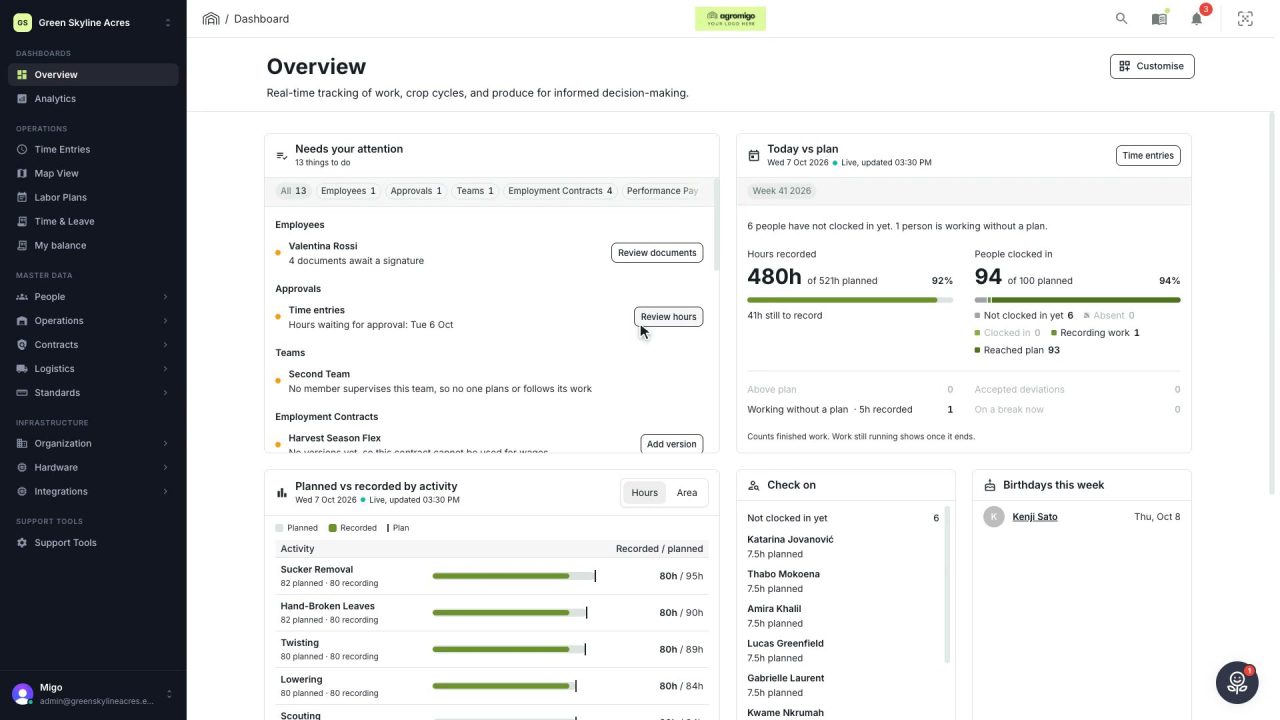
2 min Arrange the Overview the way you work
Move, resize and hide the cards on the Overview, so the figures you check every day are at the top and a long list has the room it needs.
Read the story -
 2 min
2 min See whose day went differently from the plan
Check a work day against the labor plan, see who worked something else or did not show up, and accept a change of plan that had a good reason.
Read the story