Arrange the Overview the way you work
Move, resize and hide the cards on the Overview, so the figures you check every day are at the top and a long list has the room it needs.
A grower who starts every morning with the hours wants them at the top. A supervisor who mainly clears the open items wants that list to have room. One fixed page cannot be right for both.
The Overview can be arranged by whoever uses it. The cards stay the same; where they sit, how big they are and whether you see them at all is up to you.
In this video
Migo shows you how to arrange the Overview the way you work: which cards you see, where, and how big.
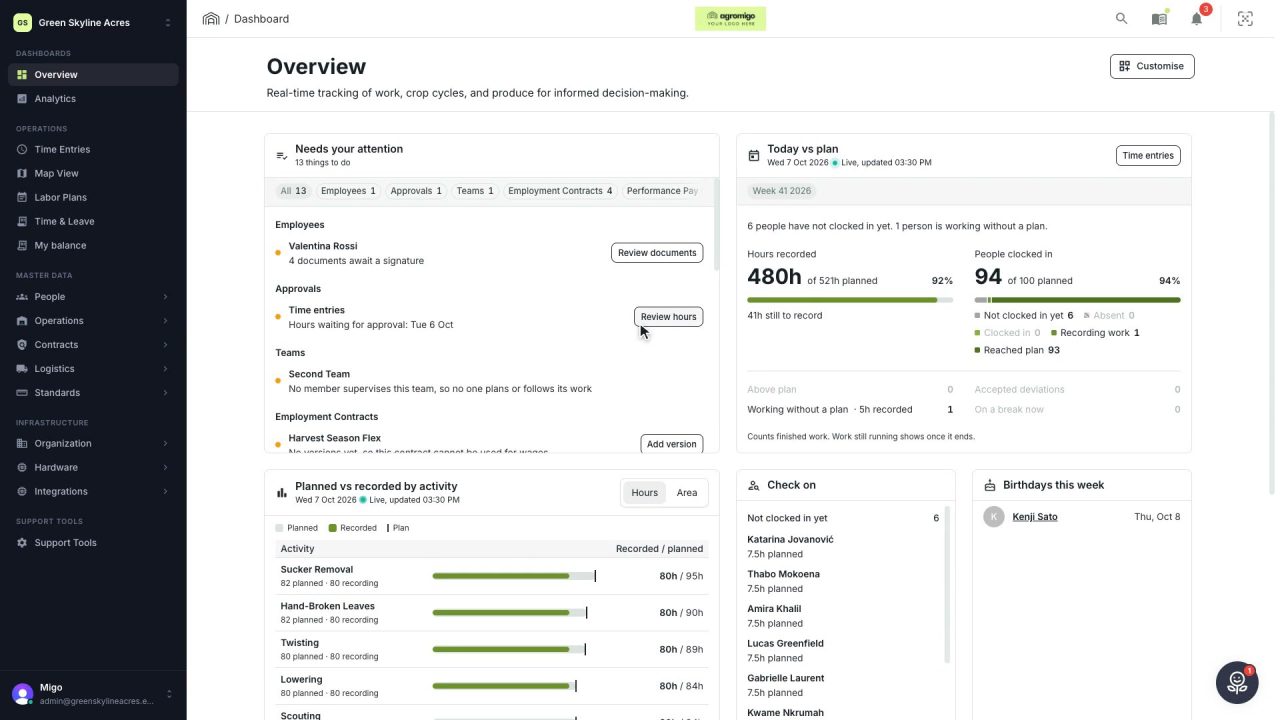
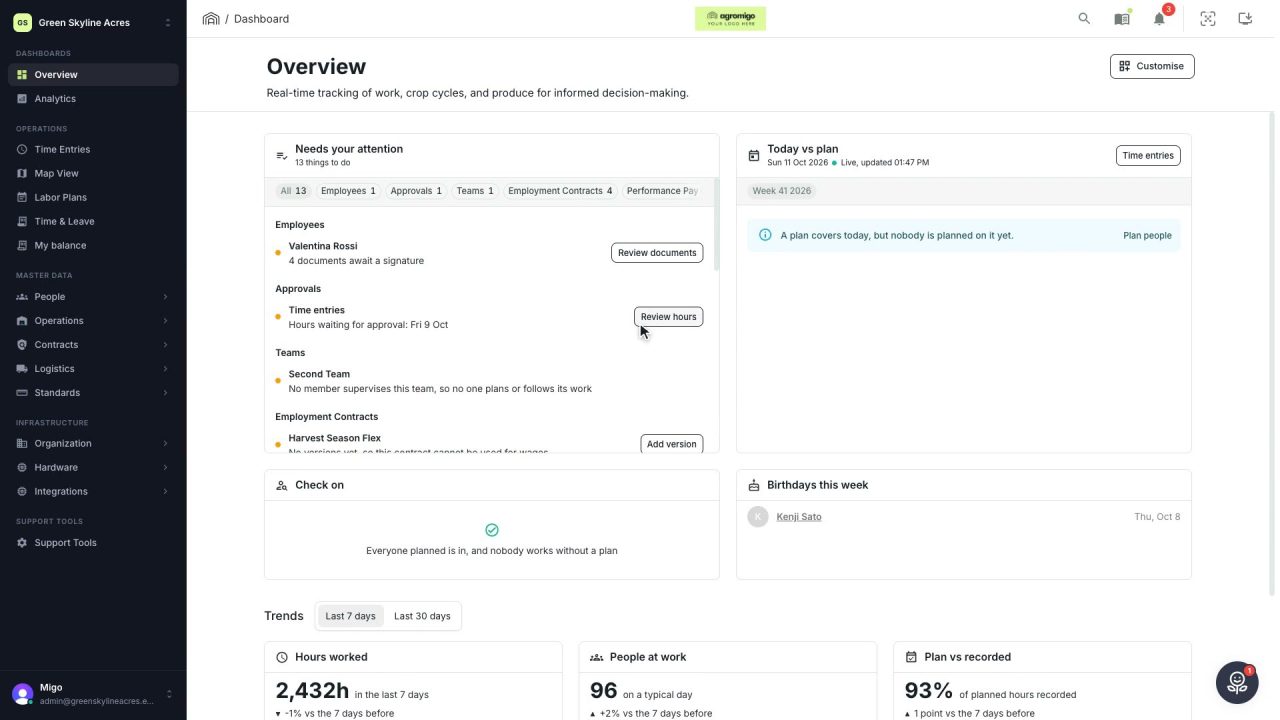
The page. The Overview holds your cards: what needs your attention, today against the plan, the plan per activity, who to check on, the birthdays, and the trends of the last days. Put the figures you check most at the top, give a long list room, and keep what you never use out of the way.
- Customise. At the top right, it opens the arrangement. Each card gets a bar with its name, a handle, and buttons for its size and for hiding it.
- Move. Drag a card by the handle at the start of its bar to put it somewhere else.
- Wider or narrower. Drag a card’s right edge. It snaps to the columns of the page, so the cards stay lined up.
- Taller or lower. Drag the bottom edge. A long list then scrolls under the card’s own header.
- By name. The size button offers the same widths and heights by name, handy on a touch screen or with the keyboard.
- Hide. The eye hides a card you have no use for, such as Birthdays this week. While you arrange, it stays faded on the page, so you can bring it back later.
- Cancel or Done. Cancel puts everything back as it was. Done keeps the arrangement for you, in this organization, in this browser.
Your Overview now shows what you look at every day, in the order you look at it.
Tips
- Start again any time. Reset layout, while you customise, brings back the standard arrangement.
- The keyboard works too. Select a handle and press Space to pick a card up, the arrow keys to move it, and Space to put it down. The edges resize with the arrow keys.
- Each browser has its own. The arrangement is kept in the browser you made it in, so a shared computer at the canteen keeps its own layout.
Read more
The user guide explains arranging the Overview and what each card shows.
Book a Demo.
More stories
-
 2 min
2 min See how today is going against the plan, while it is still going
The Today vs plan card on the Overview follows today's labor plan live. You see whether the day is on track, who is in and who to check on, without opening the plan or the time entries.
Read the story -
 2 min
2 min See whose day went differently from the plan
Check a work day against the labor plan, see who worked something else or did not show up, and accept a change of plan that had a good reason.
Read the story -
 1 min
1 min Agromigo on your computer, in a window of its own
One click on the install icon and Chrome's Install button put the dashboard among your programs, opening in its own window, straight to your dashboard, always the latest version.
Read the story