Change the working day without changing the days already worked
Plan a new start time or break as a new schedule on the shift template, so every past day keeps the times and breaks it was worked under.
A working day has a shape: when work starts, when the breaks fall and which part of a break is paid. That shape changes with the season. If changing it means editing the old one, last month’s days suddenly carry this month’s breaks, and the hours no longer match what was paid.
In Agromigo, a shift template holds only a name and a description. The shape of the day lives in its schedules, and each schedule applies from a start date. A change of working day is a new schedule, and every day before it keeps the schedule that was in force.
In this video
Migo shows you how to find a shift template, read its schedules, and plan a new start time without changing past days.
The list. Shift Templates lists the working days your teams follow, one template per pattern. Select a template in the list to see its schedules and who works to it.
From November, lunch gets a paid part. You plan that on the Primary template, ahead of time.
- The template. Primary opens beside the list. Its key facts show since when the current schedule applies, and until when.
- Schedules. The Schedules tab shows each schedule as a card with its period and a timeline of the day: the shift start as a line, each break as a bar, green for the paid part and orange for the unpaid part. A dashed border means the worker records the break. Point at a break for its minutes.
- Why a new schedule. A schedule applies from its start date, for whole days. A day worked before that date keeps the schedule in force at the time.
- Period. Add Schedule opens the schedule sheet. Set Effective From to the first day of the new schedule and leave Effective To empty.
- Shift start. Add shift start adds the start of the day at its Scheduled time. The Shift start field decides what happens to a worker’s tap: keep it, start automatically at the scheduled time when nobody taps, or round it to a step. A tapped time is never replaced by the plan.
- Break type. Add break adds a break. A manual break counts only when the worker records it; an automatic break is added when they work through it, and a recorded break replaces it.
- Paid and unpaid time. Paid time is an allowance: the first part of the break taken is paid, up to this much. Unpaid time is a minimum: the rest is unpaid, and a shorter break is still deducted this long.
- Recorded times. Recorded start and Recorded end round the worker’s taps. These rules apply to a break recorded within 30 minutes of its time; any other break is unpaid in full. A switch decides whether time beyond the scheduled length is paid.
- Nothing saved. Cancel, in the sheet’s footer at the bottom right, asks first, and Discard closes the sheet. The template is unchanged.
- A new template. For another pattern, New at the top right opens a sheet that asks only for a name and a description: the times and breaks go in its first schedule. Cancel closes it without saving.
Tips
- Plan ahead with a start date. Add the new schedule before the change, with Effective From on its first day. The current schedule keeps applying until then.
- Cutting a break short earns nothing. Missing paid time is not granted, and the unpaid minimum is still deducted.
- Make a break automatic when it is always taken. Workers who forget to record it still get it deducted, and a break they do record takes its place.
Read more
The user guide explains shift templates and how breaks are treated, and every field of a schedule.
Try it free for 1 month, no credit card needed.
More stories
-
 2 min
2 min See whose day went differently from the plan
Check a work day against the labor plan, see who worked something else or did not show up, and accept a change of plan that had a good reason.
Read the story -
 1 min
1 min Agromigo on your computer, in a window of its own
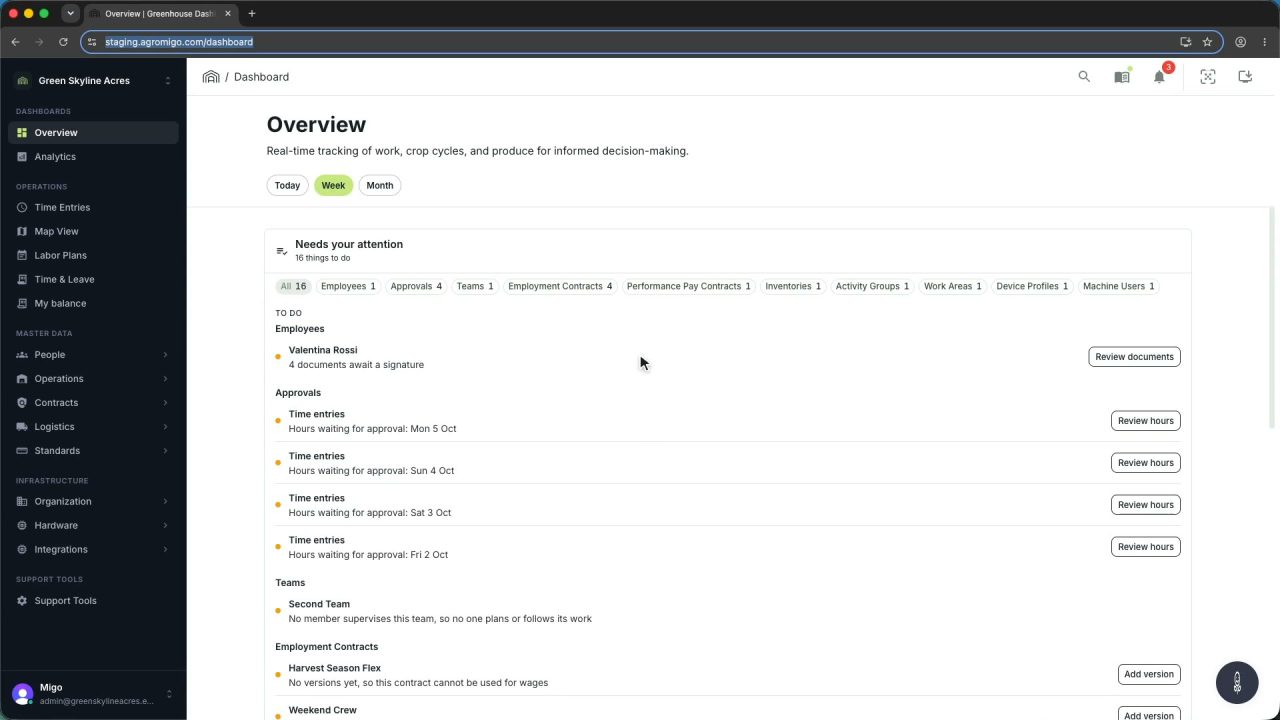
One click on the install icon and Chrome's Install button put the dashboard among your programs, opening in its own window, straight to your dashboard, always the latest version.
Read the story -
 2 min
2 min One shared phone where the crew taps in with a tag
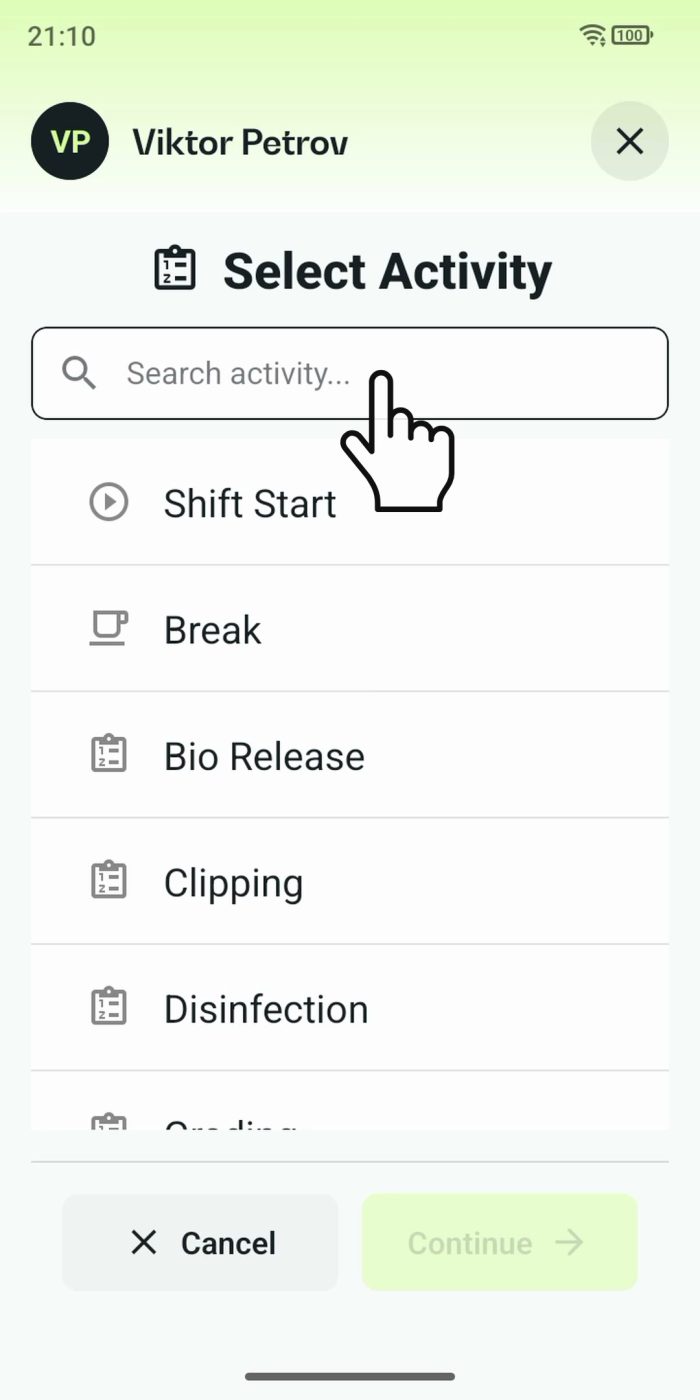
Terminal mode turns one phone into a terminal for a whole crew, at a fixed spot or moving with the team. Workers tap their personal tag, choose the task they finished, answer a few questions, and the screen resets for the next person.
Read the story