See where the work happened, row by row
Your greenhouse drawn to scale with every row shaded by how much of it was worked, red where bookings do not add up, and a booking moved to the right row by dragging it.
A list of hours tells you what was done. It does not tell you where, and it never shows you the row that was booked twice while the one beside it was booked not at all.
Map View draws your greenhouse instead. Every row is shaded by how much of it was worked, so two days of harvest read as a picture, and a booking in the wrong place looks wrong rather than reading as a plausible number.
In this video
Migo shows you how to read your greenhouse map row by row, and move a booking to the right row by dragging it.
The page. Map View draws your greenhouse for 2 and 3 September, every row shaded by how much of it was worked. Red rows are over-booked.
- One activity at a time. Filter the toolbar on Clipping: only the rows your crew clipped keep their colour, and the rest of the greenhouse fades.
- Zoom in. Scroll until single rows are wide enough to read and to click.
- Pan along the rows. Hold the middle mouse button and drag, to where the clipping ended on these two days.
- Open a row. The details panel shows who worked there, on which activity, for how long, and how much of the row was done.
- Why a row is red. Remove the activity chip and you see it: clipping and leaf breaking each claim the whole row, 200 percent.
- Move the booking. The clipping was really done on the empty row further along. Drag its card from the panel onto that row, and the badge shows where it lands.
- It applies at once. Both rows now read 100 percent, and the clipping shows where it happened.
- Wrong row? There is no undo button, so drag the card straight back and the map is exactly as it was.
In a few moves you see where the work of each day happened, and put every booking on the row where it belongs.
Tips
- Start from the red. An over-booked row is nearly always two crews claiming the same place, and the row that should have been booked is usually next to it.
- Filter to one activity before you judge a colour. A row worked by three activities adds up past 100 percent for good reasons.
- The map only knows what was recorded. A row nobody booked is blank, which is information too.
- There is no undo, but there is a drag back. The move applies immediately, and dragging the card back restores exactly what was there.
- Work areas decide the detail. A greenhouse divided into rows shows rows; one divided into zones can only ever show zones.
Read more
The user guide covers the map, work areas and time entries themselves.
Book a Demo.
More stories
-
 2 min
2 min See whose day went differently from the plan
Check a work day against the labor plan, see who worked something else or did not show up, and accept a change of plan that had a good reason.
Read the story -
 1 min
1 min Agromigo on your computer, in a window of its own
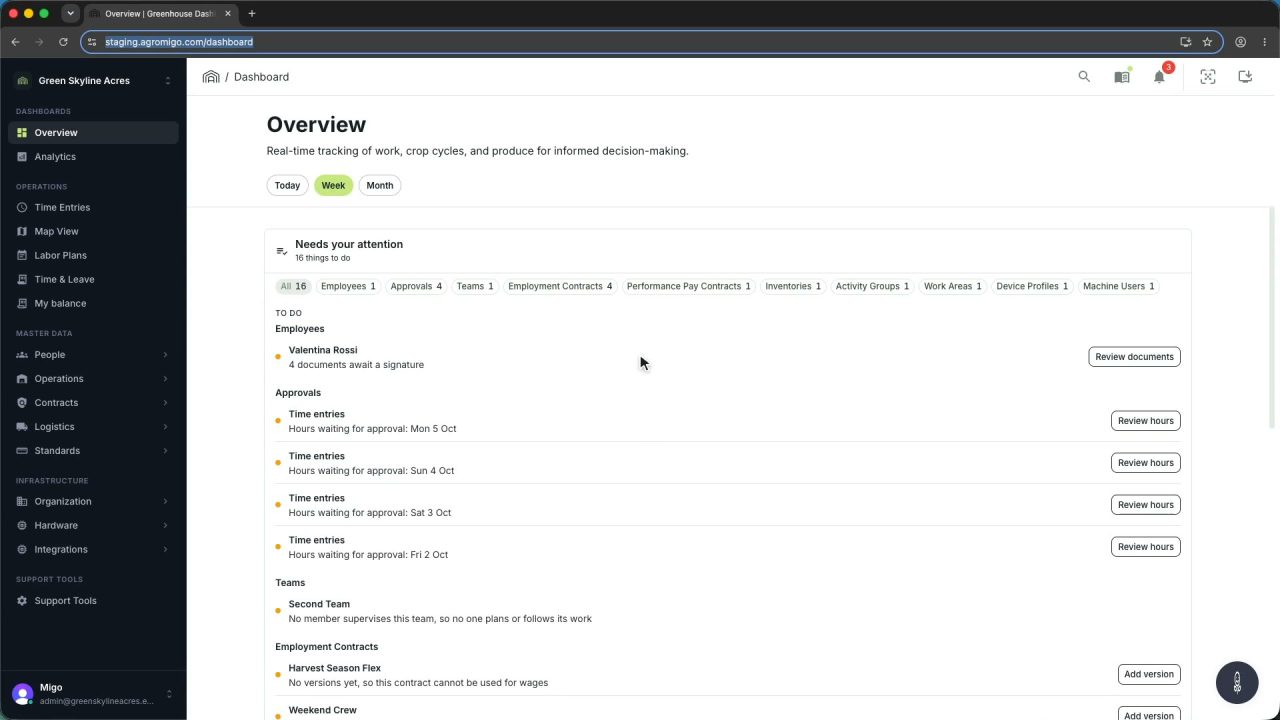
One click on the install icon and Chrome's Install button put the dashboard among your programs, opening in its own window, straight to your dashboard, always the latest version.
Read the story -
 2 min
2 min One shared phone where the crew taps in with a tag
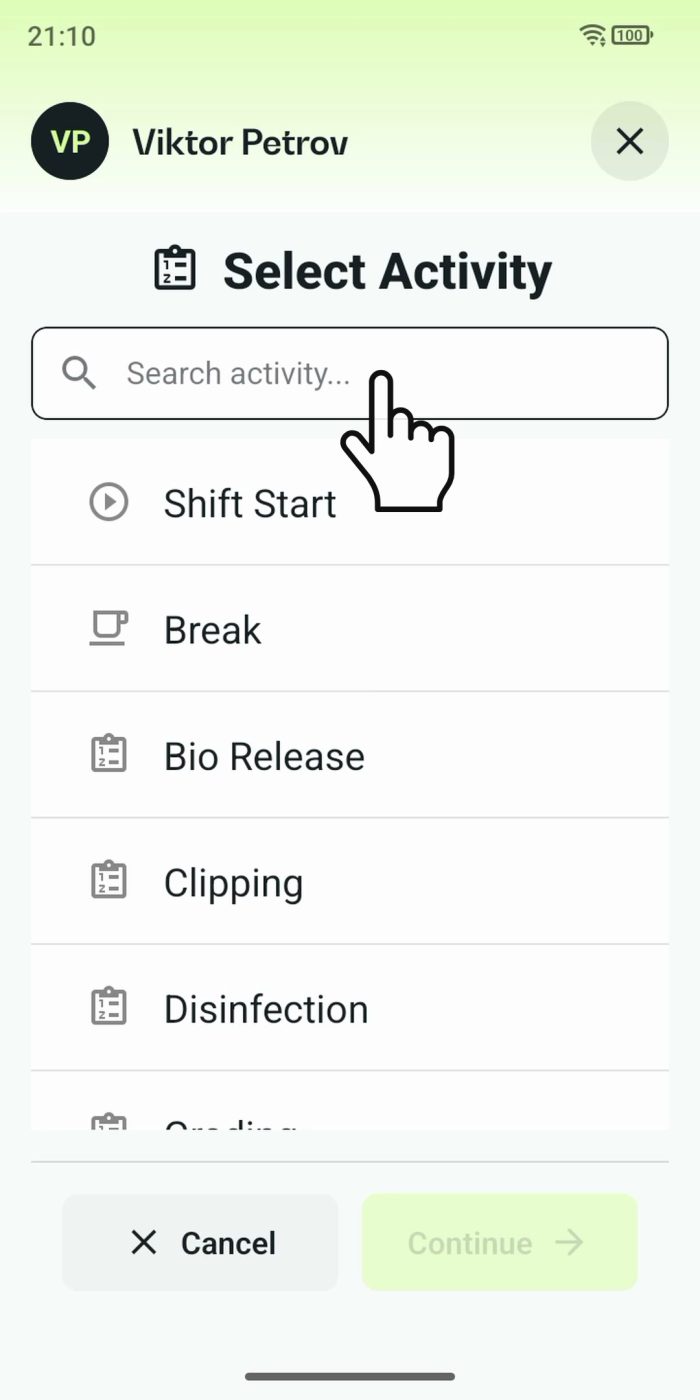
Terminal mode turns one phone into a terminal for a whole crew, at a fixed spot or moving with the team. Workers tap their personal tag, choose the task they finished, answer a few questions, and the screen resets for the next person.
Read the story