Ask about your workforce and get an answer in plain words
Migo answers questions about your own records, follows up without losing the thread, and explains how Agromigo works, right beside your work.
A quick question about one of your workers should not mean building a report. How long did David work last Tuesday? Who is short on hours this week? Usually that means opening a screen, picking a date, adding up rows, and losing the thread of what you were actually doing.
Migo, the assistant built into Agromigo, answers those questions for you. You ask in your own words, and Migo looks the answer up in your own records and replies in plain language, right beside the screen you are working on.
In this video
Migo shows you how to ask Migo about your own records, follow up, and get Agromigo explained.
The screen. The video starts on Employees, the list of everyone in your operation. The round button in the bottom right corner, on every screen, is Migo, the assistant built into Agromigo. Ask it about your own data, or how something works, in your own words, without searching through screens or building a report.
Say you have a quick question about one of your employees, and the answer sits somewhere in your time registration.
- Open Migo. The round button in the bottom right corner. Just below its title, Migo names the screen you are on.
- Ask. Type your question in the box at the bottom of the panel, as you would ask a colleague: how long David worked on one day.
- Send. The arrow to the right of the box sends it. Migo looks up David’s time entries for that day and adds up his hours.
- Watch it work. The conversation shows what Migo is doing, from reviewing the information to writing the answer.
- The answer. Just below your question, in plain language, straight from your own time registration.
- A follow-up. Ask again in the same box without repeating his name. Migo understands that "his" still means David and reads the answer from his employee record.
- A how-to. Ask how to change David’s date of birth. Migo explains where you make that change in Agromigo. Personal details stay out of its reach, so the change is always yours to make.
Hours, follow-up questions and how-tos, all answered in one conversation, on any screen, in the language you work in.
Tips
- Open it from the keyboard. Alt+M (Option+M on a Mac) opens and closes Migo on every screen. The page behind it stays exactly as it was, so the rows an answer refers to are still where you left them.
- Ask how something works. For a how-to question, Migo answers from the Agromigo user guide and links the section it used, so you can read the full explanation yourself.
- Check before you act. When an answer concerns a specific entry, Migo names it and offers a button to open it. Migo is marked as experimental, so treat an answer as a well-informed colleague’s first read and open the entry before you change anything.
Migo only sees what your own account may see. Personal details such as home addresses, dates of birth and contact details are kept out of its reach altogether. The conversation stays with you while you move around the dashboard, and it is wiped when you sign out.
Read more
The Migo chapter of the user guide explains where Migo appears, what an answer contains, the rules it works under, and what happens to your data.
Try it free for 1 month, no credit card needed.
More stories
-
 2 min
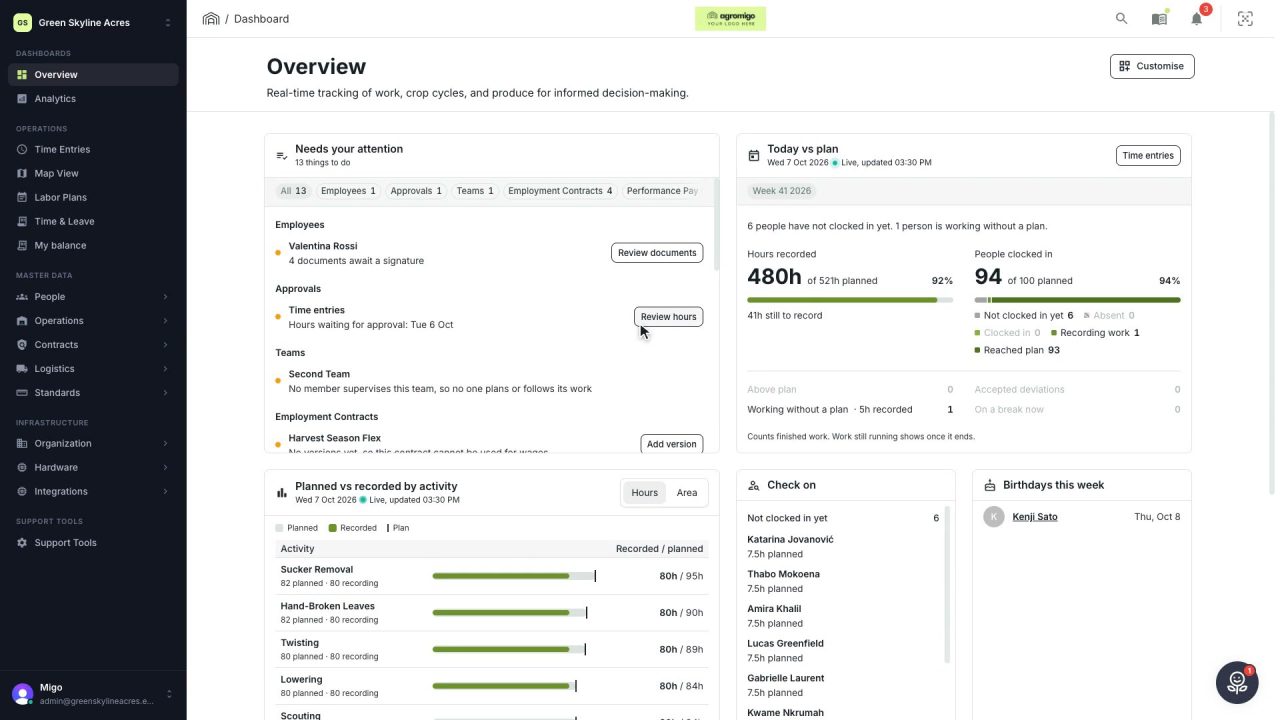
2 min See how today is going against the plan, while it is still going
The Today vs plan card on the Overview follows today's labor plan live. You see whether the day is on track, who is in and who to check on, without opening the plan or the time entries.
Read the story -
 2 min
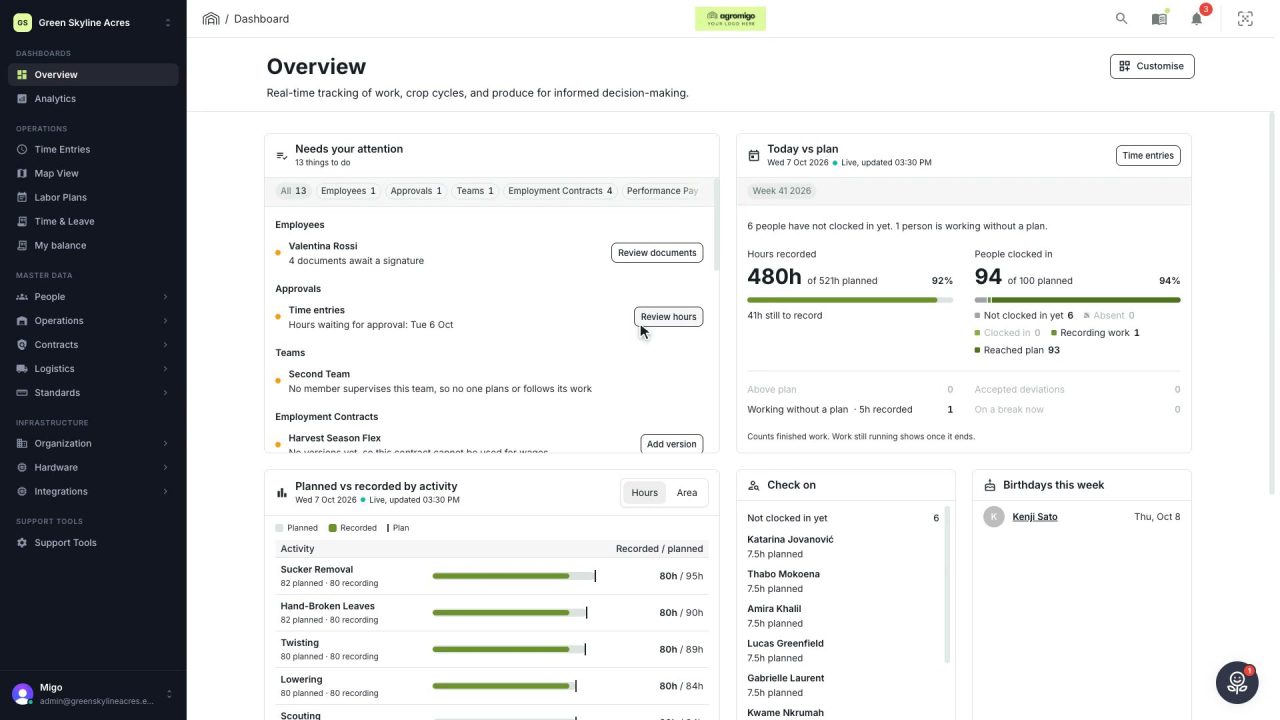
2 min Arrange the Overview the way you work
Move, resize and hide the cards on the Overview, so the figures you check every day are at the top and a long list has the room it needs.
Read the story -
 2 min
2 min See whose day went differently from the plan
Check a work day against the labor plan, see who worked something else or did not show up, and accept a change of plan that had a good reason.
Read the story