New seasonal workers, ready before their first workday
Add a new seasonal worker in minutes, spot the gaps in existing records at a glance and invite people once their details are complete.
The season is about to peak and new people start on Monday. Their details arrive on paper, by text message and half in someone’s head. Something always goes missing: an ID number, a phone number, a signature. You only find out when payroll asks.
With Agromigo, a new worker is on the system in minutes. Every record shows you what is still missing, so you fix gaps before they turn into problems. By the first workday, everyone is ready to start.
In this video
Migo shows you how to open a worker’s record, fill in what’s missing, and add a new seasonal worker.
The list. Employees lists everyone in your operation, one row each with name and role. Select a row, and that person’s record opens beside the list. Hours, contracts and pay all build on these records, so a complete record keeps payroll correct and your paperwork ready for an audit.
- Find someone fast. Type a name in the search box above the list, such as Valentina, and select her row.
- Her record. Beside the list: key facts across the top, then what still needs doing, then her details in cards.
- The Next steps card. Just below the key facts: a privacy notice she has not accepted, and documents waiting for her signature.
- The Contact card. Her phone number and email address both show a dash: the gaps in her record, at a glance.
- Complete the record. The pencil at the top right opens the employee sheet, filled in. In Identity Document you choose the document type, then type the number and the expiry date.
- Invite. In the sheet’s footer, Invite would email her a sign-in invitation. You send it once her details are complete.
- Nothing saved. Cancel, at the bottom right of the sheet, then Discard.
- A new worker. A new seasonal worker starts on Monday. New, in the top right corner (below the page title on a phone), opens the same sheet, empty.
- Name and email. Her first and last name go in the first card; her email address goes in the Contact Information card, just below.
- Identity Document and role. Further down, the Identity Document card holds her ID details, and in Access & Security you choose Worker, which decides what she can see and do in Agromigo.
With a complete record and one invitation, a new worker is ready on day one.
Tips
- Set the language right away. The language on an employee’s record is the language the Agromigo Crew app speaks to them. Getting it right on day one saves a confusing first morning.
- Let the ID do the typing. Choose Extract from ID in the footer of the form and upload a photo of a passport, ID card or driving license. You check what it reads, then Apply Data fills in the form for you to save.
- Adding people early costs nothing. Employees are counted per workday, and only on the days they actually record work. There is no reason to wait with putting a new crew on the system.
Read more
The user guide covers Employees from adding to offboarding, and the employee record explains every field, the invitation and who can see which details.
Try it free for 1 month, no credit card needed.
More stories
-
 2 min
2 min See whose day went differently from the plan
Check a work day against the labor plan, see who worked something else or did not show up, and accept a change of plan that had a good reason.
Read the story -
 1 min
1 min Agromigo on your computer, in a window of its own
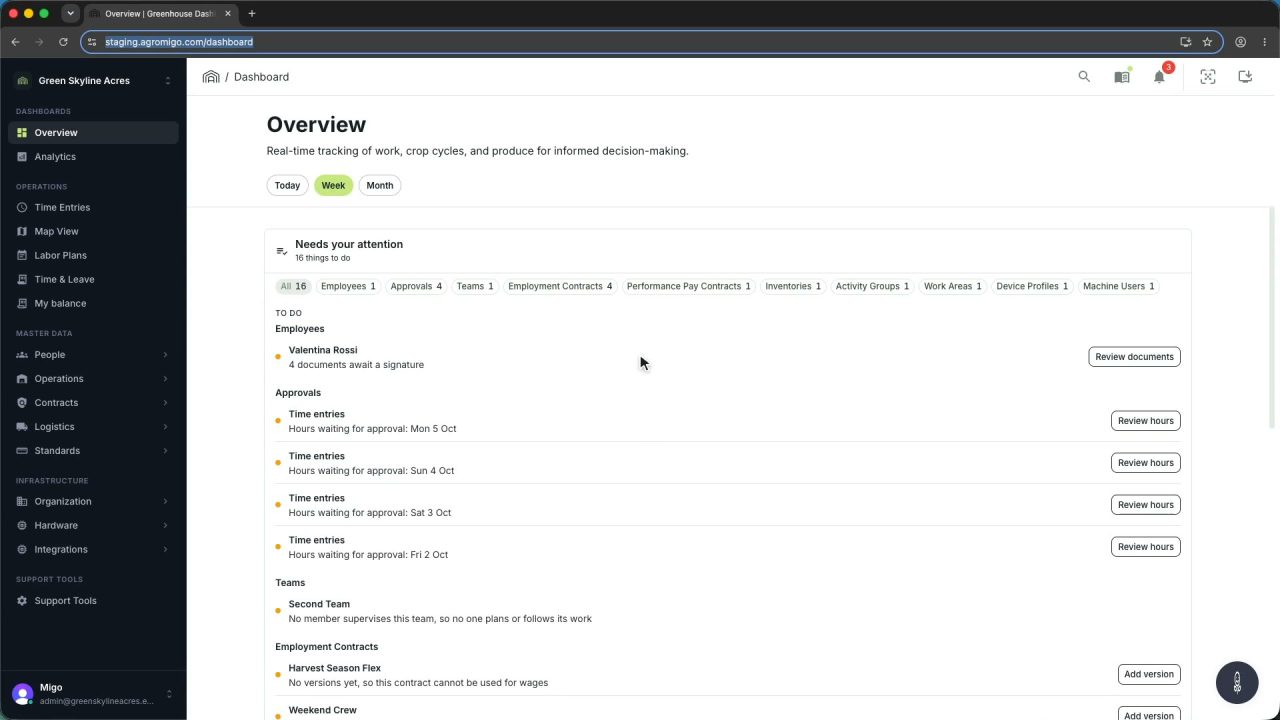
One click on the install icon and Chrome's Install button put the dashboard among your programs, opening in its own window, straight to your dashboard, always the latest version.
Read the story -
 2 min
2 min One shared phone where the crew taps in with a tag
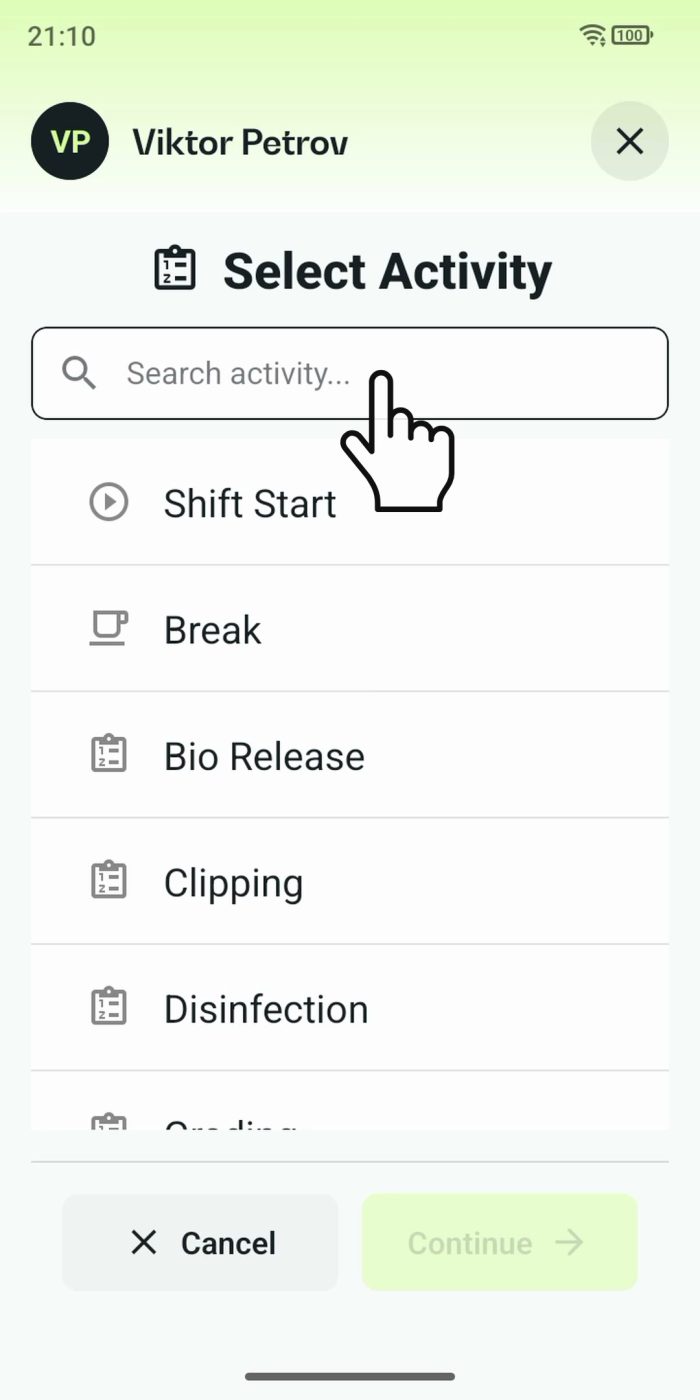
Terminal mode turns one phone into a terminal for a whole crew, at a fixed spot or moving with the team. Workers tap their personal tag, choose the task they finished, answer a few questions, and the screen resets for the next person.
Read the story