Change pay terms without rewriting last month’s payroll
Record a wage rise or a new collective agreement as a new contract version, so every hour is paid by the terms that applied on the day it was worked.
Pay terms change every year: a new collective agreement, a higher minimum wage, a different overtime rule. If changing the terms means overwriting them, last month’s hours suddenly come out at this month’s rate the moment anyone recalculates, and nobody can explain the difference.
In Agromigo, a contract never holds its numbers directly. Every wage and every rule lives in a version that is valid from a date. A change of terms is a new version, and the previous one stays exactly as it was.
In this video
Migo shows you how to find a contract, read its versions, and record a wage rise without changing last month’s payroll.
The list. Employment Contracts lists every contract your people work under. The search box and filters sit just above the list. Select a contract, and its terms and versions open beside the list. A contract decides how every recorded hour turns into pay: the wage, the employer costs and the overtime rules.
From January, a new collective agreement raises the hourly wage. You record it on the full-time contract.
- The contract. Search the list and open the full-time contract. Its key facts show the worker type, the contract period, the active version and how many people are assigned.
- Versions. The Versions tab lists every version, each with its own period, wage and working hours.
- Why a new version. For every time entry, Agromigo uses the version in force on the day the work was done. Hours before the new start date keep the old terms, so last month’s payroll never moves, even when it is recalculated.
- General. Add version opens the version sheet. Give the version a name and set Valid From, the first day it applies. Valid Until can stay empty: when you save, Agromigo offers to end the previous version the day before the new one starts.
- Wage Configuration. Choose the wage type (per hour, week or month) and enter the gross amount. A weekly or monthly wage is divided by the standard working week or month, so fill those in too.
- Scheduled Working Hours. The contracted hours per weekday. They show short days, settle a mid-week start, and should add up to the week.
- Employer Costs. The total employer surcharge turns gross pay into what an hour costs you, and the legal minimum wage, with its correction switched on, keeps every hour at or above the floor.
- CAO Thresholds and Surcharges. Each employee’s own working hours and the high-overtime limits split the week’s hours into bands, and the surcharges decide how much extra time-for-time overtime earns. The full-time week only counts for a seasonal contract without a schedule.
- Nothing saved. This is a tour, so Cancel, in the sheet’s footer at the bottom right, asks first, and Discard closes the sheet. The contract is unchanged.
- A contract that is not ready. Search for harvest: the harvest season contract has no version yet, so its Next steps card warns that it cannot be used for wages. Its Add version button opens the same sheet.
- A new contract. New, at the top right, opens a sheet that asks for a name, the worker type and the start date. The wage and the rules come later, in its first version. Cancel closes it without saving.
Tips
- Change terms with a new version, never by editing the old one. Set Valid From to the first day of the new terms. Everything before it stays with the version that was in force.
- Let Agromigo end the previous version. Saving a version that starts while the current one has no end date asks to end the current one the day before, so every day belongs to exactly one version, in pay and in reports.
- Fill in the standard hours with a weekly or monthly wage. Without them the hourly wage resolves to zero and every cost on the contract comes out at zero.
- Fill in the working hours per day. Without them, someone who starts mid-week is measured against a full week and opens with a negative balance.
Read more
The user guide explains employment contracts and, field by field, what each part of a contract version does to pay.
Try it free for 1 month, no credit card needed.
More stories
-
 2 min
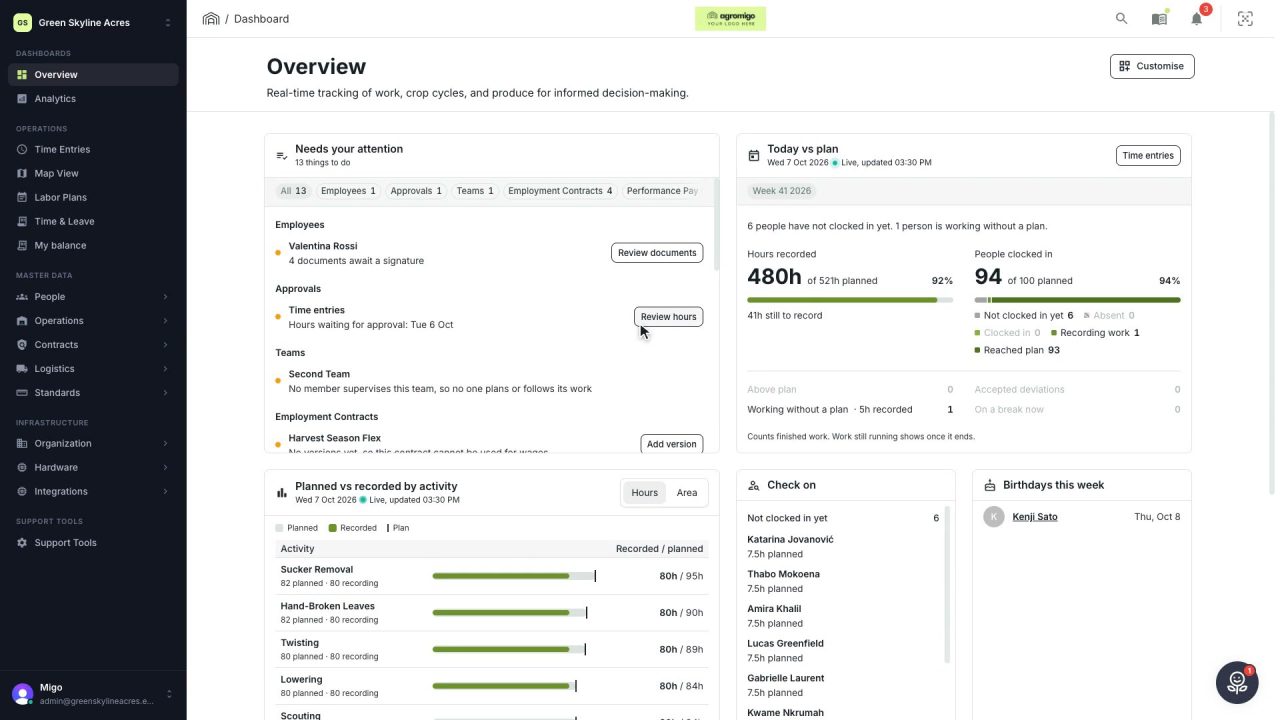
2 min See how today is going against the plan, while it is still going
The Today vs plan card on the Overview follows today's labor plan live. You see whether the day is on track, who is in and who to check on, without opening the plan or the time entries.
Read the story -
 2 min
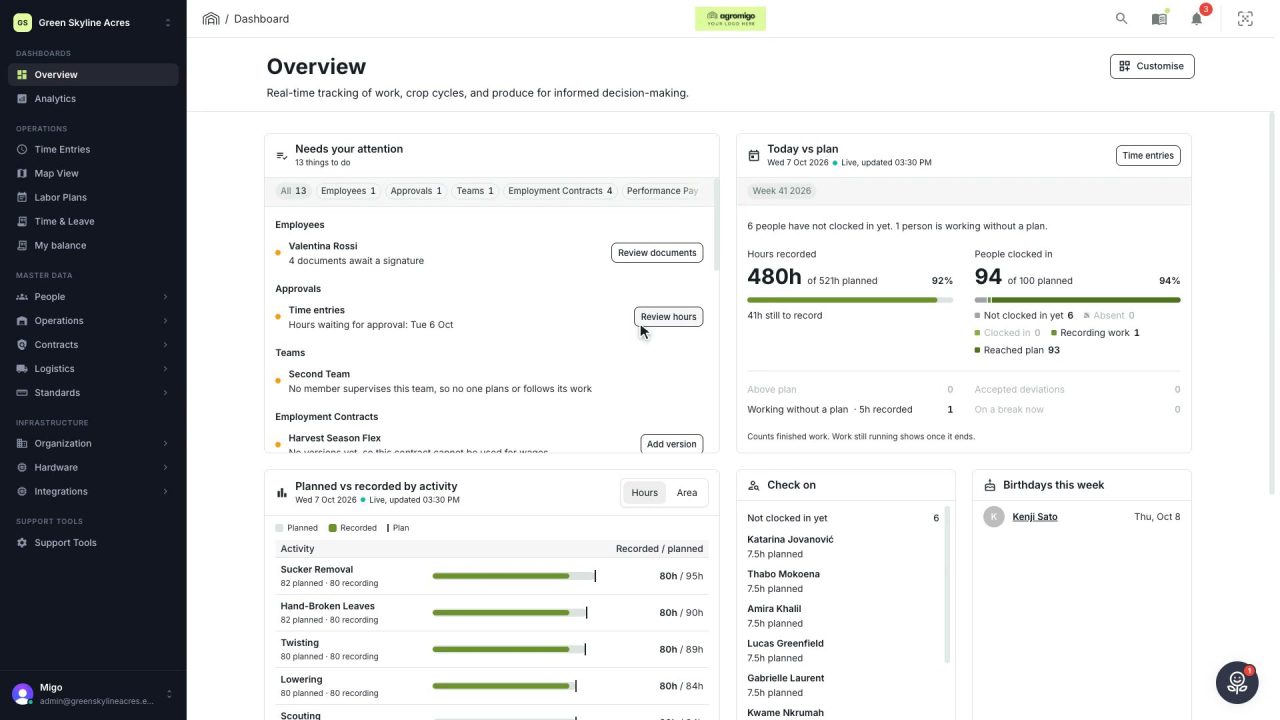
2 min Arrange the Overview the way you work
Move, resize and hide the cards on the Overview, so the figures you check every day are at the top and a long list has the room it needs.
Read the story -
 2 min
2 min See whose day went differently from the plan
Check a work day against the labor plan, see who worked something else or did not show up, and accept a change of plan that had a good reason.
Read the story