Put time registration on a worker’s own phone
A short wizard in the dashboard produces one QR code. The worker scans it, installs the Agromigo Crew app from the Play Store, scans again, and their phone is part of your operation.
Buying a device for every picker is how most time registration projects stall before they start. Meanwhile every worker already carries a phone, and the only real question is how to connect it to your operation without an IT afternoon per person.
Agromigo answers that with one QR code. The worker scans it, installs the Agromigo Crew app, scans it once more, and from the next shift their hours arrive without paperwork.
In this video
Migo shows you how to put the Agromigo Crew app on a worker’s own phone, with one QR code.
The page. Every screen’s top bar carries a QR icon on its right-hand side. That is where devices get set up.
- Open the wizard. Connect a device is short: App, Install and Connect run along the top.
- Which app. Crew, the top card, is for the worker in the field: clocking in, logging time and completing tasks.
- How to install. A phone you own installs the app from the Google Play Store and erases nothing.
- One code, scanned twice. The Connect step shows a single QR code. The first scan, with the phone’s camera, opens the Agromigo Crew app in the Google Play Store.
- Install. The code opens the Agromigo Crew app in the Play Store. Install, wait, Open.
- The second scan. When the app asks for the organization, they choose Scan the QR code on Connect your device and scan the same code again. The phone joins your operation.
- No camera, no problem. The organization code sits just below the QR code, with a copy button, and Enter the organization code in the app takes it.
Finish closes the wizard. The worker’s phone is connected, ready to clock in on the next shift.
Tips
- Use a worker’s own phone where you can. It is the cheapest device you will ever deploy, and the one least likely to be left in a locker.
- Keep Enter the organization code for the greenhouse. A camera and a dusty screen do not always agree, and the organization code always works.
- Decide what the device offers before you hand it over. Work areas and activities are set per device, so a phone can show a short list that fits where it is used.
- A shared device installs differently. Locking a device to the app needs provisioning, which erases it first.
Read more
The user guide covers devices, the device form and device profiles. What happens on the phone has a video of its own.
Book a Demo.
More stories
-
 2 min
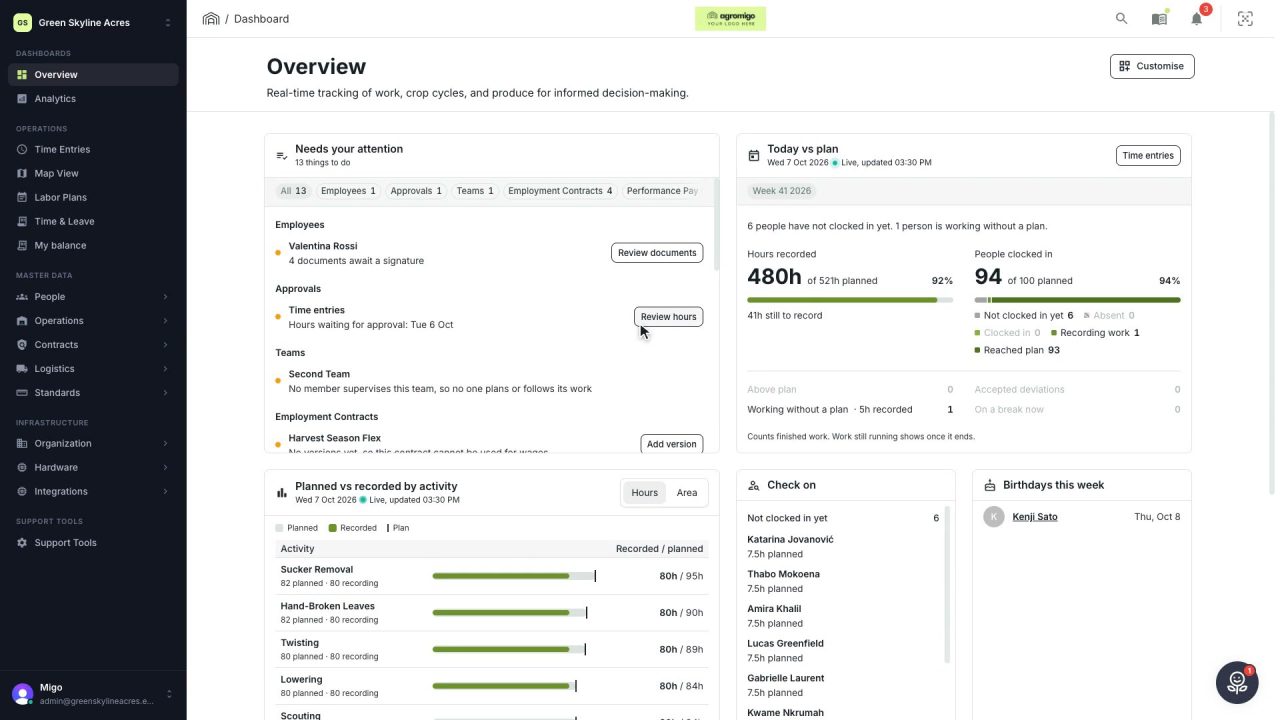
2 min See how today is going against the plan, while it is still going
The Today vs plan card on the Overview follows today's labor plan live. You see whether the day is on track, who is in and who to check on, without opening the plan or the time entries.
Read the story -
 2 min
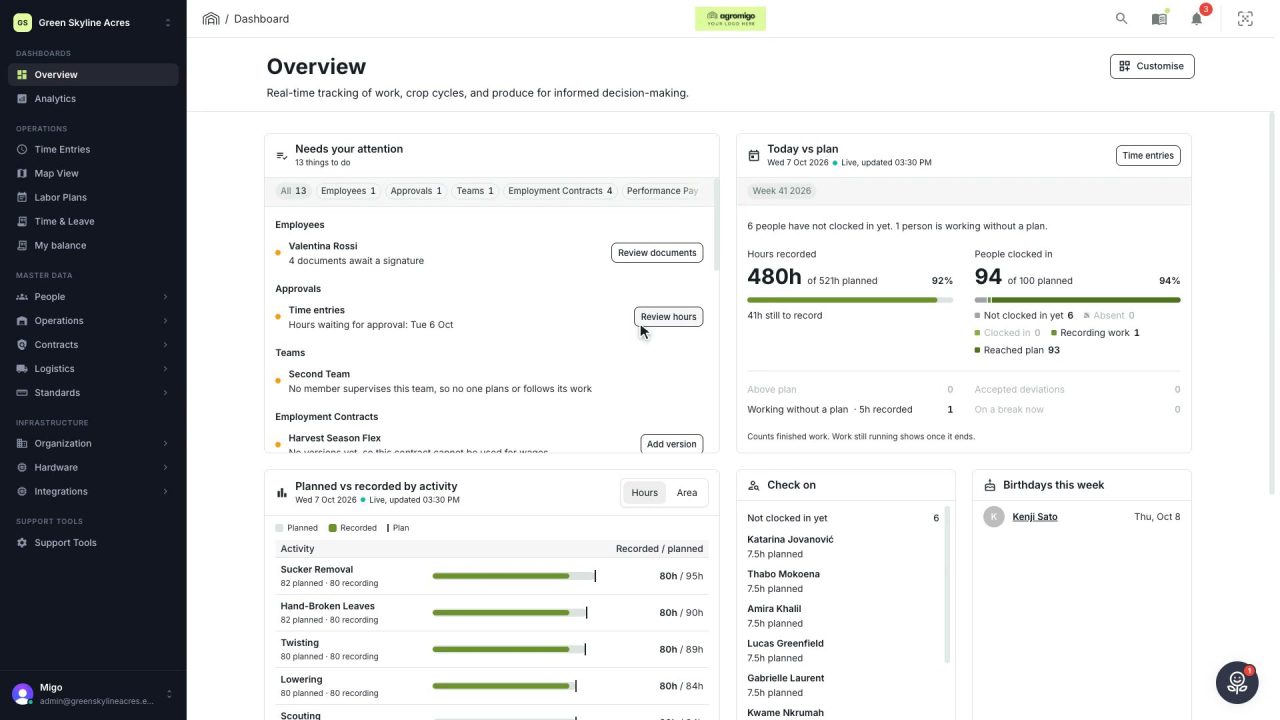
2 min Arrange the Overview the way you work
Move, resize and hide the cards on the Overview, so the figures you check every day are at the top and a long list has the room it needs.
Read the story -
 2 min
2 min See whose day went differently from the plan
Check a work day against the labor plan, see who worked something else or did not show up, and accept a change of plan that had a good reason.
Read the story