The rules every new worker reads, watches and signs
Set up a privacy notice, house rules or a welcome video once, decide whether it is mandatory, and see per worker what is signed and what is still waiting.
Every intake starts with the same explanations: the house rules, hygiene, what to do in an emergency. Someone gives them again for every group, and nobody can say afterwards who heard what.
With Agromigo you set those rules up once, as a document or a short video. New workers go through them during onboarding, before their first day, and each confirmation is kept on their record.
In this video
Migo shows you how to set up the documents new workers read, watch and sign, and how to see who still has to sign.
The list. Documents lists everything your crew reads, watches or signs, with each document’s category and requirement. Select a row, and that document opens beside the list.
- Mandatory. The chip above the list narrows it to the documents a new worker cannot skip.
- A welcome video. Its record shows the version, format and language across the top, the Classification card with its category and requirement, and the Content & Validity card with its link.
- Three content types. In the edit sheet, a document is an uploaded file such as a PDF, a link to a web page, or a video.
- Videos on YouTube. A video can stay on YouTube with an unlisted link: only people with the link can find it, and workers watch it right inside Agromigo.
- Mandatory documents. They appear in onboarding: the worker reads or watches each one, confirms it, and signs once at the end. A required video cannot be skipped forward.
- Optional and informational documents. They stay out of onboarding. You can still assign one to a person, and it then waits for their signature like any other.
- A new document. To add a document, click New, the green button in the top right corner. The same sheet opens empty: you give it a name, pick a category and a type, and Cancel closes it without saving.
- A worker’s side. On Valentina’s record, the Next steps card counts the documents still waiting for her signature, and the Compliance & Documents card on the Documents tab lists what is signed and what is pending.
Tips
- Put what matters in a short video. Safety and hygiene rules land better on video than on paper, and a mandatory video is watched in full.
- Add one document per language. A worker is offered the document in their own language, and the one in your organization’s language when theirs is missing.
- Changed a rule? Add a new document. Changing a document does not ask anyone to confirm it again, so publish the new version as a new document and assign it to the people who already work for you.
- Host your own video files. A video file you upload yourself opens in a new tab; a hosted video plays inside Agromigo.
Read more
The user guide explains content types, requirements and signatures in Documents and consent.
Try it free for 1 month, no credit card needed.
More stories
-
 2 min
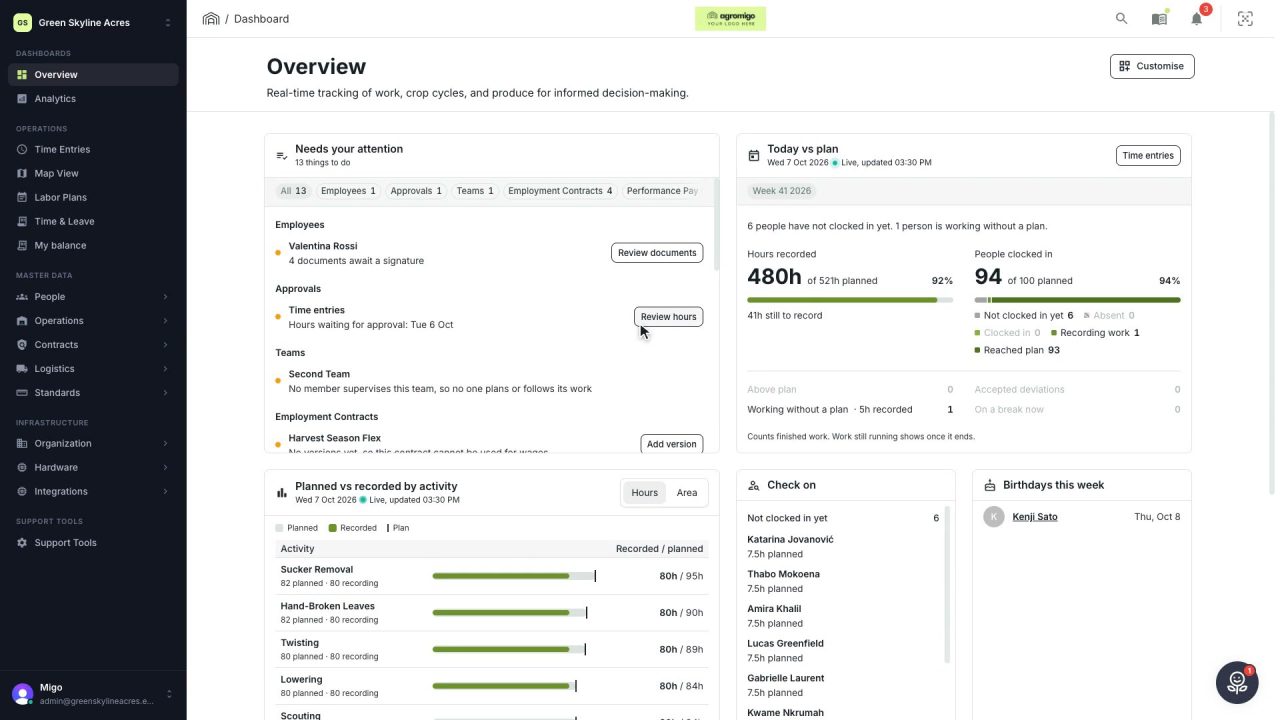
2 min See how today is going against the plan, while it is still going
The Today vs plan card on the Overview follows today's labor plan live. You see whether the day is on track, who is in and who to check on, without opening the plan or the time entries.
Read the story -
 2 min
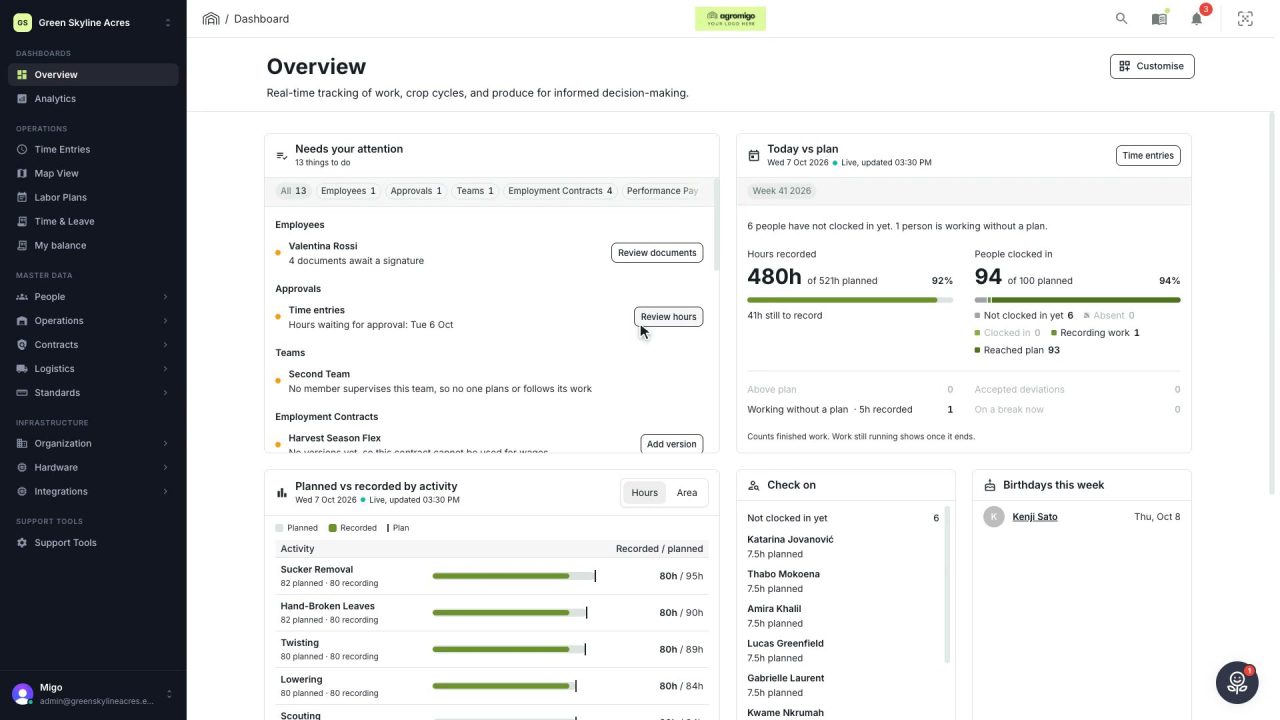
2 min Arrange the Overview the way you work
Move, resize and hide the cards on the Overview, so the figures you check every day are at the top and a long list has the room it needs.
Read the story -
 2 min
2 min See whose day went differently from the plan
Check a work day against the labor plan, see who worked something else or did not show up, and accept a change of plan that had a good reason.
Read the story