Send the day for approval from the greenhouse floor
A supervisor approves the team's day on a phone, with a review note saying what was checked, then sees where a day already sent stands.
A day that waits for approval waits for someone to remember it. By the time the supervisor is back at a desk, the details are gone and the day goes through on trust.
Agromigo lets the supervisor approve the day on their phone before they leave the greenhouse, with a note that says what they checked. The next reviewer gets a day that has been looked at by someone who was there.
In this video
The page. Time entries lists your team’s work day: everyone who worked, with their hours. Every entry is checked and corrected, and you send the day on before you leave.
- Approve day. The green button just below the title opens the Time approval screen, with the date under its title and a summary counting the entries and people you send in.
- A note is required. In the box below the summary, say what you checked. The note stays with the day in the audit trail.
- Forward for approval. The button in the bottom right corner sends the day to the next reviewer, who is notified and takes it from there. The video stops just short of sending, and Cancel closes the screen.
- A day you already sent. On a day that is on its way, Approve day opens the Approval status screen instead, with every step the day passes through listed from top to bottom.
- Finished steps. A green check marks each finished step, with who approved it and when. The first one is your own approval.
- The step it waits on. The highlighted number shows where the day is now, with the people who can approve it.
Your approval signs your own team’s entries, and you can always see who takes it from there. No trip to the office needed.
Tips
- Correct first, then approve. Fix what is wrong before you send the day on, so your approval vouches for hours you have seen.
- Say what you checked. The next reviewer was not there either, and the note is what turns a list of hours into a decision they can accept.
- Your approval covers your own people. It signs the entries of your team at the sites you are assigned to; the rest of the day waits for the reviewers they belong to.
- Check before you chase. Before you ask anyone about a day, open its approval status: it shows who has signed and who it is waiting on.
- One email per day. The next reviewer receives one email per date, not one per entry, with a link straight to that day.
Read more
The user guide covers approving a day and what each role may approve.
Try it free for 1 month, no credit card needed.
More stories
-
 2 min
2 min See whose day went differently from the plan
Check a work day against the labor plan, see who worked something else or did not show up, and accept a change of plan that had a good reason.
Read the story -
 1 min
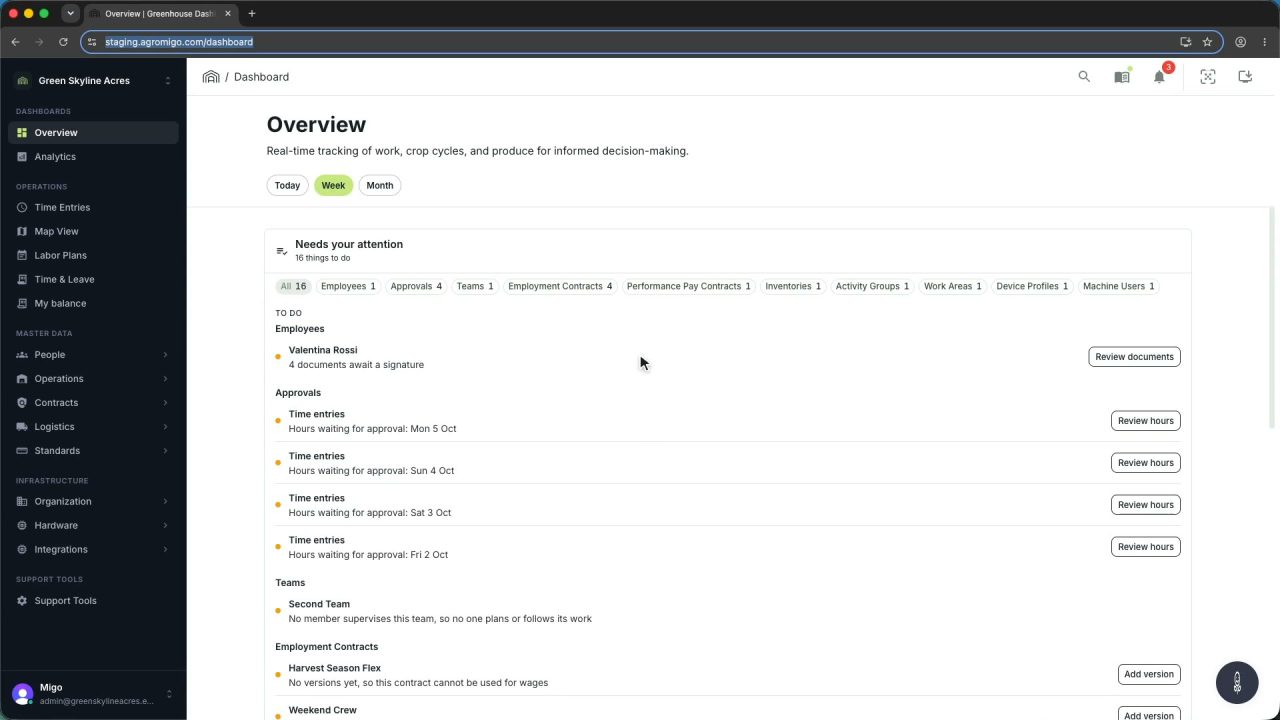
1 min Agromigo on your computer, in a window of its own
One click on the install icon and Chrome's Install button put the dashboard among your programs, opening in its own window, straight to your dashboard, always the latest version.
Read the story -
 2 min
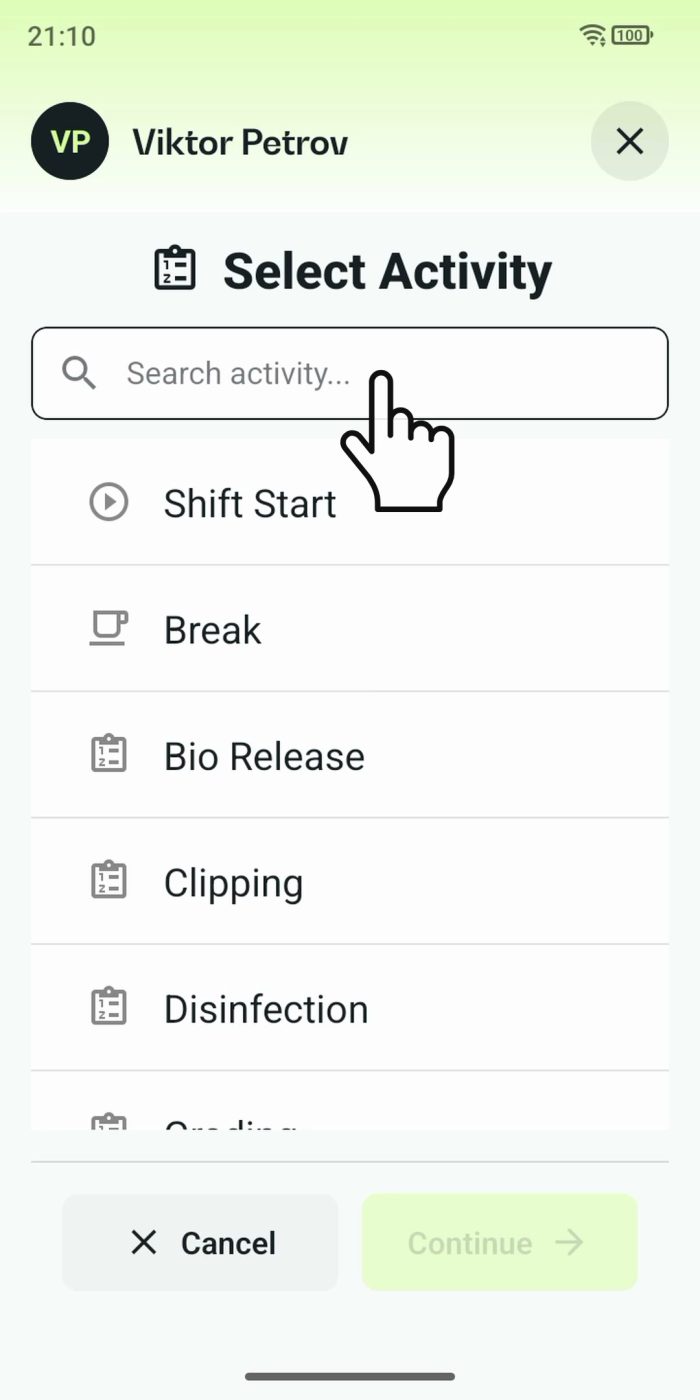
2 min One shared phone where the crew taps in with a tag
Terminal mode turns one phone into a terminal for a whole crew, at a fixed spot or moving with the team. Workers tap their personal tag, choose the task they finished, answer a few questions, and the screen resets for the next person.
Read the story