Every worker logs their own day by tapping row tags
Personal mode gives every worker a phone with their own timeline, always within reach. A tap on a row tag starts the work, the next tag moves it on, and every crate lands on the right row.
Picking moves fast. A worker who has to stop, unlock a shared tablet and scroll to the right row does it once, at the end of the day, from memory. The hours land on the wrong rows, and the crates per hour mean nothing.
In Personal mode the phone is in the worker’s own pocket, right at the row where the work happens. A tap on the row’s tag says where they are, so nobody types and nothing is remembered afterwards.
In this video
Migo shows you what Personal mode is for, and how a worker logs a whole shift by tapping row tags.
- The timeline. Katarina’s day on her own phone, newest at the top, with Start Task as the green button at the bottom.
- Who it suits. Work where people scan rows, crates or punnets: each worker carries a phone, always within reach.
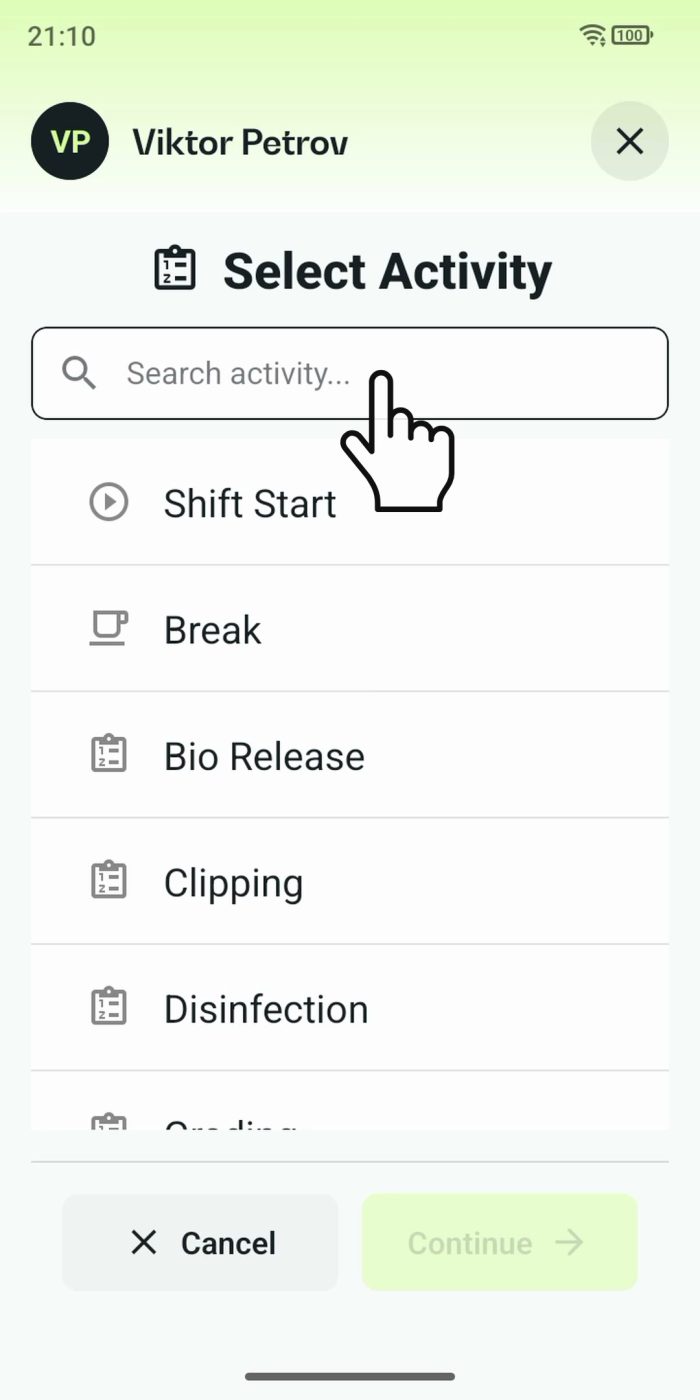
- A row tag. At row 1001 she holds her phone to the row’s tag, and Select Activity opens. She chooses Picking and Continue.
- The next row. At row 1002 she taps that row’s tag, and the app asks a few short questions about the row she just left: the crop, the cart on her first row, and how many crates, on a keypad with large keys.
- Lists or scans. The demo answers from lists, but every answer can also come from a scan: an NFC tag or a QR code, and a barcode on a crate or punnet.
- Logged. Row 1001 shows its crop, her cart and her pace in crates per hour, while row 1002 is already running.
- Stop. A second tap on the tag of the row she is in finishes the task.
Her whole shift is on the timeline, row by row, and on your dashboard the moment she taps.
Tips
- Tag every row once. The Agromigo Admin app writes the tags as you walk the greenhouse, a row at a time.
- A double tap is not "done". For ten seconds after a tag is read, a second read of the same tag changes nothing, so a nervous double tap does not end the task.
- Mix the modes. Personal mode for pickers, a terminal at the packing area, a supervisor for a crew without phones: one operation can use all three.
Read more
The user guide explains what an employee does on their own phone and how to choose a mode.
Try it free for 1 month, no credit card needed.
More stories
-
 2 min
2 min See whose day went differently from the plan
Check a work day against the labor plan, see who worked something else or did not show up, and accept a change of plan that had a good reason.
Read the story -
 1 min
1 min Agromigo on your computer, in a window of its own
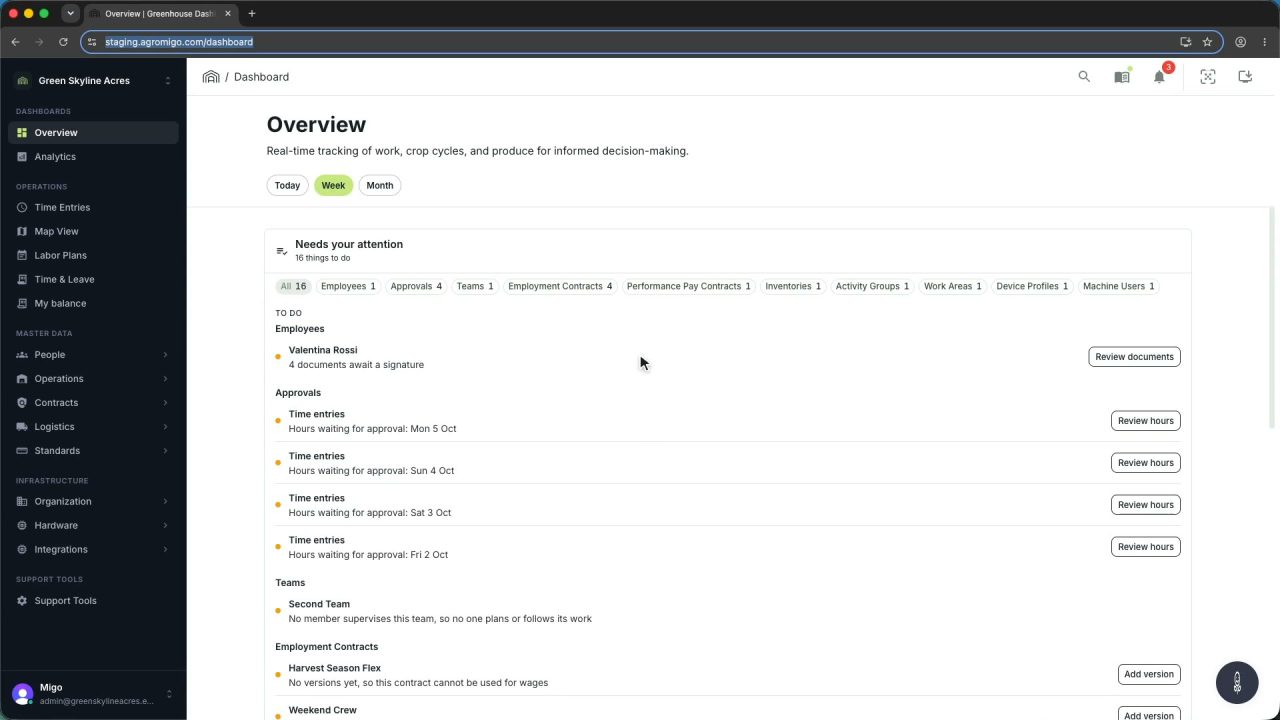
One click on the install icon and Chrome's Install button put the dashboard among your programs, opening in its own window, straight to your dashboard, always the latest version.
Read the story -
 2 min
2 min One shared phone where the crew taps in with a tag
Terminal mode turns one phone into a terminal for a whole crew, at a fixed spot or moving with the team. Workers tap their personal tag, choose the task they finished, answer a few questions, and the screen resets for the next person.
Read the story