Get the answer about the screen in front of you
Every screen and every form has its own chapter, and it opens docked beside your work at the right place, so nobody has to search a handbook or wait to be shown.
A new office colleague learns your dashboard the slow way: somebody who knows it sits beside them for a morning, and after that they ask. Every question costs two people’s time, and the ones nobody dares ask turn into mistakes a month later.
Agromigo carries its manual inside the dashboard. Every screen and every form has a chapter, and it opens where you are working rather than at a table of contents.
In this video
Migo shows you how to open the user guide at the chapter for the screen in front of you.
The page. You are on Employees, the list of everyone in your operation, and want to know how this screen works.
- The book icon. In the top right corner. The dot on it says this screen has a chapter written for it.
- Docked beside your work. The guide opens on the right at the Employees chapter, and your list stays where you left it. On a phone it lives in the account menu and fills the screen.
- On this page. Just below the chapter title, its sections are listed. The chapter explains the screen in plain words: what needs attention, roles and offboarding.
- A record, then its form. Open a worker, then the pencil at the top right. Forms have chapters of their own, because each field has consequences.
- Help for this form. The question mark in the sheet’s header is help for exactly this form, not for the dashboard in general.
- Jump to a section. "Why some fields are hidden from you" explains which roles see bank and identity details.
- Back where you were. Cancel closes the form unchanged and the cross closes the guide, leaving you on the record.
- The same on any screen. On Activities, the book icon opens the Activities chapter: the four kinds of activity and how to set each one up.
- And on any form. Editing an activity, the sheet’s question mark opens the activity form’s chapter, crew questions included.
Wherever you are, help is about the screen in front of you, in plain words, and closing it puts you right back where you were.
Tips
- Watch for the dot on the book icon. It tells you a chapter was written for this exact screen.
- Use the question mark inside a form. It answers about the fields you are filling in, which is rarely the same chapter as the screen behind it.
- Point new colleagues at the icon, not at a document. The guide is always the version that matches the dashboard they are looking at.
- Read "On this page" first. It is faster than scrolling, and it shows what the chapter covers before you commit to reading it.
Read more
The chapters in this video are employees, the employee form and activities.
Book a Demo.
More stories
-
 2 min
2 min See whose day went differently from the plan
Check a work day against the labor plan, see who worked something else or did not show up, and accept a change of plan that had a good reason.
Read the story -
 1 min
1 min Agromigo on your computer, in a window of its own
One click on the install icon and Chrome's Install button put the dashboard among your programs, opening in its own window, straight to your dashboard, always the latest version.
Read the story -
 2 min
2 min One shared phone where the crew taps in with a tag
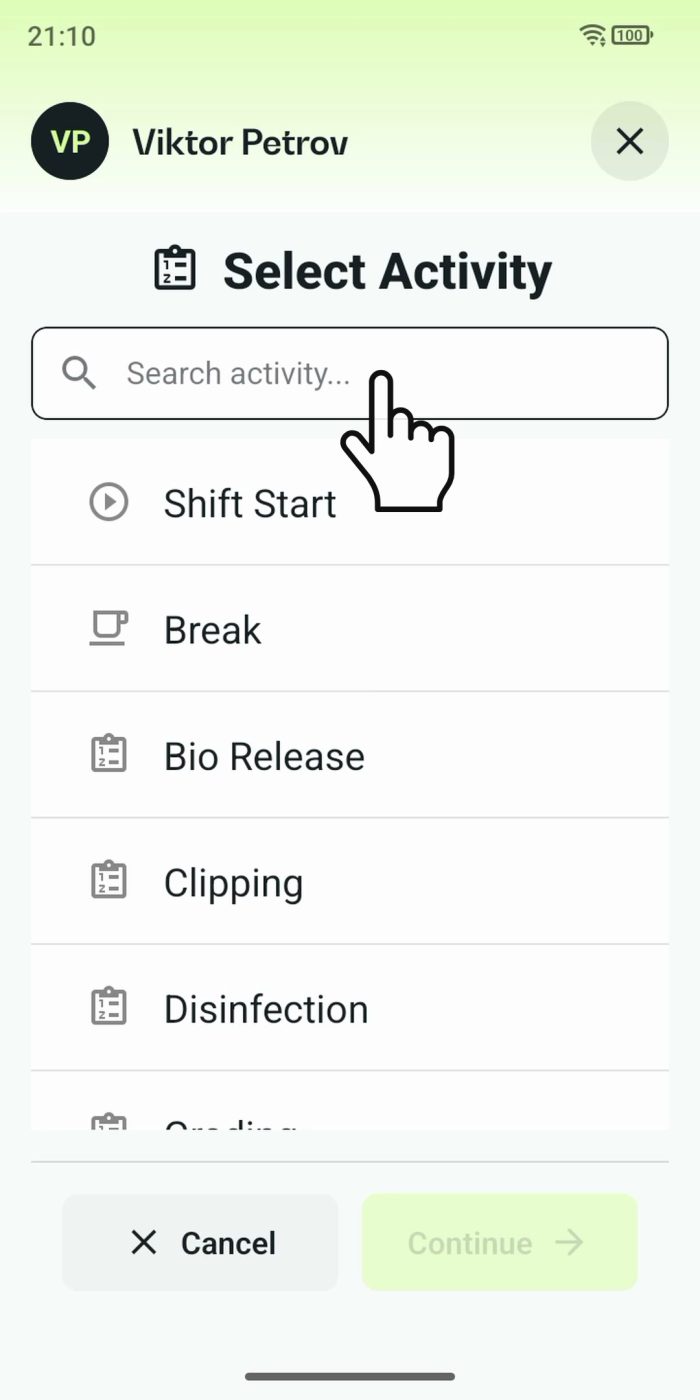
Terminal mode turns one phone into a terminal for a whole crew, at a fixed spot or moving with the team. Workers tap their personal tag, choose the task they finished, answer a few questions, and the screen resets for the next person.
Read the story