Connect your other systems without sharing a password
Give your payroll, climate or BI system its own account in Agromigo, with only the access it needs and alerts that reach the right person.
Your payroll package needs approved hours. Your climate computer or BI tool wants the same data. The quick fix is to hand over someone’s login. Then that person leaves, the connection breaks, and the records say they did things they never did.
Agromigo gives each system an account of its own, on the Machine users screen. It signs in as itself, sees only what you allow, and can be switched off without touching anything else. Your data reaches the tools you already use, and you stay in control of every connection.
In this video
Migo shows you how to give another system its own account, with only the access it needs.
The list. Machine Users lists the accounts your other systems sign in with, one row each; a dot marks one that needs attention. Select a row, and its record opens beside the list. A climate computer, payroll or BI tool gets an account of its own, never a person’s login, so you decide exactly what each system can read.
- Your machine user. Your operation already has one: its record sits beside the list (from the bottom on a phone). It is active and may read data from every site.
- The Next steps card. At the top of the record: without a security contact, credential and access alerts reach nobody at all.
- Details. The card just below lists the security contact, data warehouse access and sites. Anything nobody has filled in shows a dash.
- Edit. The pencil at the top right opens the edit sheet, in cards: basic data, access, the sites the system may see, and a description.
- Access. The second card turns on data warehouse access: a BI tool then queries your data directly, limited to the sites in the card below.
- Description. The last card is where you note which system uses this account and who looks after it.
- Nothing saved. Cancel, at the bottom right of the sheet, closes it and leaves the machine user exactly as it was.
- A new machine user. New, in the top right corner, opens the same sheet, empty, starting with the Basic Data card. Once you save a new one, its secret key shows just once, so copy it straight away.
- API Portal. Open API Portal, in the top right corner beside New (in the three-dot menu on a phone), opens the API reference your system supplier needs to connect.
- Every kind of record. Down the left (behind the menu at the top left on a phone), every kind of record a system can reach, from sites and crop cycles to employees, each with its own requests.
- The key. Authentication, on the right, is where your supplier pastes the machine user’s secret key. Every request needs one.
- A request. Each request, such as List sites, explains what it returns and shows a ready-made example, so your supplier can connect without guesswork.
Your operation’s data flows safely to the tools you already use, each system on its own account with only the access it needs.
Tips
- Fill in the security contact. That person is told when a key is issued, revoked or suspected of having leaked. It does not have to be someone in your team; your supplier’s operations contact is often the right choice.
- Keep warehouse access off unless you need it. A payroll package or a scale controller works through the API alone. Only a reporting tool such as Power BI needs the warehouse switch. When it is on, choose the sites on purpose: "Every site" is the default, and a system limited to one site gets nothing at all from another.
- Copy the secret key straight away. The key is shown once, when the account is created, and nobody can retrieve it later, not even Agromigo. Lost it? Choose Rotate Secret Key on the Details card. The old key keeps working for one more minute, so a running connection is not cut off.
To withdraw access, set the account inactive on the Machine users screen. Its keys stop working, and the record of what it did stays in place.
Read more
The user guide explains what these system accounts can do and how to set them up safely. Read Machine users, then Access and scope for the warehouse switch, site scope and the secret key.
Want to see how it fits your operation? Book a demo.
More stories
-
 2 min
2 min See whose day went differently from the plan
Check a work day against the labor plan, see who worked something else or did not show up, and accept a change of plan that had a good reason.
Read the story -
 1 min
1 min Agromigo on your computer, in a window of its own
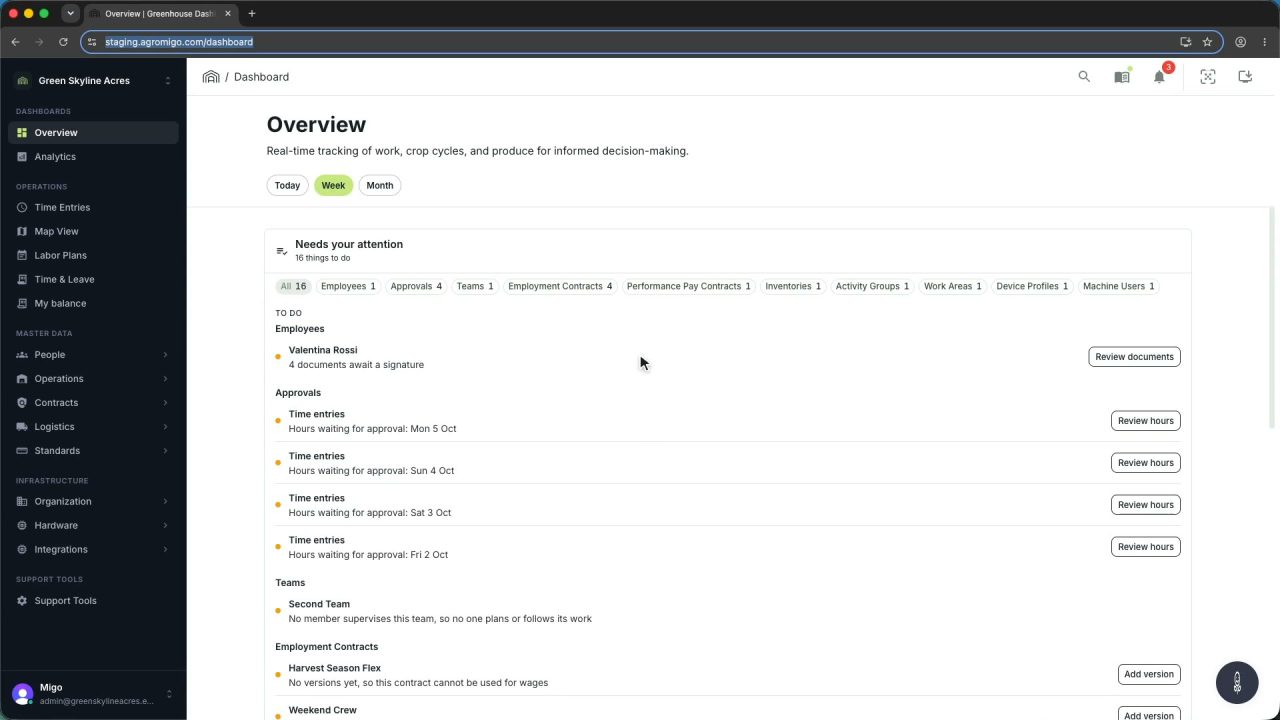
One click on the install icon and Chrome's Install button put the dashboard among your programs, opening in its own window, straight to your dashboard, always the latest version.
Read the story -
 2 min
2 min One shared phone where the crew taps in with a tag
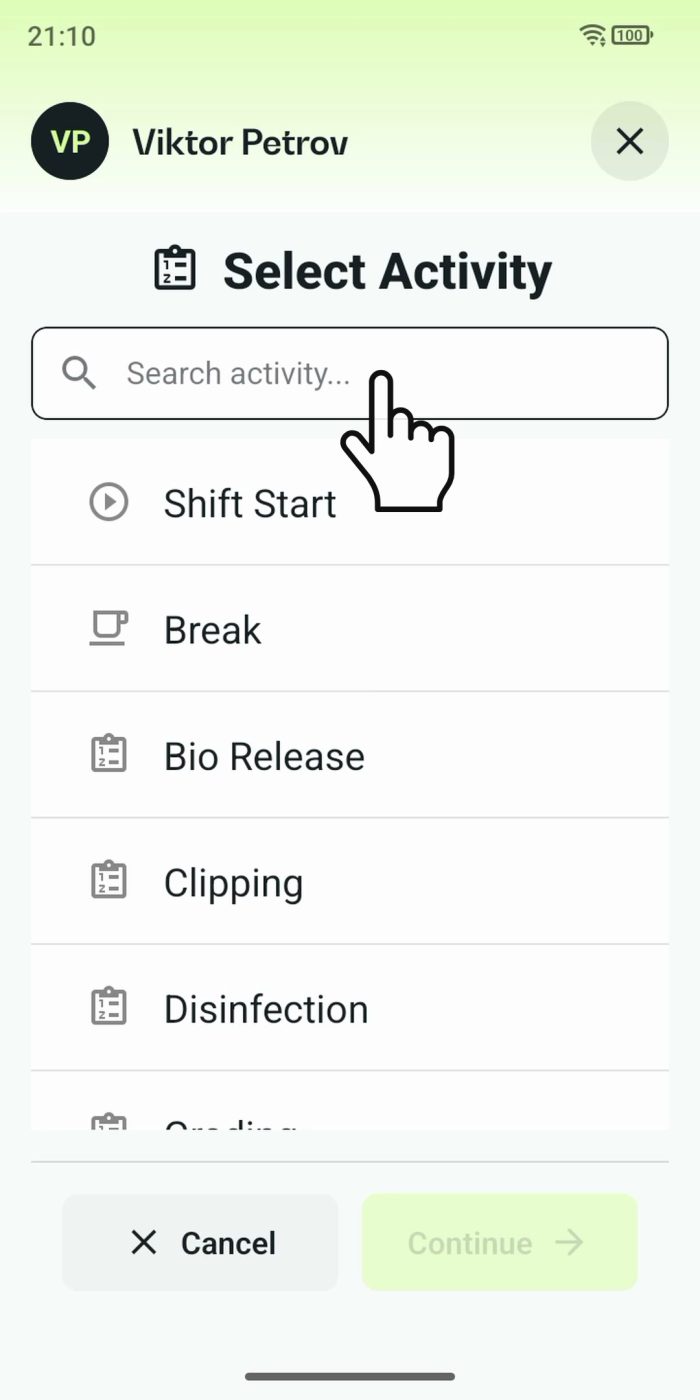
Terminal mode turns one phone into a terminal for a whole crew, at a fixed spot or moving with the team. Workers tap their personal tag, choose the task they finished, answer a few questions, and the screen resets for the next person.
Read the story