Send this week’s hours without opening your mail
Email a report as an Excel or CSV file straight from Agromigo, to a list it remembers, with a safeguard before worker data leaves your greenhouse operation.
Every Monday the same ritual: download the payroll report, find it in your downloads, rename it, open your mail, remember who gets it this week, attach it. And once in a while it is last week’s file that goes out, or the one with the wrong filter.
A report can go out from the report itself. You pick the people once, and Agromigo sends exactly what is on your screen as an Excel or CSV file. A reply comes back to you, and every send is recorded.
In this video
Migo shows you how to email this week’s hours as an Excel or CSV file, straight from Agromigo.
The report. The payroll report opens from the Analytics gallery and runs for last week. Every week the same figures go to the same people: your bookkeeper, the finance inbox, a team lead.
- Send by email. The download icon, at the top right of the table, offers three options: download as Excel, download as CSV, and send by email.
- Ready to go. The subject is the report’s name, and the file is named the way your download would be.
- Recipients. Type or paste the addresses. A comma, a space or a new line turns each one into its own chip, and a typo shows up in red before anything is sent.
- Outside your organization. An address that belongs to none of your colleagues gets an orange chip with a globe, and a note that the report may hold personal data about workers.
- Your own words. A note appears in the email under your name, and a reply goes straight back to you.
- The attachment. The file you would download right now: the same rows, columns, pivot and filters as on your screen.
- The file type. Next to the name, a dropdown offers .xlsx for Excel and .csv for a comma separated file.
- A safeguard. This report holds employee data, such as wages, costs, absences or contract terms, so you confirm that these people may receive it before it can leave your organization.
- Send. Each person gets their own email, so nobody sees the other addresses.
With an administrator’s send, the list is saved with the report, so next week it is one click.
Tips
- Paste a whole list. Copy the addresses from your mail program, names included, and paste them in one go. Duplicates are merged.
- Send me a copy. Tick it to keep the email you sent in your own inbox.
- Narrow it first. An email carries 5 MB at most and reaches up to 20 people. For a very large report, filter it to the period or team the recipient needs.
- Managers can send too. Anyone who can open a report can email it. Only an administrator’s recipients are saved for next time.
- Know where it went. Every send is recorded: which report went to which address, when and from whom. The dialog shows when the report was last sent.
Read more
The user guide covers building and sharing reports. Start with Reports, then Analytics for an overview of everything the gallery offers.
Try it free for 1 month, no credit card needed.
More stories
-
 2 min
2 min See whose day went differently from the plan
Check a work day against the labor plan, see who worked something else or did not show up, and accept a change of plan that had a good reason.
Read the story -
 1 min
1 min Agromigo on your computer, in a window of its own
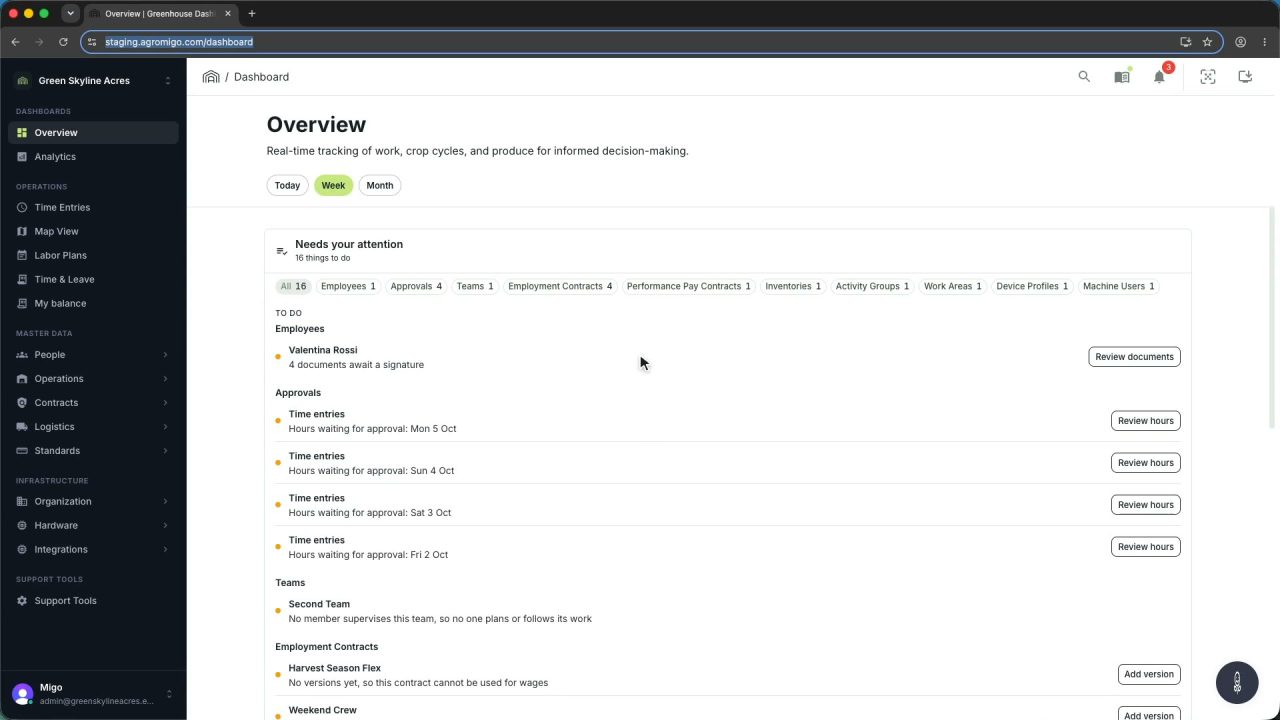
One click on the install icon and Chrome's Install button put the dashboard among your programs, opening in its own window, straight to your dashboard, always the latest version.
Read the story -
 2 min
2 min One shared phone where the crew taps in with a tag
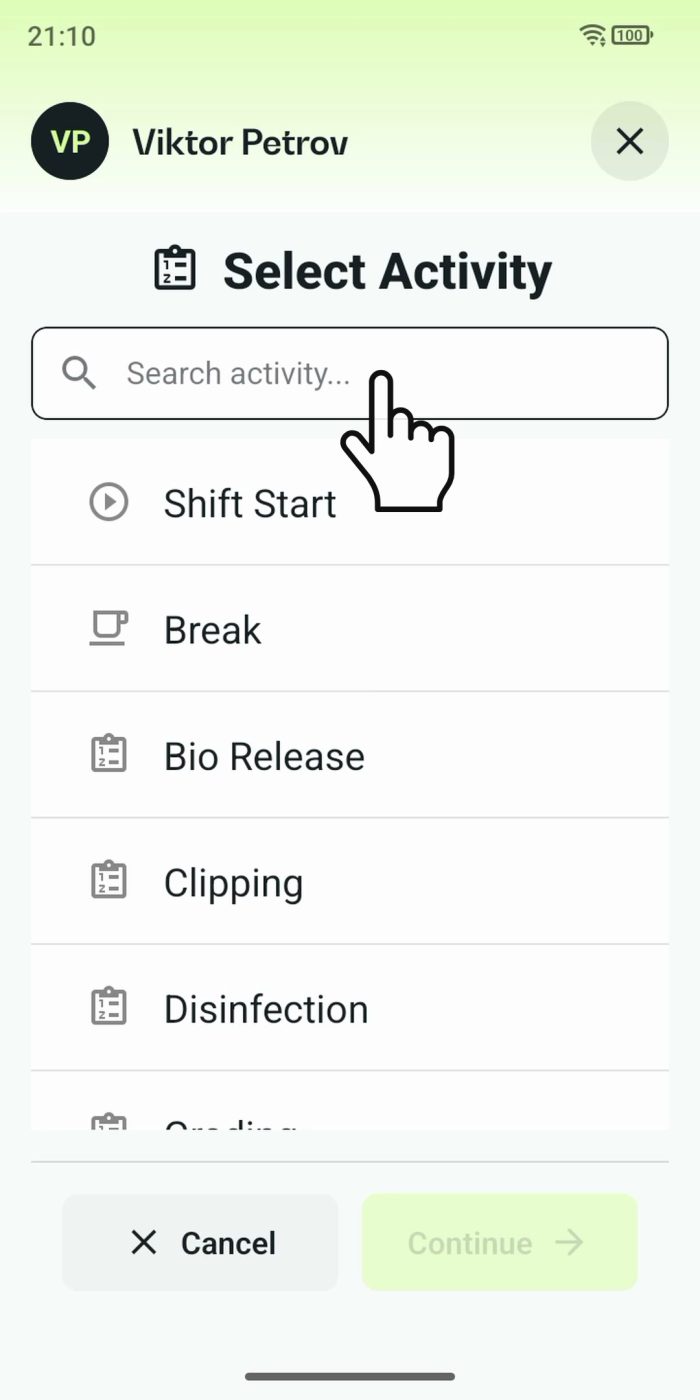
Terminal mode turns one phone into a terminal for a whole crew, at a fixed spot or moving with the team. Workers tap their personal tag, choose the task they finished, answer a few questions, and the screen resets for the next person.
Read the story