Answer any question about leave without guessing
Every balance is booked week by week from the hours behind it, and each week opens into the full calculation, so the answer you give an employee holds.
"How much holiday do I have left?" is a simple question with an expensive answer. In most operations it means opening a spreadsheet somebody maintains by hand, trusting that every leave day reached it, and hoping nobody asks how the number was reached.
In Agromigo the balance is not maintained, it is derived. Every leave hour and every hour worked over or under the agreement is booked week by week, and each week opens into the calculation that produced it.
In this video
Migo shows you how to read a leave balance week by week, and open the calculation behind any week.
The list. The Ledger, under Time & Leave, keeps every employee’s balances. The list of employees is on the left, with the period above it. Select a row, and that employee’s balances open on the right; choose another, and they follow. An employee asks how much vacation is left and where their time-for-time stands.
- Choose the employee. The statistics overview shows every balance at once as tiles, from annual leave to time-for-time.
- Annual leave. The tile opens its ledger: one row per week, each taking off the vacation hours registered that week.
- Manual corrections, kept apart. Manual only sets the corrections HR entered by hand aside, with who made them. The current balance sits in the footer.
- Time-for-time. Under the Time and balance tab, every week compares the hours worked with the agreed hours and moves the balance.
- A row reads as a sentence. The week, the hours worked against the agreement, and the balance before and after.
- How a week reached its number. The calculator button at the end of the row opens the full calculation.
- Hours per day. Contracted hours against worked hours, so you see which days fell short or ran long.
- The build-up. It starts from the agreed hours, takes off any leave, compares the hours worked and adds any overtime surcharge.
- The change lands. The result is this week’s movement, and you watch it land in the running balance, from before to after.
Every balance traces back to the hours that built it, so your answer to the employee holds.
Tips
- Open the calculation before you argue about a number. Most disagreements are about one short day, which the hours-per-day panel shows immediately.
- Use Manual only to review what was entered by hand. Everything else was derived, so this is the short list worth a second pair of eyes.
- Check the period above the list. A balance that looks wrong is often the right balance for a different period.
- A balance moves only when the week is calculated. A correction made today shows up where the week it belongs to is, not at the bottom.
Read more
The user guide explains the ledger screen, how a week is calculated and time and leave as a whole.
Book a Demo.
More stories
-
 2 min
2 min See whose day went differently from the plan
Check a work day against the labor plan, see who worked something else or did not show up, and accept a change of plan that had a good reason.
Read the story -
 1 min
1 min Agromigo on your computer, in a window of its own
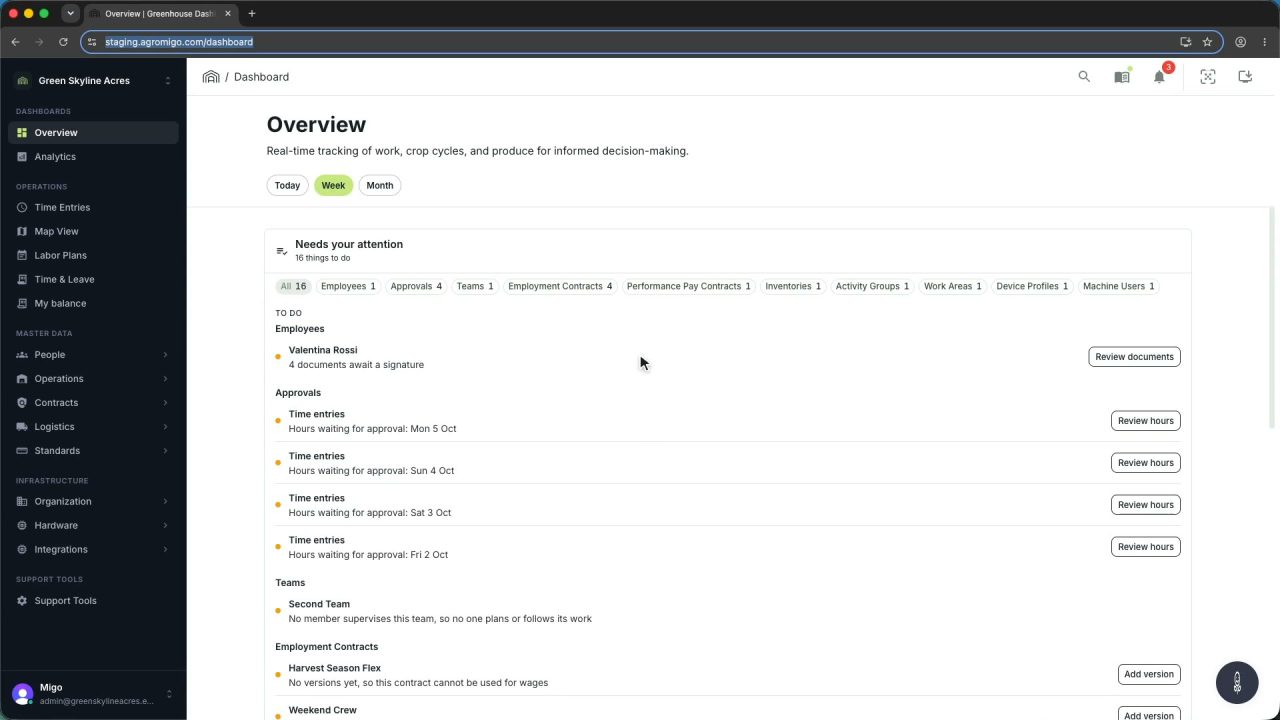
One click on the install icon and Chrome's Install button put the dashboard among your programs, opening in its own window, straight to your dashboard, always the latest version.
Read the story -
 2 min
2 min One shared phone where the crew taps in with a tag
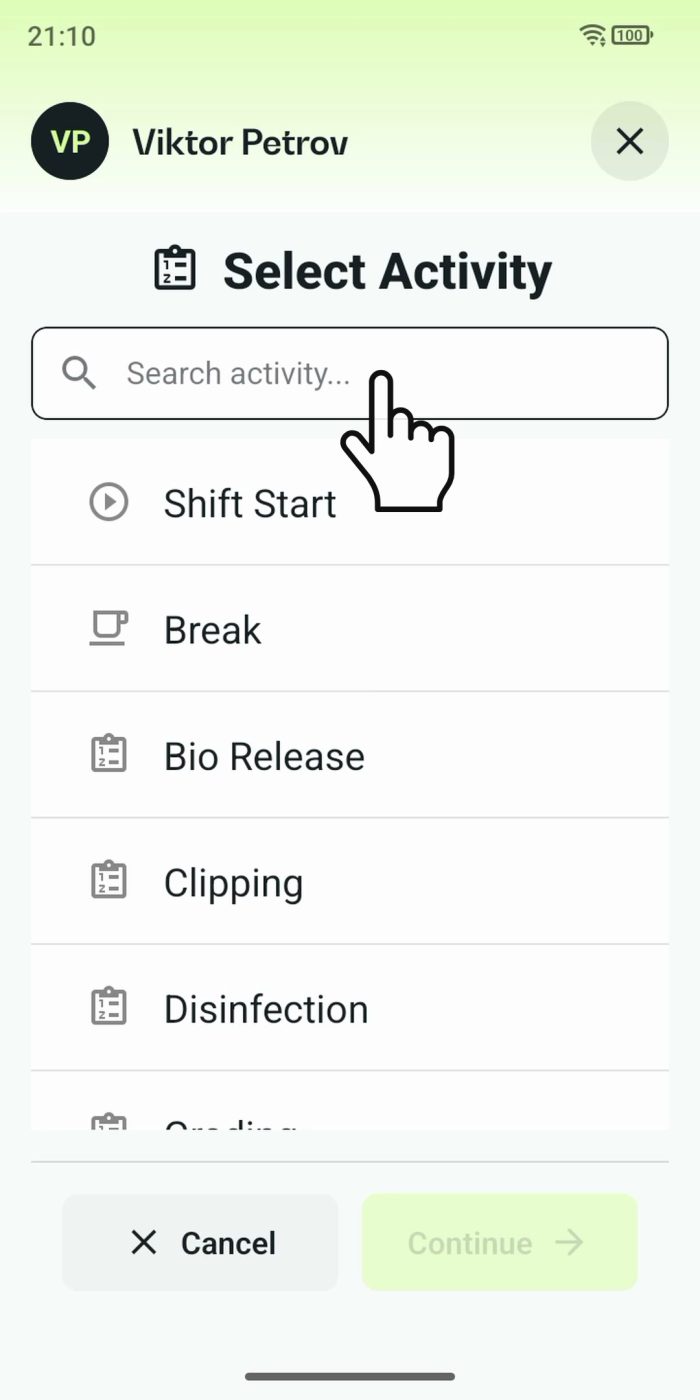
Terminal mode turns one phone into a terminal for a whole crew, at a fixed spot or moving with the team. Workers tap their personal tag, choose the task they finished, answer a few questions, and the screen resets for the next person.
Read the story