Light or dark: the dashboard the way your eyes prefer
Switch Agromigo between light and dark in App settings, or let it follow your computer. Employees, time entries and reports, shown both ways.
An office at noon and a packing hall at six in the morning are not the same place to read a screen. A bright white dashboard that suits one is tiring in the other.
Agromigo comes in a light and a dark mode, and switching takes a moment. The screens stay exactly as they are: the same cards, the same columns, the same places to click. Only the colors change.
In this video
Migo shows you how to switch Agromigo between light and dark, or let it follow your computer.
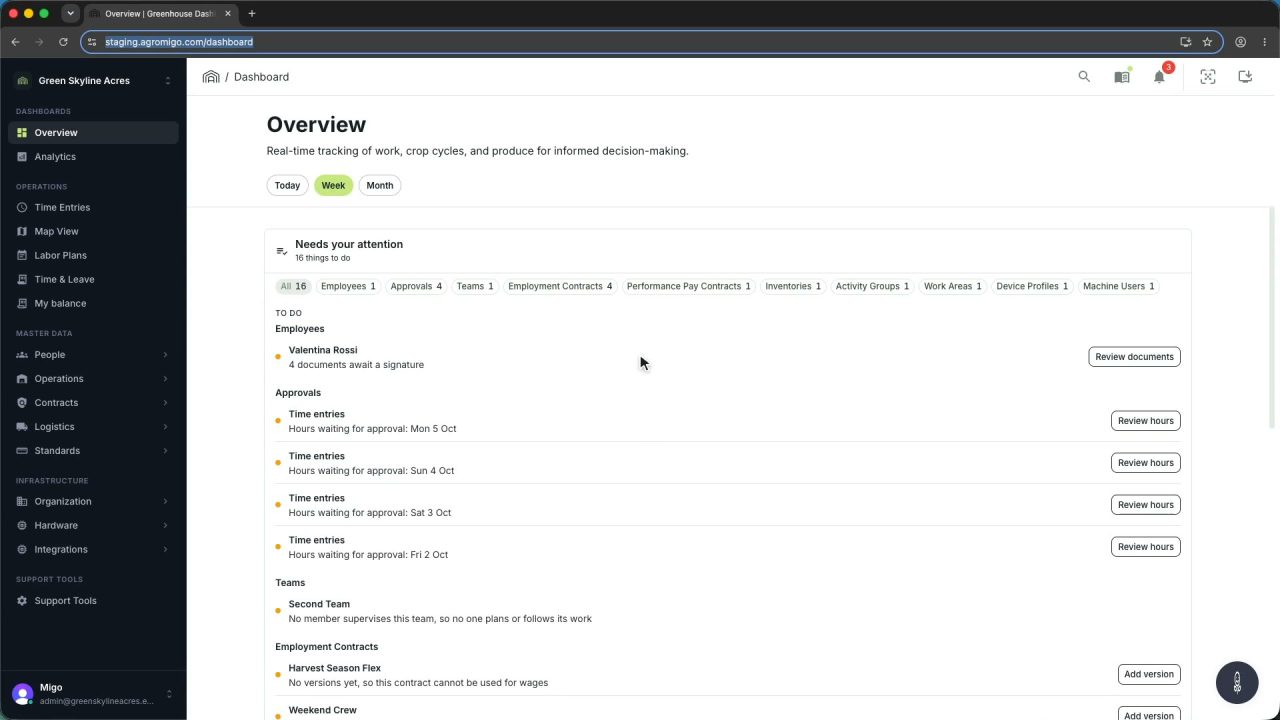
In light. An employee’s record beside the employee list, a day of time entries and the Analytics Gallery, the way every other video shows them.
- Open App settings. Your account button, at the bottom of the menu, then Settings. App settings opens on the right.
- Pick Dark. Under Color scheme, choose Dark, and the whole dashboard switches at once.
- The same screens in dark. The Analytics Gallery, the day’s time entries and the employee’s record: hours, status and approvals stand out as clearly as before, and every card and field is right where it was.
- Or follow your computer. Choose System, and Agromigo switches along with your computer’s own setting.
Your choice is kept in this browser, so the dashboard looks the way you like it every time you come back.
Tips
- Choose per computer. The setting is kept in the browser, so the office screen can stay light while the laptop you take into the greenhouse runs dark.
- Let System do the switching. If your computer already turns dark in the evening, System makes Agromigo follow it without another click.
- Nothing else changes. Your data, your saved reports and the layout are the same in both modes; a colleague on light sees exactly what you see on dark.
Read more
The user guide covers your account menu, where Settings and your language live.
Try it free for 1 month, no credit card needed.
More stories
-
 2 min
2 min See whose day went differently from the plan
Check a work day against the labor plan, see who worked something else or did not show up, and accept a change of plan that had a good reason.
Read the story -
 1 min
1 min Agromigo on your computer, in a window of its own
One click on the install icon and Chrome's Install button put the dashboard among your programs, opening in its own window, straight to your dashboard, always the latest version.
Read the story -
 2 min
2 min One shared phone where the crew taps in with a tag
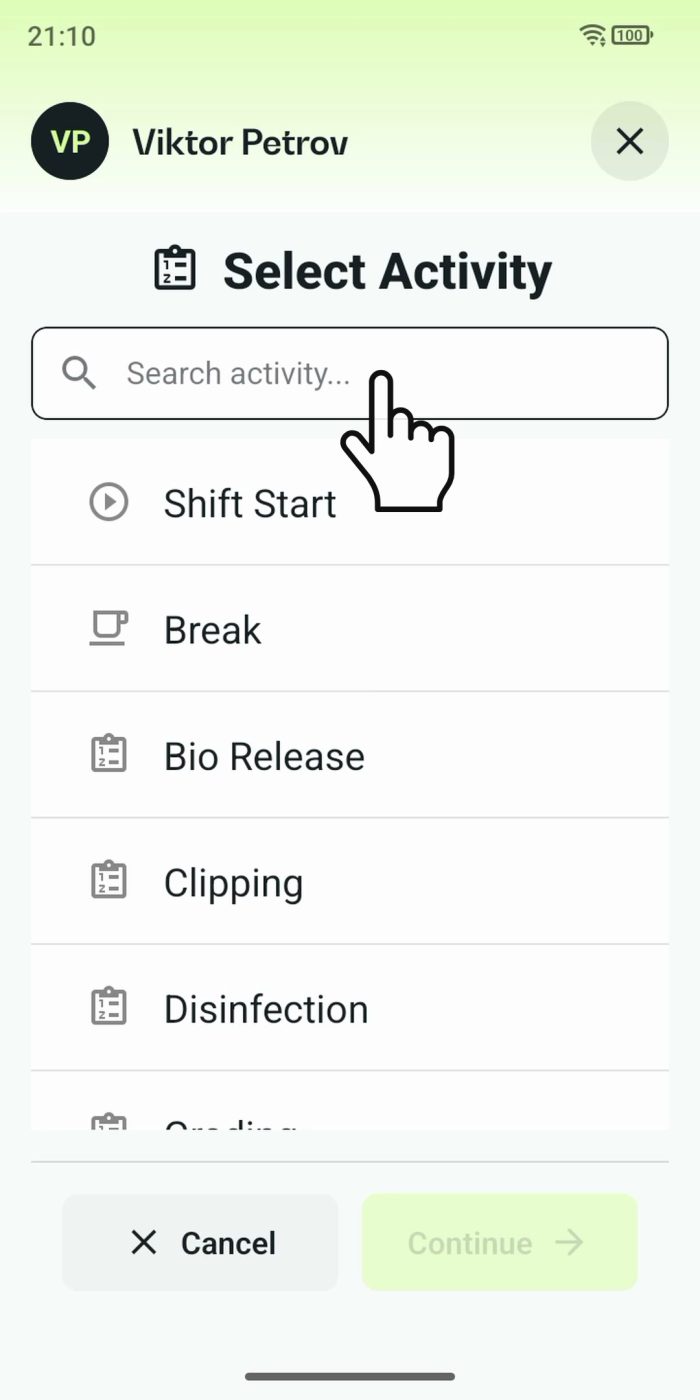
Terminal mode turns one phone into a terminal for a whole crew, at a fixed spot or moving with the team. Workers tap their personal tag, choose the task they finished, answer a few questions, and the screen resets for the next person.
Read the story