Know who works where before the week begins
Plan next week's labor per activity, day and person, and see where extra hands are needed before Monday comes around.
Monday morning, and harvest needs six more people than you have in the tunnel. Packing is short too. Someone is on leave and nobody remembered. Improvising the week as it happens costs you hours, and it lands on the same few workers every time.
Labor Plans lets you decide ahead of time who works where. You fill in a week per activity, day and person, and the gaps show up while you can still fix them. By the time the week starts, the plan is already on your crew’s phones.
In this video
Migo shows you how to plan next week’s labor per activity, day and person, and spot where extra hands are needed.
The list. Labor Plans lists every plan with its start and end date. The chips above the list filter plans by when they run, and New, in the top right corner, starts a plan. Select a row, and that plan’s record opens beside the list. A plan decides ahead of time who works where and for how long, so you see before the week starts whether each activity has enough hands.
- Filter. The chips just above the list filter plans by when they run. Each chip counts its plans, and empty ones stay hidden.
- Open a plan. Its key facts sit at the top of the record: the site, how many days it runs and how many people are planned.
- The first week. Below the key facts, the allocation matrix card charts the hours per activity, day by day.
- The full matrix. Open Full Matrix, at the top right of that card, shows the whole period: activities grouped, with every employee and their hours per day.
- Day totals. Each activity adds up its hours per day, and the pinned row at the bottom totals them, so busy days stand out.
- By employee. The toggles in the matrix’s toolbar group the matrix by employee instead, to check each person’s week.
- Workload chart. The chart toggle, in the same toolbar, stacks the planned hours per day, so you see where extra hands are needed.
- Add Assignment. Also in the toolbar: choose the days, the activity, the employees and how many hours each works.
- A new plan. Back on Labor Plans, New starts a plan of your own. In the Basic Data card you give it a name, a start date and an end date, and you plan the work in its matrix afterward. You cancel the form for now.
Before the week starts, you know how many hands each activity needs, on which day, and who provides them.
Tips
- One plan per week. A plan covers seven days at most, and a new plan opens on today plus the next six. Plan a fortnight as two plans.
- Use Add Assignment for bulk work. Pick several dates and several employees at once. The hours start at eight and move in half-hour steps, which is much faster than filling cells one by one.
- Removing a row is reversible. Removing someone from the matrix archives their hours for that activity instead of deleting them, so you can put them back without rebuilding the week. Clearing a single cell to zero does delete that one allocation.
- Change it while it runs. A plan stays editable after the week has started. A worker whose phone is online sees the change straight away; someone working offline gets it when the phone reconnects.
Read more
The user guide explains how the matrix works, and how to compare your plan with the hours that were actually recorded. Start with Labor plans, then read Labor plan form for the details of rows, cells and assignments.
Try it free for 1 month, no credit card needed.
More stories
-
 2 min
2 min See whose day went differently from the plan
Check a work day against the labor plan, see who worked something else or did not show up, and accept a change of plan that had a good reason.
Read the story -
 1 min
1 min Agromigo on your computer, in a window of its own
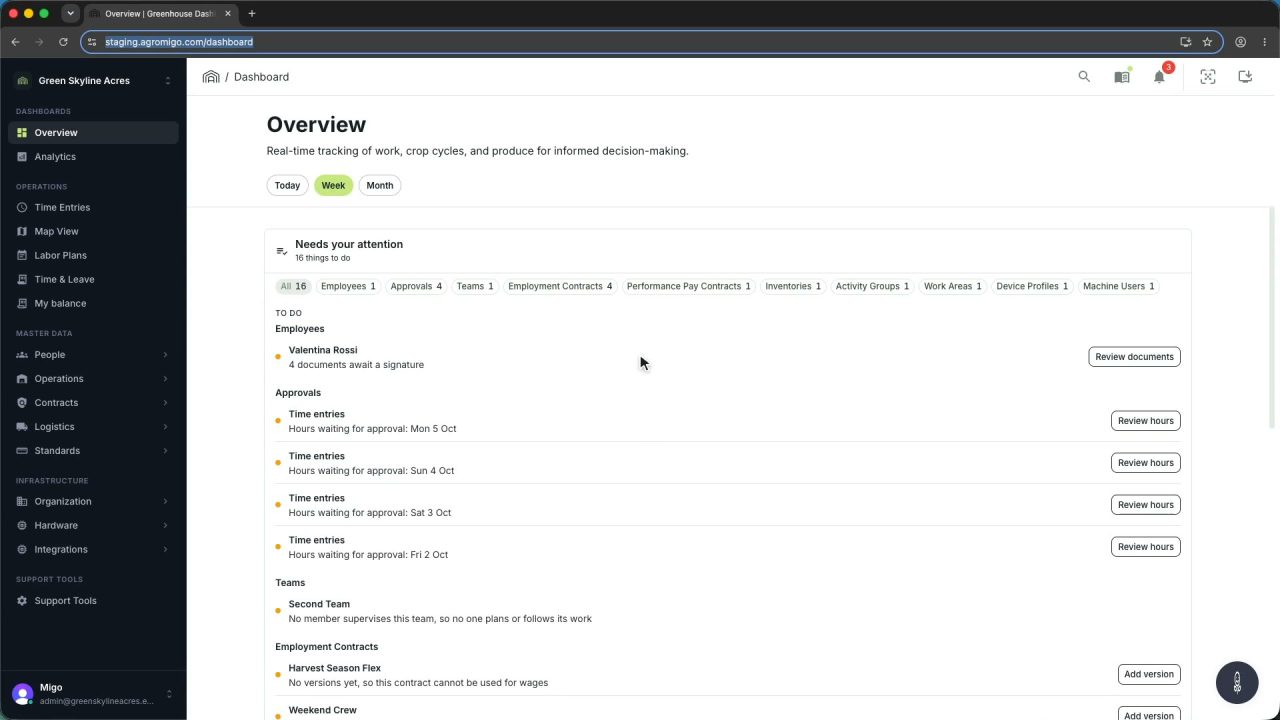
One click on the install icon and Chrome's Install button put the dashboard among your programs, opening in its own window, straight to your dashboard, always the latest version.
Read the story -
 2 min
2 min One shared phone where the crew taps in with a tag
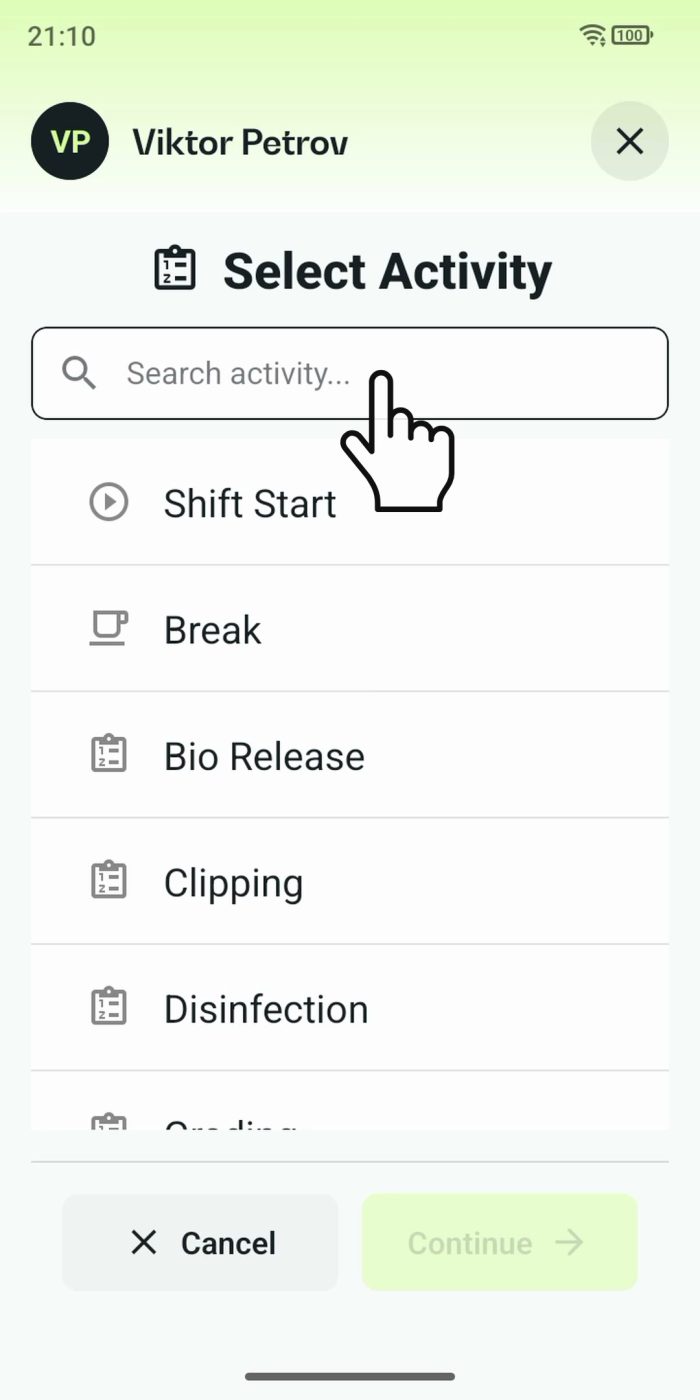
Terminal mode turns one phone into a terminal for a whole crew, at a fixed spot or moving with the team. Workers tap their personal tag, choose the task they finished, answer a few questions, and the screen resets for the next person.
Read the story