Tag every badge, row and machine with one phone
Read what an NFC tag holds, program a badge for a worker, and tag a whole series of rows one after another, all with the Agromigo Admin app.
A tag on a row saves a picker from scrolling through a list of hundreds; a badge saves them from typing a PIN with wet gloves. But a tag only helps once someone has written it, and nobody wants to spend an afternoon at a desk doing that.
With the Agromigo Admin app, the person walking the greenhouse writes the tags as they go: a badge for each new worker, a tag at the entrance of each row.
In this video
Migo shows you how to read an NFC tag, program a badge for a worker, and tag a whole series of rows with the Agromigo Admin app.
The page. NFC Tools in the Agromigo Admin app reads and programs the tags your crew taps at work: badges for people, and tags for zones, rows and machines.
- Read a tag. Read Tag Content, the first option, shows what a tag holds. Hold a tag to the back of the phone, and the app shows what it points to, here Katarina’s badge, with the tag’s ID, chip type, storage used and whether it can still be written.
- Write an employee badge. Write Employee, the second option, programs a badge. Search for the person, tap the name, then tap Write to Tag and hold a tag to the phone. A green check means the badge is written and checked.
- Tag a series of work areas. Write Work Area programs a tag for a place: a zone, a row, a bench or a machine. Pick the first one and write its tag; the arrow at the bottom right then moves to the next work area, so you take a new tag, write it, and keep going down the list.
Tags are never locked. Write a tag again and it points somewhere new, so one tag can be reused for any purpose.
Tips
- Read before you write. An unlabelled tag found in a drawer tells you what it is without being overwritten.
- Work down the list in order. Lay the tags out in the order of your rows, and the arrow keeps the app in step with your hand.
- Reuse what you have. A badge of someone who has left can become a cart tag tomorrow; nothing about the tag limits what it points to next.
- Only active records are offered. A tag cannot be written for a worker who has left or a block that is finished.
Read more
The user guide covers the Agromigo Admin app, including writing and reading tags, and work areas.
Try it free for 1 month, no credit card needed.
More stories
-
 2 min
2 min See whose day went differently from the plan
Check a work day against the labor plan, see who worked something else or did not show up, and accept a change of plan that had a good reason.
Read the story -
 1 min
1 min Agromigo on your computer, in a window of its own
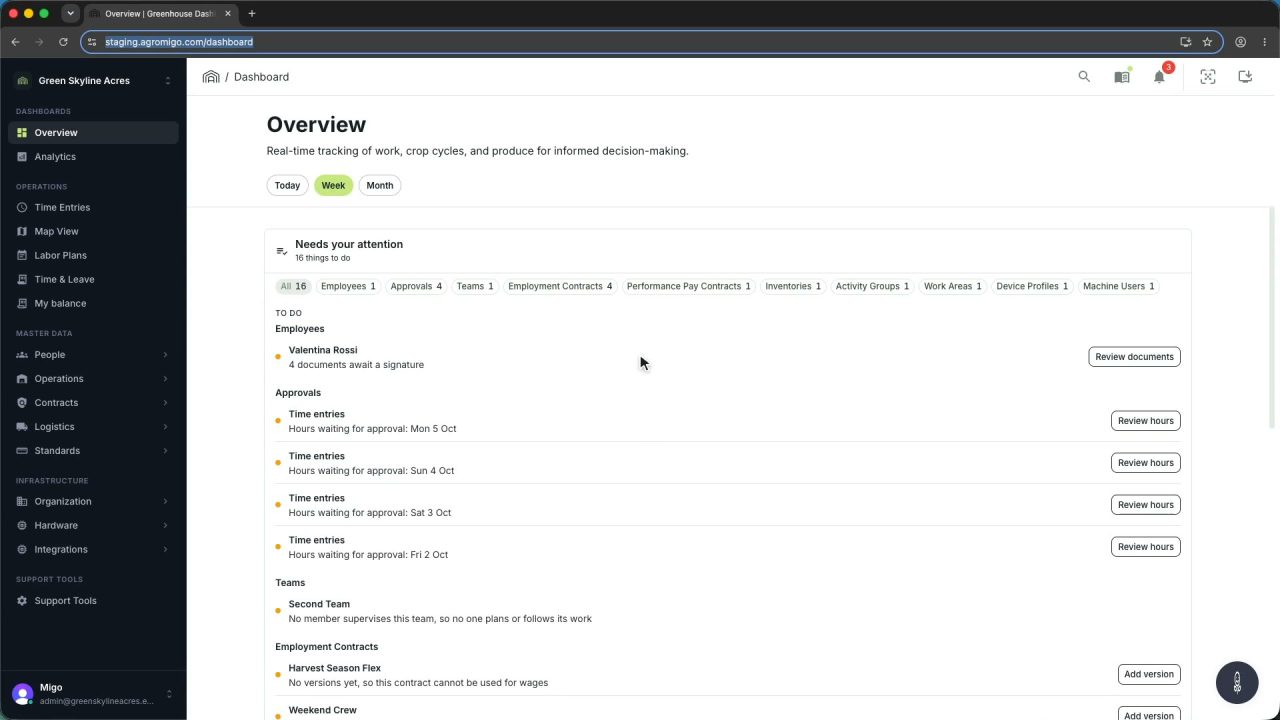
One click on the install icon and Chrome's Install button put the dashboard among your programs, opening in its own window, straight to your dashboard, always the latest version.
Read the story -
 2 min
2 min One shared phone where the crew taps in with a tag
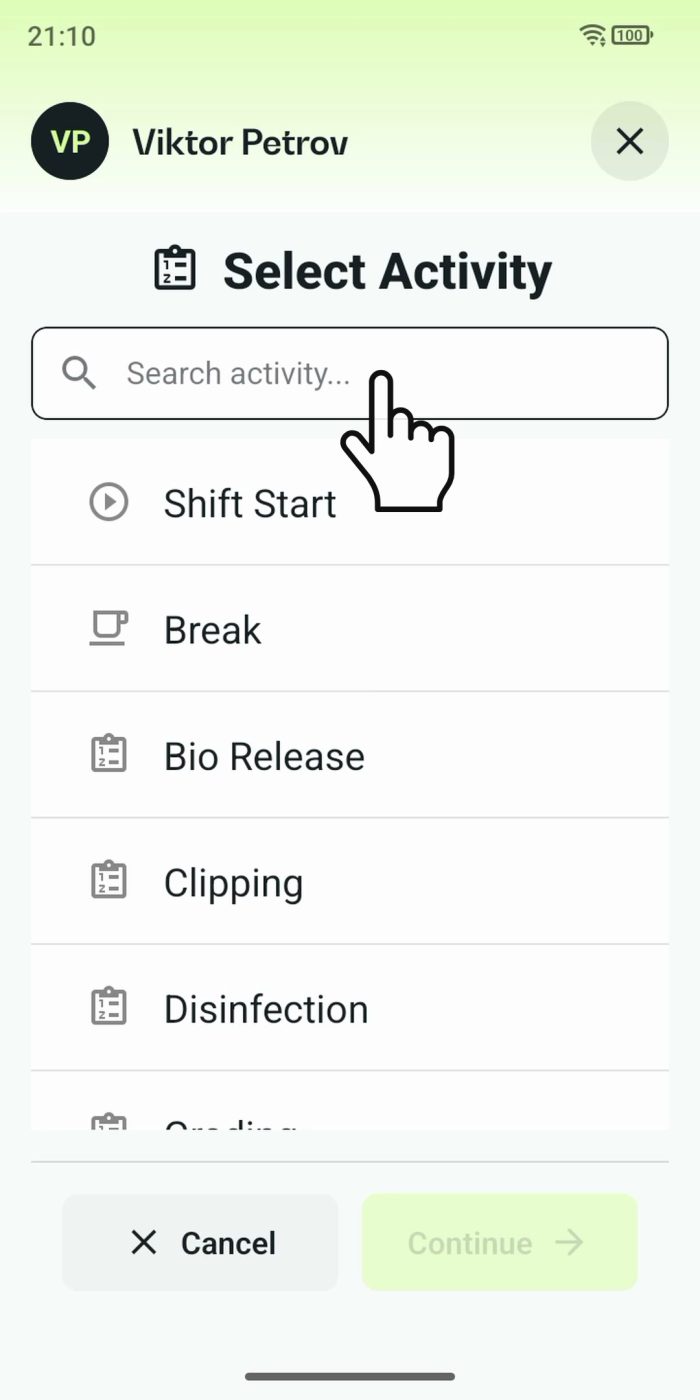
Terminal mode turns one phone into a terminal for a whole crew, at a fixed spot or moving with the team. Workers tap their personal tag, choose the task they finished, answer a few questions, and the screen resets for the next person.
Read the story