Give payroll and the agency the same hours
Open a saved report for last week, build your own when no saved one fits, filter it down to one staffing agency and export the hours your devices actually recorded.
Payroll gets its hours one way, the staffing agency gets them another, and the two are reconciled by hand. When the numbers differ, nobody can say which is right, because neither came from the devices your crew actually used.
In Agromigo every hour your crew records lands in one place. Payroll, the hours your staffing agencies invoice and labour costs are different views of the same data, so the agency invoices exactly the hours your crew recorded.
In this video
Migo shows you how to run a saved report, build your own, and export the hours for one staffing agency.
The page. The Analytics Gallery holds your saved reports, one card each with its name and what it shows. This week you need last week’s hours twice: once for payroll, once for an agency to invoice from.
- A saved report. The payroll report opens on a page of its own, with paid time spread across the dates.
- A period first. The period picker opens by itself, because a report needs one. Pick Last week from the presets, then Apply. It runs on live data.
- Shaped for payroll. Employees down the left, shift dates across the top, the period’s total in the same row.
- Build your own. When no saved report answers your question, the report builder opens with its three steps across the top: Dataset, Start and Design.
- A template. It chooses the dataset for you: here, the Time Entry Log.
- A name. Type one so everyone who opens Analytics knows what the report answers.
- Values. On the Design step, they decide what gets counted. Add Gross Cost from the list beside Values, remove Unpaid Time, and set each value’s format with the gear: hours and minutes for time, euros for cost.
- Rows. Below the values, they decide what each line is. Keep staffing agency, employee and date.
- Filters. Further down, they narrow the report before it runs.
- Filter a saved report instead. Open the Time Entry Log for last week, open Filters, and choose one agency.
- The chip proves it. The active filter sits above the table, and only that agency’s people remain, with hours per activity and per day.
- Export. Download as Excel, named so the agency recognises it.
The agency gets exactly the hours your devices recorded, from the same data as your payroll, to invoice from. The same report also goes out by email, straight from the table, to payroll or the agency.
Tips
- Set the period before anything else. A report with no period is the usual reason one looks empty or impossibly slow.
- Name a report for the question it answers. Everyone else sees that name in the gallery, not the fields behind it.
- Prefer filtering a saved report to building a new one. Most one-off questions are an existing report plus one filter.
- Set the format on each value. Hours that read as a decimal are the quickest way to lose an argument about a timesheet.
- Cost columns need the HR role. A manager building a labour report sees hours, output and rates, and no money at all.
- Already on Power BI, Tableau or Qlik? With the BI add-on, your BI tool reads the same data live and read-only, next to your other sources, for richer visuals and storytelling. See connecting BI tools.
Read more
The user guide covers reports, analytics and every field an entry carries.
Book a Demo.
More stories
-
 2 min
2 min See whose day went differently from the plan
Check a work day against the labor plan, see who worked something else or did not show up, and accept a change of plan that had a good reason.
Read the story -
 1 min
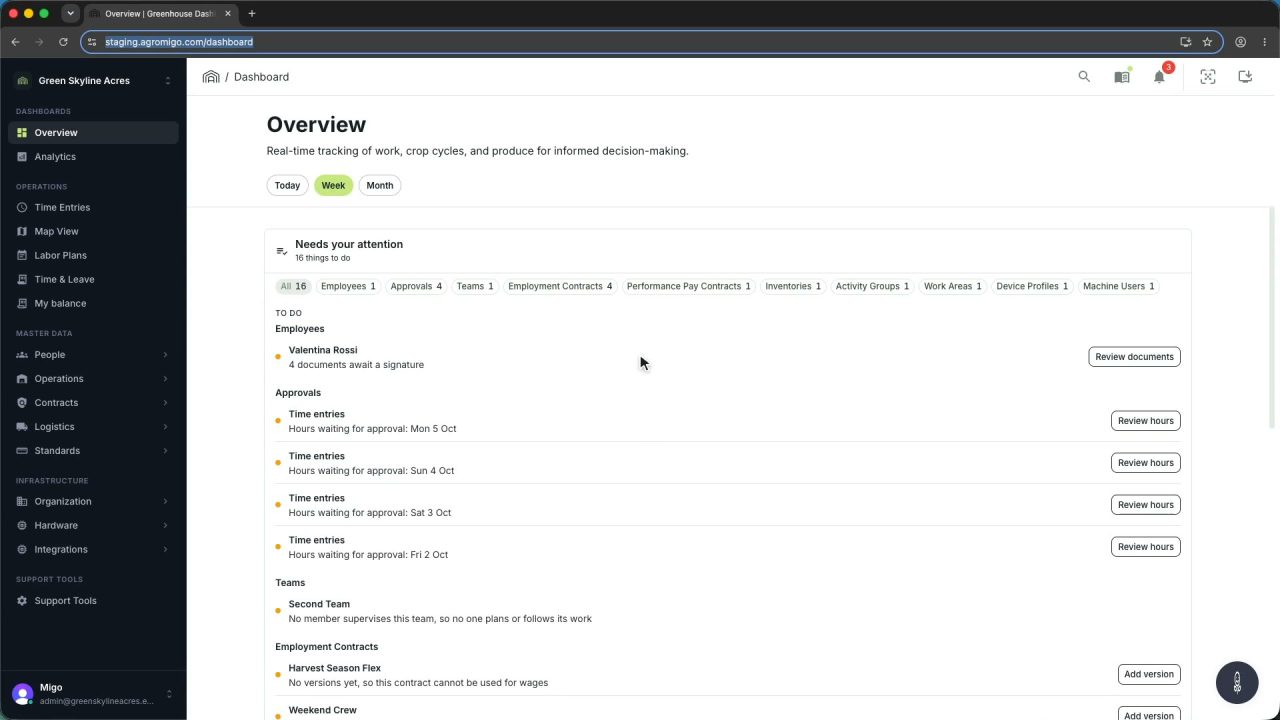
1 min Agromigo on your computer, in a window of its own
One click on the install icon and Chrome's Install button put the dashboard among your programs, opening in its own window, straight to your dashboard, always the latest version.
Read the story -
 2 min
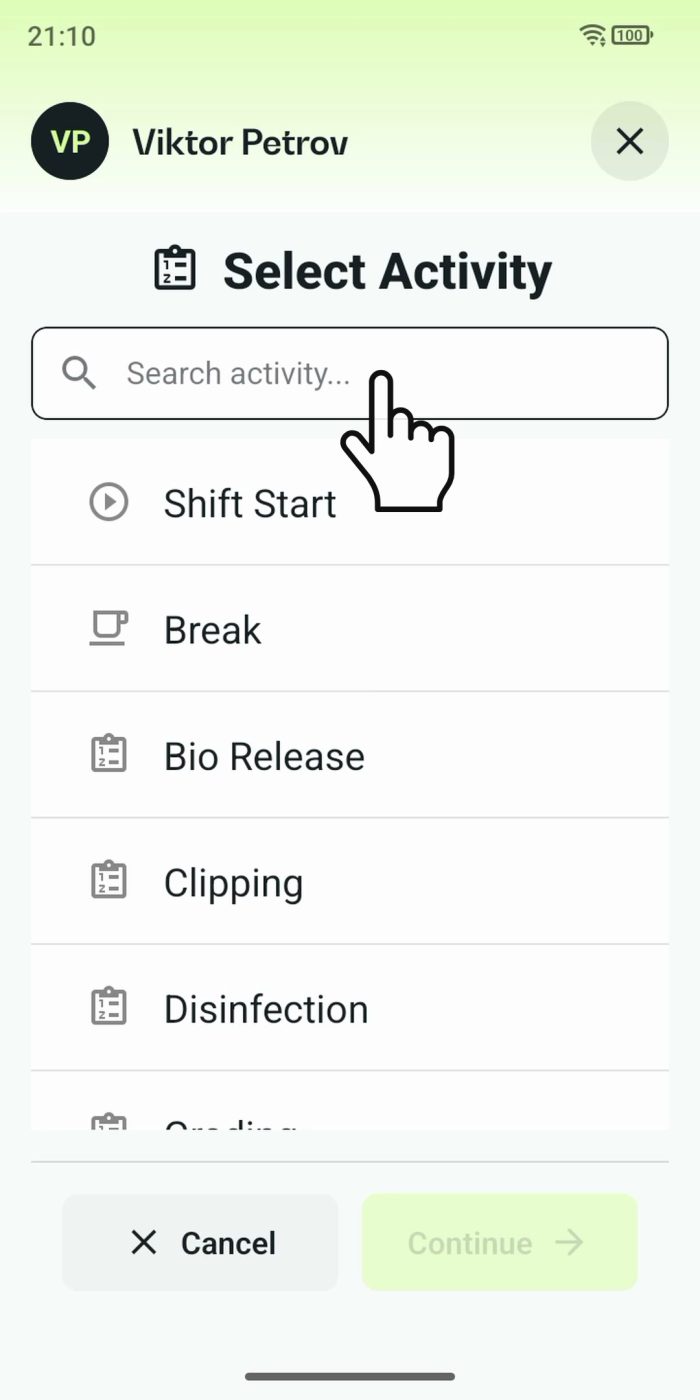
2 min One shared phone where the crew taps in with a tag
Terminal mode turns one phone into a terminal for a whole crew, at a fixed spot or moving with the team. Workers tap their personal tag, choose the task they finished, answer a few questions, and the screen resets for the next person.
Read the story