Set up your greenhouse operation in a few minutes
A short wizard takes you from your name to a working dashboard, with your greenhouse mapped, your crops loaded and your team on record, and a welcome email with the next step.
New software usually starts with a week of setup: a consultant, a spreadsheet of zones and rows, and a list of names somebody has to type in twice. Meanwhile the crew keeps writing hours on paper.
Agromigo starts with a wizard instead. Eight short steps take you from your own name to a dashboard that already knows your greenhouse, your crops and your people.
In this video
Migo shows you how to set up your greenhouse operation with the wizard, from your name to a working dashboard.
The wizard. Its steps run along the top, and Next waits until a step is complete.
- Who you are. Your name and email address are already filled in. You add your mobile number, and we text you a code to confirm it is yours.
- Your operation. Its name, and where it is.
- The layout. You pick the drawing that looks most like your greenhouse.
- The zones. Each zone has a name, its rows and its size. All of it can be refined later.
- What you grow. You add your crops.
- Your team. You paste the names, one per line, and each of them gets an employee record straight away.
- Review. You check the summary, and accept the terms, the privacy policy and the data processing agreement.
- Complete Setup. One click builds your map, your crops and your team, and you land in your own dashboard.
- The welcome email. It follows right away, with your next step: getting the app onto your team’s phones.
Tips
- Start with the layout that is closest, not perfect. Zones, rows and sizes can all be corrected in the dashboard afterwards.
- Paste your team from a spreadsheet. One name per line is enough to begin; details such as contracts and languages come later.
- Skip the crops if you are unsure. You can define crop cycles in the dashboard once the season plan is clear.
Read more
The user guide explains every way into Agromigo in Signing in.
Want to see how it fits your operation? Book a demo.
More stories
-
 2 min
2 min See whose day went differently from the plan
Check a work day against the labor plan, see who worked something else or did not show up, and accept a change of plan that had a good reason.
Read the story -
 1 min
1 min Agromigo on your computer, in a window of its own
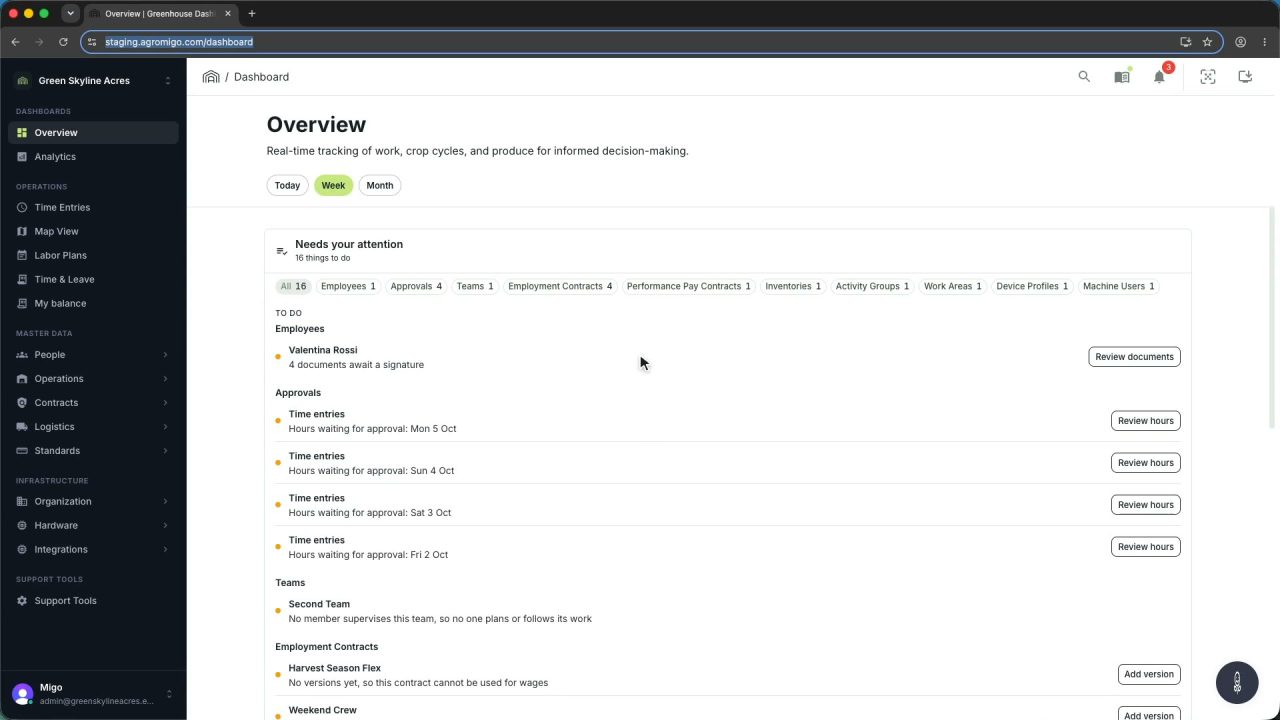
One click on the install icon and Chrome's Install button put the dashboard among your programs, opening in its own window, straight to your dashboard, always the latest version.
Read the story -
 2 min
2 min One shared phone where the crew taps in with a tag
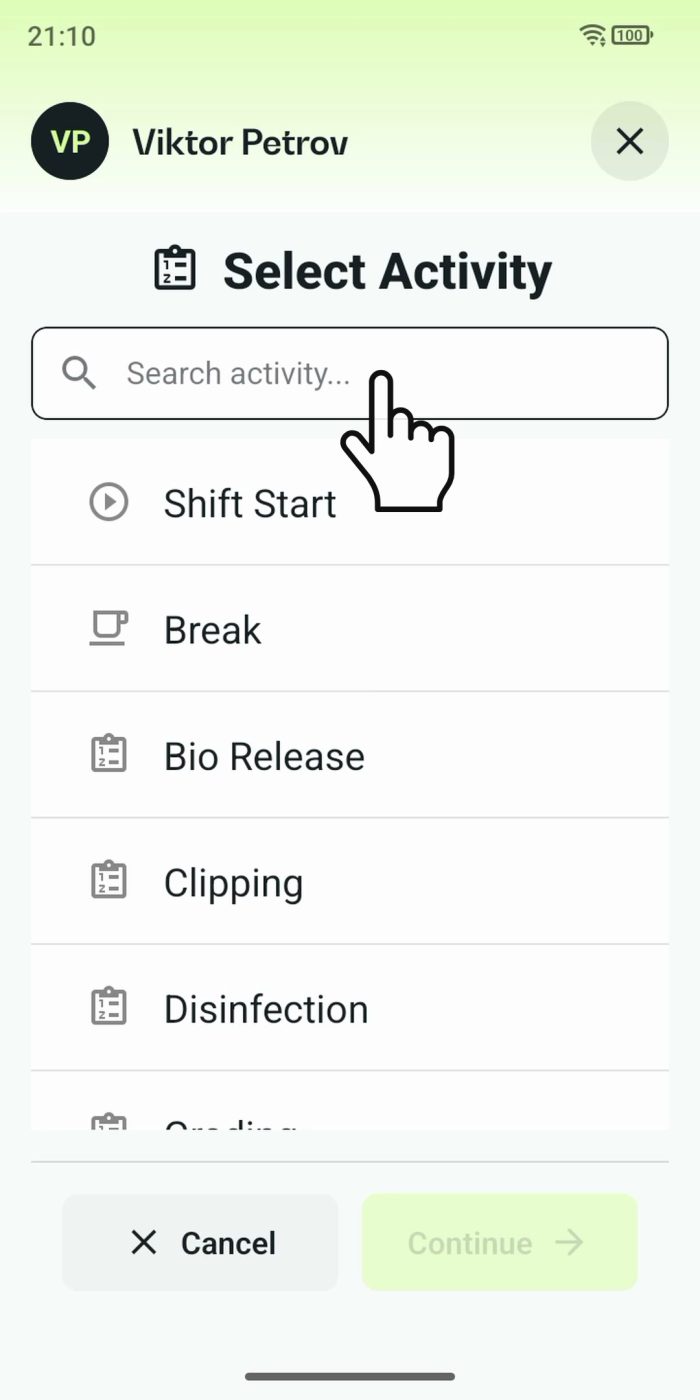
Terminal mode turns one phone into a terminal for a whole crew, at a fixed spot or moving with the team. Workers tap their personal tag, choose the task they finished, answer a few questions, and the screen resets for the next person.
Read the story