Close the workday with every hour in place
Check the day's hours against the plan and the colleagues, fix a wrong activity, add a missing break in one click, and hand payroll a day that is complete and correct.
The workday is over and payroll is waiting. Someone recorded clipping when the plan, and the crop, had them twisting. Someone else forgot to record their break. If nobody catches it today, the office will be chasing it next week, and the worker gets paid for the wrong day.
In Agromigo, the supervisor who saw the day happen fixes its record the same afternoon. The workday timeline puts each person’s day next to the plan and next to their colleagues, so what is off stands out, and a missing break is added with one click.
In this video
Migo shows you how to check the day’s hours against the plan and your colleagues, fix a wrong activity and add a missing break, before you approve the day.
The list. Time entries shows one work day: the list on the left holds everyone who recorded time, and under each name you read when they worked, for how long and on what. Select a row, and that person’s entries open on the right (on a screen of their own on a phone). It is your last check before payroll, so every hour is paid correctly and no one is missing.
This work day is over and payroll is waiting. You check that every hour on it is complete and correct.
- Find a person. The search box at the top of the list finds anyone by any part of their name, best match first. Type Ferrari to find Luca.
- Check the entries. One row each, with activity, end time, duration and crop cycle: Luca’s day of clipping.
- Read the timeline. Above the entries, the workday timeline lays the day out on one line: what he recorded, and below it what the labor plan expected. A third row, his colleagues, appears as soon as his day differs from theirs.
- Correct in place. The plan expected twisting, and the hour ending at 11:00 really was twisting. Click its activity, in the first column, and change it. On a phone, tap the card and change the activity at the top of the sheet.
- Saved, and traceable. The previous version stays in the entry’s history, so every correction stays traceable for payroll.
- A forgotten break. Suppose Luca forgot to record his break: in the video, it is selected in the lower card, Shift start and breaks, and deleted.
- His colleagues’ row. His day now differs from theirs, so the Colleagues row appears. Their break at noon turns orange: the break Luca did not take.
- One click to add it. Click their break, and it is added to Luca’s day at the same time and for the same length, with no form to fill in.
- Approve day. The green button at the top of the page forwards the whole day to the next reviewer. The Time approval window shows the date under its title, sums up what you send and asks for a review note that stays in the audit trail.
The day is complete and correct, every person and every hour in place, ready to approve.
Tips
- Correct within three days. A supervisor can edit today, yesterday and the day before. For anything older, submit the day for approval and write the correction in the review note. The next reviewer makes the change and forwards the day.
- Open History on any entry. Select one entry and choose History to see every version: who created it, who changed what and when, and who approved it. That settles a pay question without relying on anyone’s memory.
- Let the chips do the looking. Not approved, With notes and Revised narrow the list to the days that need your attention, so you check exceptions instead of reading every row.
Read more
The Time entries chapter of the user guide covers reading the day, correcting and adding entries, notes, and how the approval chain works step by step.
Try it free for 1 month, no credit card needed.
More stories
-
 2 min
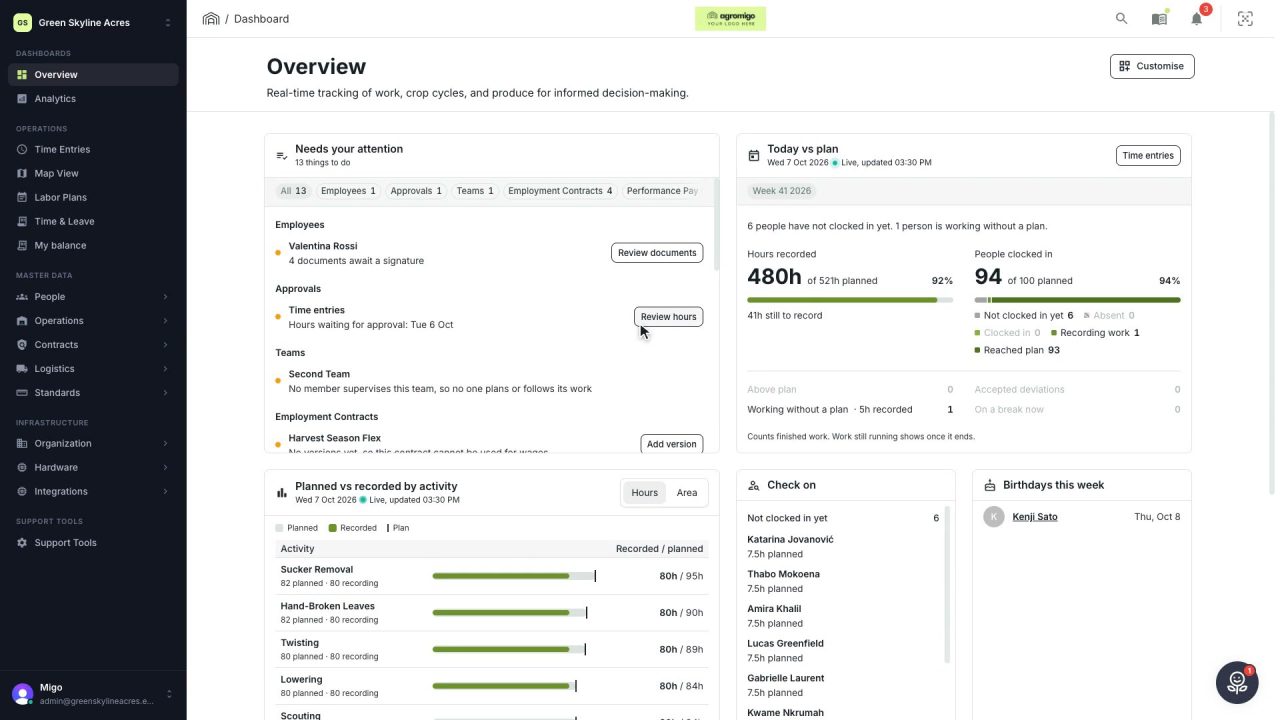
2 min See how today is going against the plan, while it is still going
The Today vs plan card on the Overview follows today's labor plan live. You see whether the day is on track, who is in and who to check on, without opening the plan or the time entries.
Read the story -
 2 min
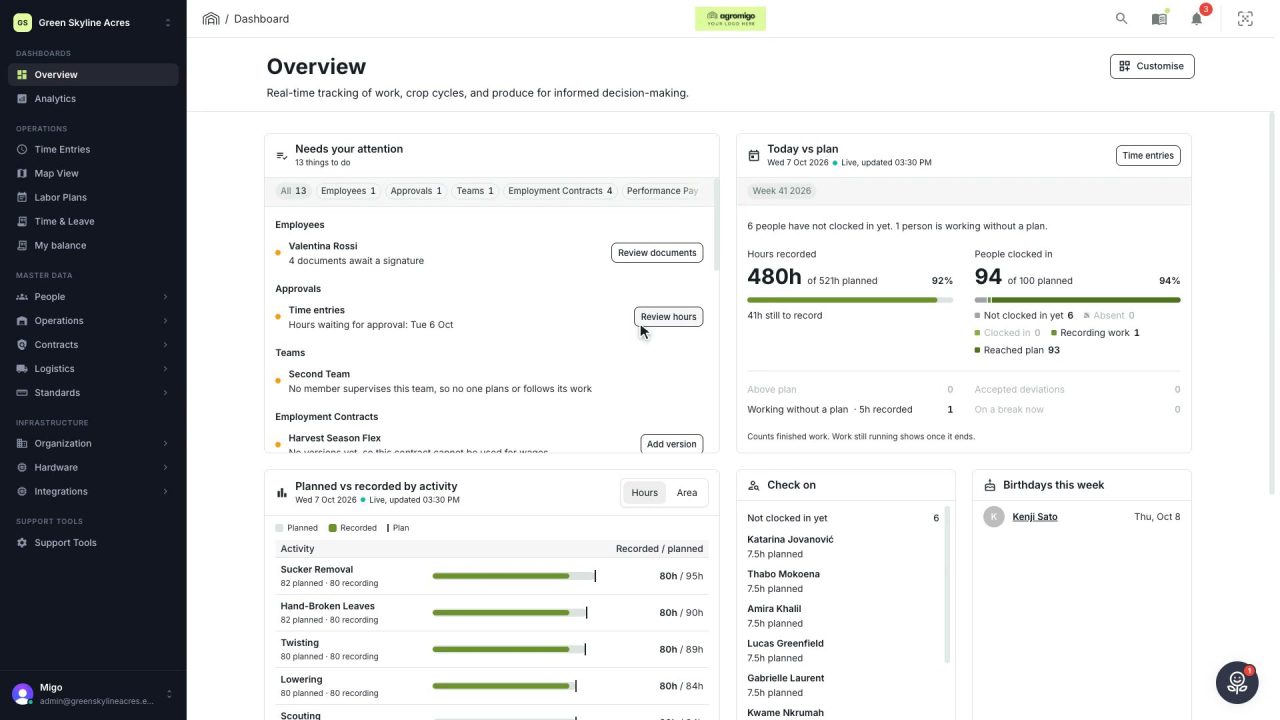
2 min Arrange the Overview the way you work
Move, resize and hide the cards on the Overview, so the figures you check every day are at the top and a long list has the room it needs.
Read the story -
 2 min
2 min See whose day went differently from the plan
Check a work day against the labor plan, see who worked something else or did not show up, and accept a change of plan that had a good reason.
Read the story