An extra pair of hands on the crew, in one step
Add a worker to a crew in a few clicks, without pulling anyone off another team by accident. Their own record follows automatically.
Crews change every week. Someone is needed in the picking crew, someone else moves to packing, and the supervisor’s list on the phone has to keep up. When the roster lives in a spreadsheet, it is out of date by Wednesday, and hours land against the wrong crew.
In Agromigo, changing a crew takes one step. You see who is on it, add the person you need and save. Their own employee record follows by itself, so the roster is right everywhere.
In this video
Migo shows you how to find a team, read who’s on it, and add an extra pair of hands in one step.
The list. Teams lists every crew in your operation, one row each with how many members it has; a dot marks a team that needs attention. Select a row, and that team’s record opens beside the list. Crews carry your labor plans, time entries and approvals, so the right people on the right team keeps every week’s planning and hours straight.
A new week starts, and one of your crews needs an extra pair of hands.
- Second Team. It carries a dot. Its record opens with the Next steps card, which points out what is missing: here, a supervisor who plans and follows the team’s work.
- First Team. Its record sits beside the list (from the bottom on a phone): what the team is for and who works in it.
- The Members card. In the right-hand column, it lists everyone on the crew.
- Select team members. The pencil at the top right of the Members card opens a picker that only offers people not on another team, so nobody changes crews by accident.
- Search and tick. Type Carmen in the search box at the top of the sheet, and tick the box at the left of her row. The Selected count goes up by one.
- Check. Clear the search with the cross at its right end and choose Selected, next to All: only the team shows.
- Save. At the bottom right of the sheet. The team is updated in one step, and Carmen’s own employee record follows automatically.
- Carmen on the crew. She now shows in the Members card, so the team is ready for this week’s time entries and labor planning.
- Off the crew again. The same picker takes someone off: clear the tick at the left of Carmen’s row and save. Her record follows, and the team is back as it was.
- Another crew. New, in the top right corner, opens an empty team sheet: a name and picture in the Basic Data card, then the Translations and Description cards. Cancel, at the bottom right of the sheet, closes it without saving.
First Team is ready for the week ahead.
Tips
- A supervisor is a member with the Supervisor role. There is no separate list of leads. Put someone on the team and give them the Supervisor role, and the crew shows on their phone. Two shift leads can share one crew this way.
- Watch for supervisors on no team. A supervisor who is on no team sees every active employee, not nobody. If someone’s list is longer than you expect, that is usually why.
- Two crews at once? Use a group. An employee is on one team only. If you want someone planned with two sets of people, an employee group is the right tool, and a person can be in as many groups as you like.
Read more
The user guide explains how Teams work, who supervises them and how they differ from groups. Editing a team covers the members list and archiving a crew you no longer use.
Try it free for 1 month, no credit card needed.
More stories
-
 2 min
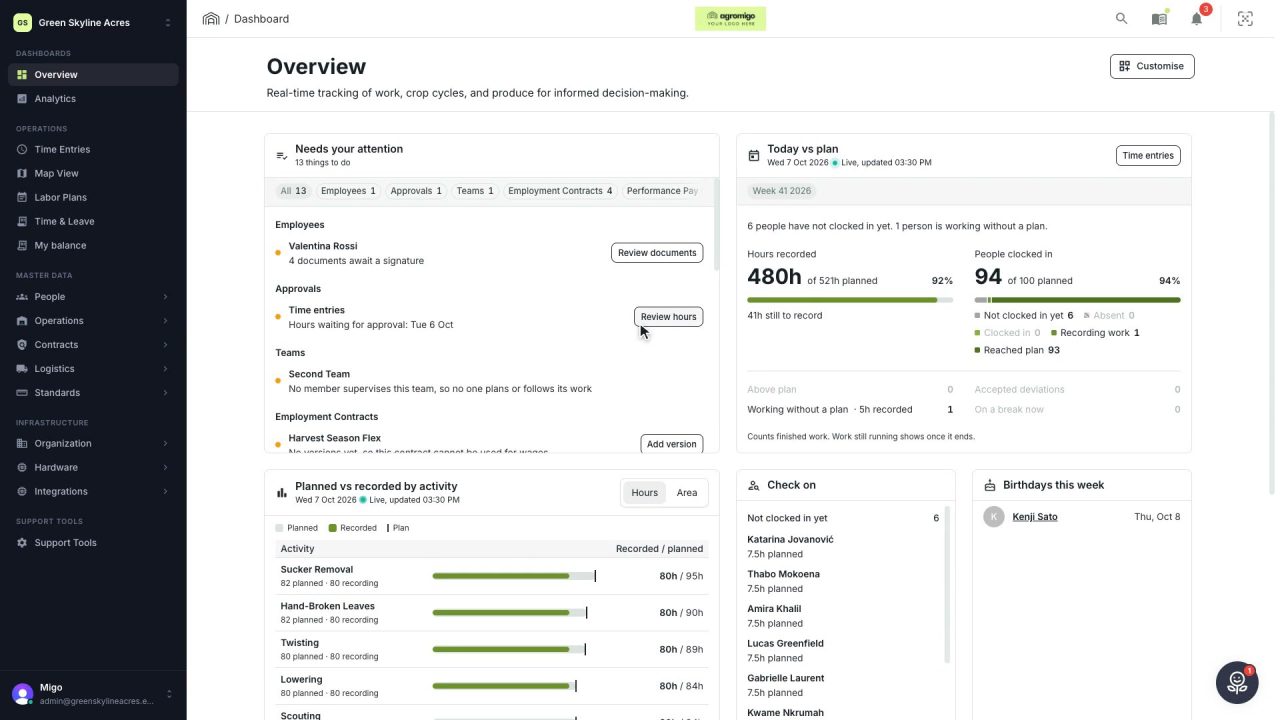
2 min See how today is going against the plan, while it is still going
The Today vs plan card on the Overview follows today's labor plan live. You see whether the day is on track, who is in and who to check on, without opening the plan or the time entries.
Read the story -
 2 min
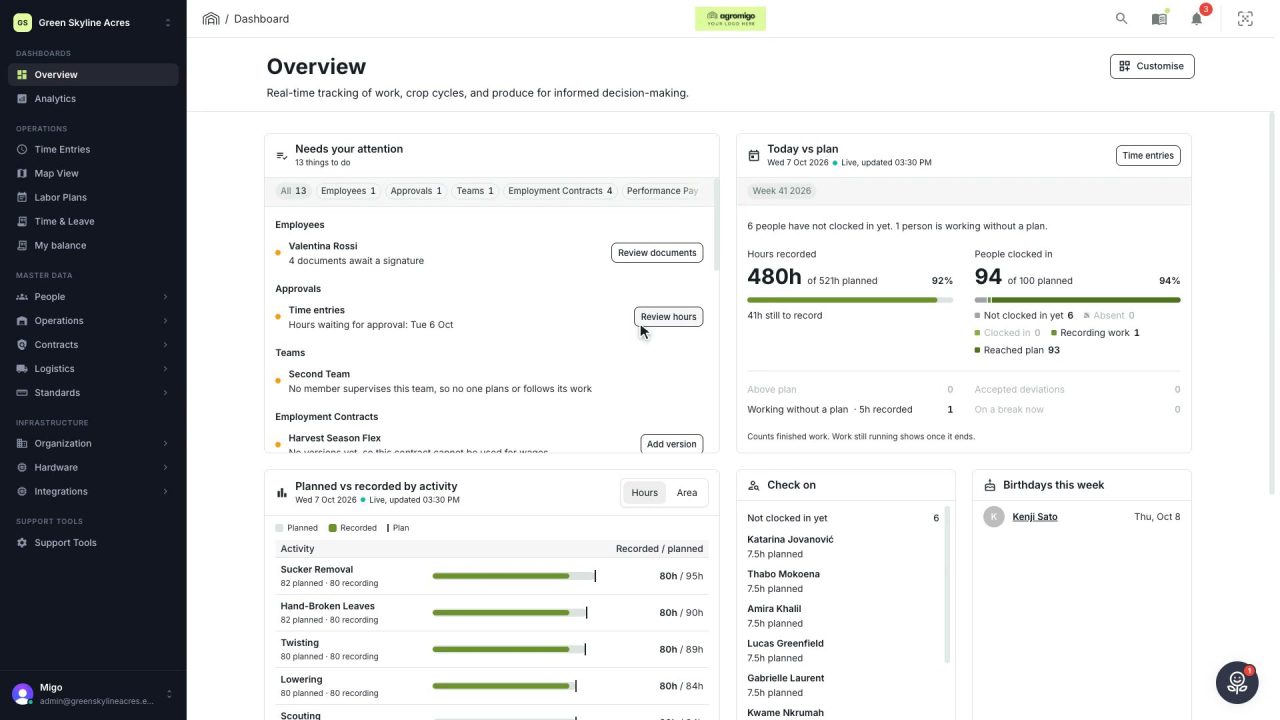
2 min Arrange the Overview the way you work
Move, resize and hide the cards on the Overview, so the figures you check every day are at the top and a long list has the room it needs.
Read the story -
 2 min
2 min See whose day went differently from the plan
Check a work day against the labor plan, see who worked something else or did not show up, and accept a change of plan that had a good reason.
Read the story