Set up your basic data once, and every hour lands right
Activities, employees, carts and container types are what every recorded hour and every crate hangs on. A tour of the four screens, and what each setting decides later.
Every hour your crew records points at four things: the task they were doing, the person doing it, the cart they filled and the kind of container it went into. Get those four right once, and a year of reports and payslips reads correctly without anyone tidying up afterwards.
Get one of them wrong, and the mistake is quiet. Hours land on a task nobody recognises, output cannot be traced to a container, and the correction has to be made by hand, record by record, long after the week is closed.
In this video
Migo shows you what activities, employees, carts and container types decide for every hour your crew records.
The page. Activities lists every task your crew can record work on, one row each, with search and filters just above the list. The tour visits four screens under Master Data: Activities, Employees, Carts and Container Types.
- An activity. Harvesting Crates opens beside the list (from the bottom on a phone), key facts across the top. Starting a shift, taking a break and absence are kept apart, under System Activities.
- What it asks the crew. The Input Questions card shows what Harvesting Crates asks when the work is done: work area, container type and a count, one NFC tap per crate.
- The edit sheet. The pencil at the top right opens it: ledger category, performance goal and those questions, each in a card of its own.
- Translations. Type a name once. On save, every language your crew reads fills in, and a name you typed yourself is never replaced.
- Employees. One row for every person in your operation, with contact, work and personal details in cards.
- The role. The Work card holds it, and the role decides what a person can reach, from Worker to Administrator.
- Invite. At the bottom of the employee sheet, it lets any employee sign in and complete their own details. Sending it takes Supervisor or above.
- Carts. Each trolley, crate or bin you follow individually, with its serial number, empty weight and default container type.
- Tagged for scanning. Give the cart an NFC tag or a QR code, and the crew scan it while recording.
- Container types. Each kind of crate, box, punnet or tray, with its empty weight.
Set up activities, employees, carts and container types once, and every hour and every crate recorded afterwards lands in the right place.
Tips
- Name an activity the way the crew says it. They pick it from a list on a phone, often in a hurry, in their own language.
- Let the translation fill itself in. Typing the name once covers every language your crew reads, and anything you typed by hand stays untouched.
- Set the empty weight on the container type. It is what turns a weighed crate into a net harvest figure without anyone doing arithmetic.
- Register a cart only if you follow it individually. A cart you never scan is a row nobody maintains.
- Retire rather than delete. Hours already recorded still refer to the record, so setting it inactive keeps last season readable.
Read more
The user guide covers activities, employees, carts and container types.
Book a Demo.
More stories
-
 2 min
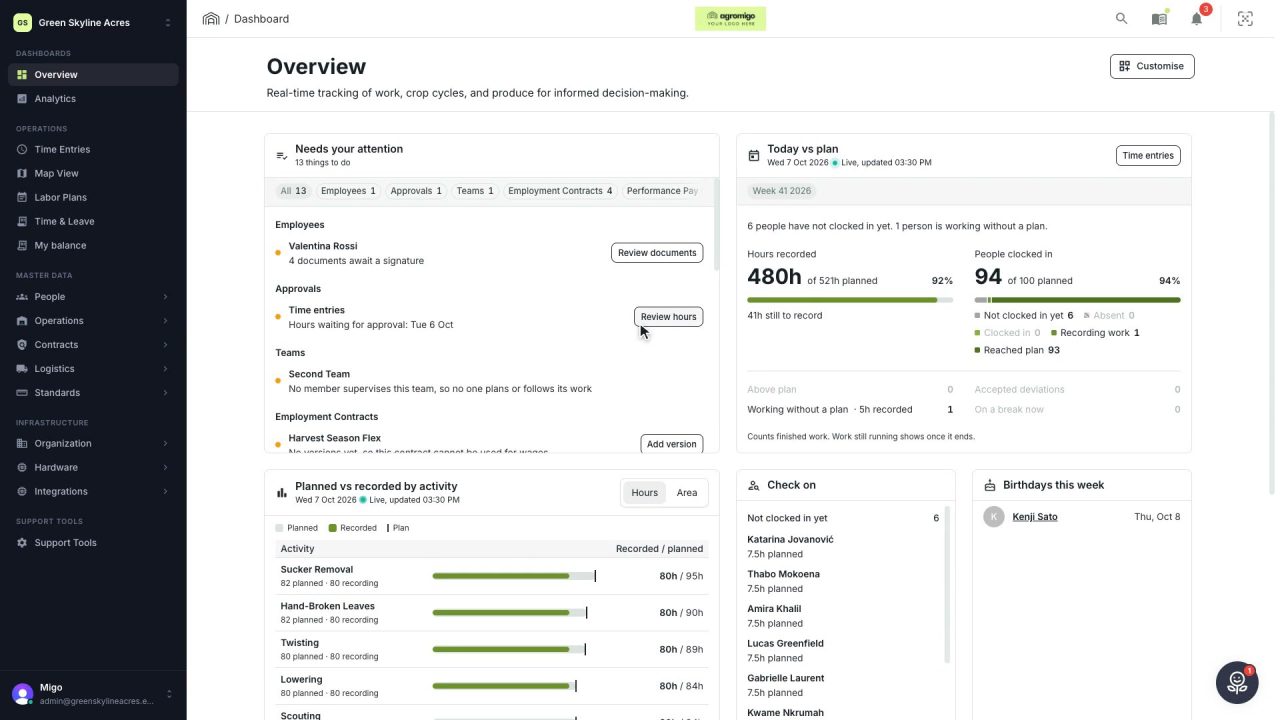
2 min See how today is going against the plan, while it is still going
The Today vs plan card on the Overview follows today's labor plan live. You see whether the day is on track, who is in and who to check on, without opening the plan or the time entries.
Read the story -
 2 min
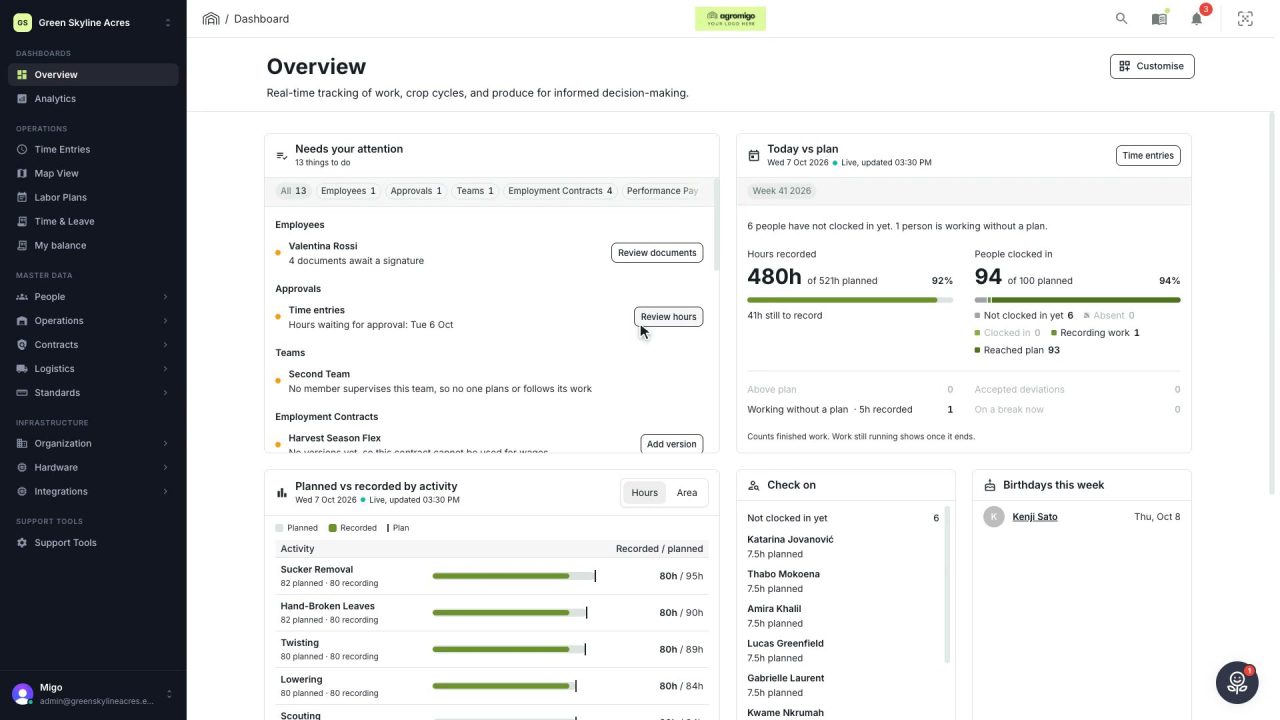
2 min Arrange the Overview the way you work
Move, resize and hide the cards on the Overview, so the figures you check every day are at the top and a long list has the room it needs.
Read the story -
 2 min
2 min See whose day went differently from the plan
Check a work day against the labor plan, see who worked something else or did not show up, and accept a change of plan that had a good reason.
Read the story