Run the operation from your pocket
The Agromigo Admin app puts the dashboard on a manager's or supervisor's own phone, set up with the same QR code wizard and nothing erased.
The decisions that hold up a morning are small ones: approve a day, correct a start time, check who is where. They wait for the walk back to the office, and by then the crew has moved on and the person who knew the answer is in another compartment.
The Agromigo Admin app moves those decisions to where the work is. It is the same operation, on the phone a manager or supervisor already carries.
In this video
Migo shows you how to put the Agromigo Admin app on a manager’s own phone, with one QR code.
The page. Every screen’s top bar carries a QR icon on its right-hand side. That is where devices get set up.
- Which app. Admin, the second card below Crew, is for a manager or supervisor running the operation from a phone.
- How to install. A phone you own is the only card: the Agromigo Admin app always installs from the Google Play Store, and nothing is erased.
- One code, scanned twice. The first scan, with the phone’s camera, opens the Agromigo Admin app in the Google Play Store.
- Install. Install, wait for the download, Open.
- The second scan. When the app asks for the organization, choose Scan the QR code on Connect your device and scan the same code again, or type the organization code from the box just below it.
Finish closes the wizard. The Agromigo Admin app is connected, and your operation goes wherever you go.
Tips
- Admin is for the people who decide, Crew is for the people who record. One phone does not need both.
- Nothing is erased. Unlike a locked crew terminal, this installs like any other app on a phone somebody already owns.
- The role still decides what they see. Installing the Agromigo Admin app grants nothing on its own, so check the person’s role before you hand out the code.
- Checking the day in the greenhouse is the point. Correcting a shift start while the crew is still there beats correcting it from a desk a week later.
Read more
The user guide covers devices, roles and what each one reaches and the device form.
Book a Demo.
More stories
-
 2 min
2 min See whose day went differently from the plan
Check a work day against the labor plan, see who worked something else or did not show up, and accept a change of plan that had a good reason.
Read the story -
 1 min
1 min Agromigo on your computer, in a window of its own
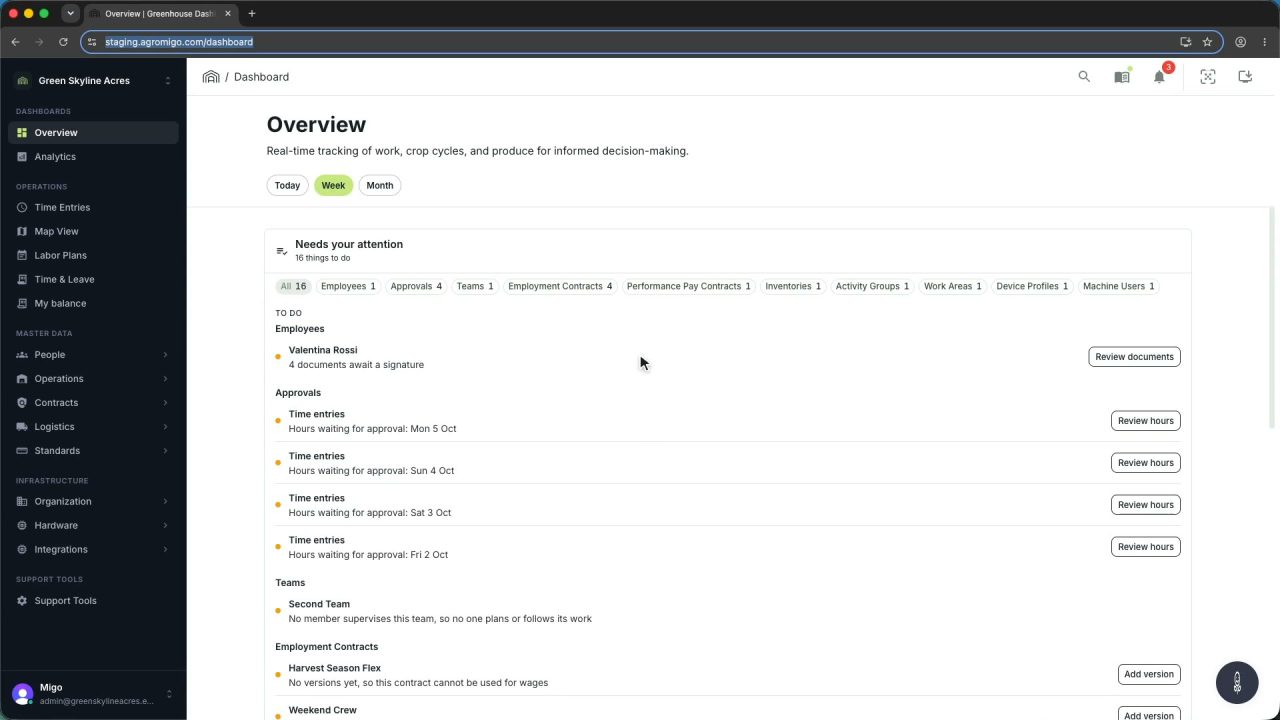
One click on the install icon and Chrome's Install button put the dashboard among your programs, opening in its own window, straight to your dashboard, always the latest version.
Read the story -
 2 min
2 min One shared phone where the crew taps in with a tag
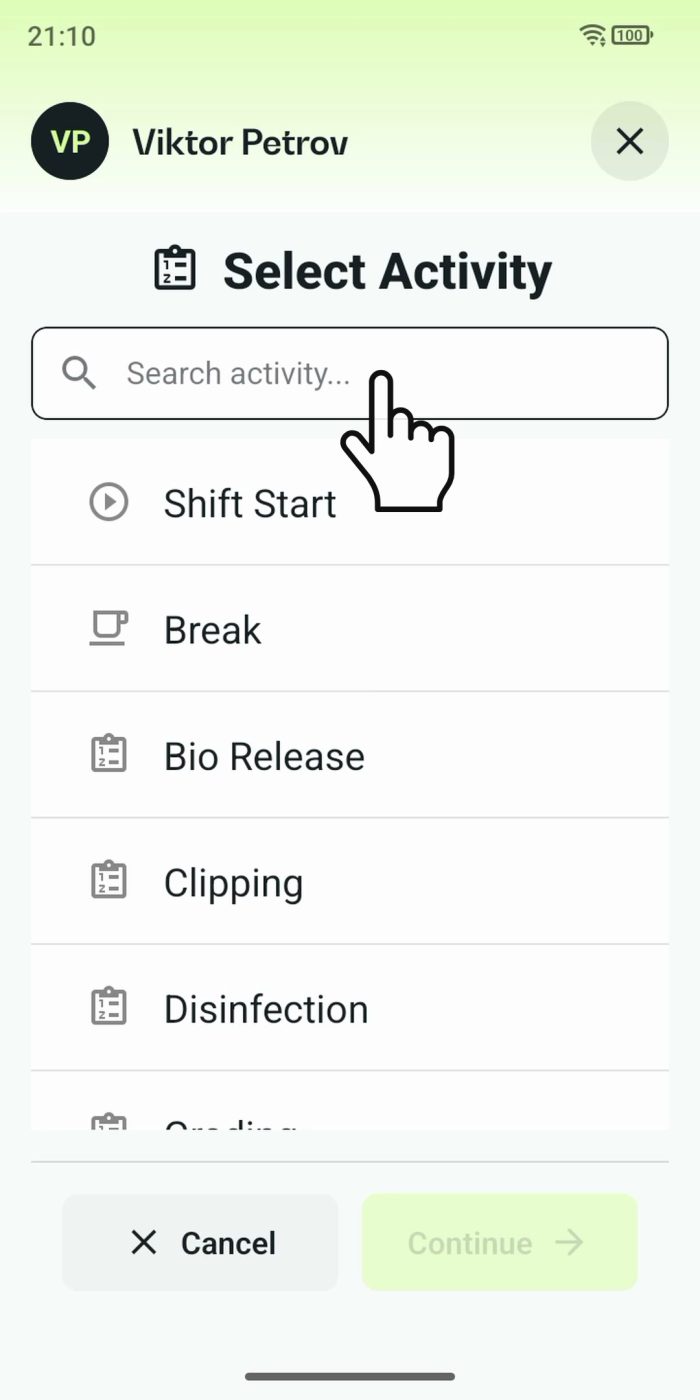
Terminal mode turns one phone into a terminal for a whole crew, at a fixed spot or moving with the team. Workers tap their personal tag, choose the task they finished, answer a few questions, and the screen resets for the next person.
Read the story