Fix a wrong shift start before you leave the greenhouse
A supervisor spots a shift start clocked half an hour late and corrects it on a phone, while the crew is still on site.
Hours checked a week later are checked by somebody who was not there. They see a shift that started at eight, no reason to doubt it, and no way to know that the crew was already working at half past seven.
The supervisor who stood in the row does know. Agromigo puts the day’s hours on their phone, so the correction happens where the work happened, while anyone can still remember it.
In this video
Migo shows you how to correct a wrong shift start on your phone, while the crew is still on site.
The page. Time entries lists your team’s work day: everyone who worked, with their hours, and a search box at the top. The work day is done and you are still in the greenhouse.
- Find someone. The search box at the top finds anyone on your team by name, best match first, with their hours for the day beside it.
- Their day. It opens on its own screen: tasks as cards at the top, each with row and hours, and shift start and breaks in the card below.
- A correction. Alejandra started at half past seven, but her shift start says eight. Tap it and type the right time.
- Recalculated at once. Save, bottom right, and the heading at the top shows the new hours. The previous version stays in the entry’s history, so the change is traceable.
Back in the list, your team’s day is right before anyone approves it, corrected straight from the greenhouse floor.
Tips
- Check the same day. A correction made while the crew is still on site can be asked about; a week later it is a guess.
- Correct the shift start, not each task. A task begins where the one before it ended, so the day’s hours follow from the shift start. One wrong start distorts everything below it.
- Nothing is overwritten. The previous version stays in the entry’s history, so a correction never hides what the device recorded.
- Within three days. A supervisor can edit today, yesterday and the day before. For anything older, write the correction in the review note when you approve the day, and the next reviewer makes it.
Read more
The user guide covers time entries, including correcting an entry, and how a day’s hours are worked out.
Try it free for 1 month, no credit card needed.
More stories
-
 2 min
2 min See whose day went differently from the plan
Check a work day against the labor plan, see who worked something else or did not show up, and accept a change of plan that had a good reason.
Read the story -
 1 min
1 min Agromigo on your computer, in a window of its own
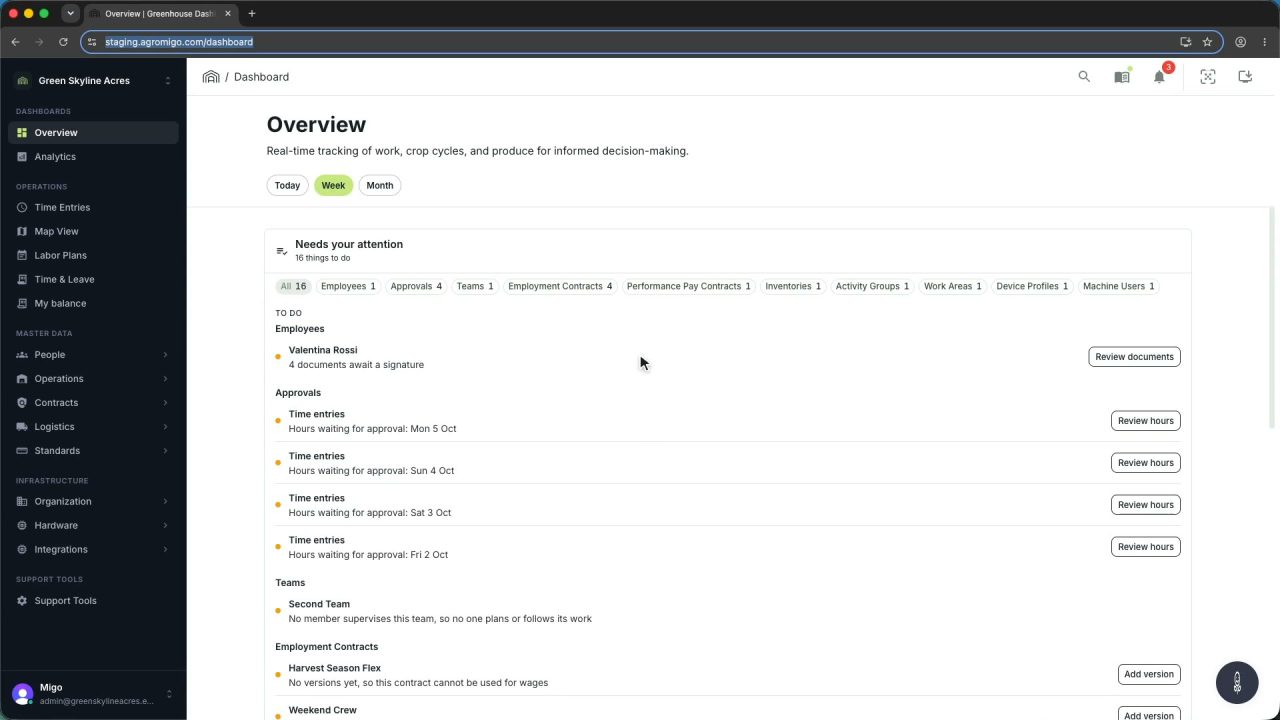
One click on the install icon and Chrome's Install button put the dashboard among your programs, opening in its own window, straight to your dashboard, always the latest version.
Read the story -
 2 min
2 min One shared phone where the crew taps in with a tag
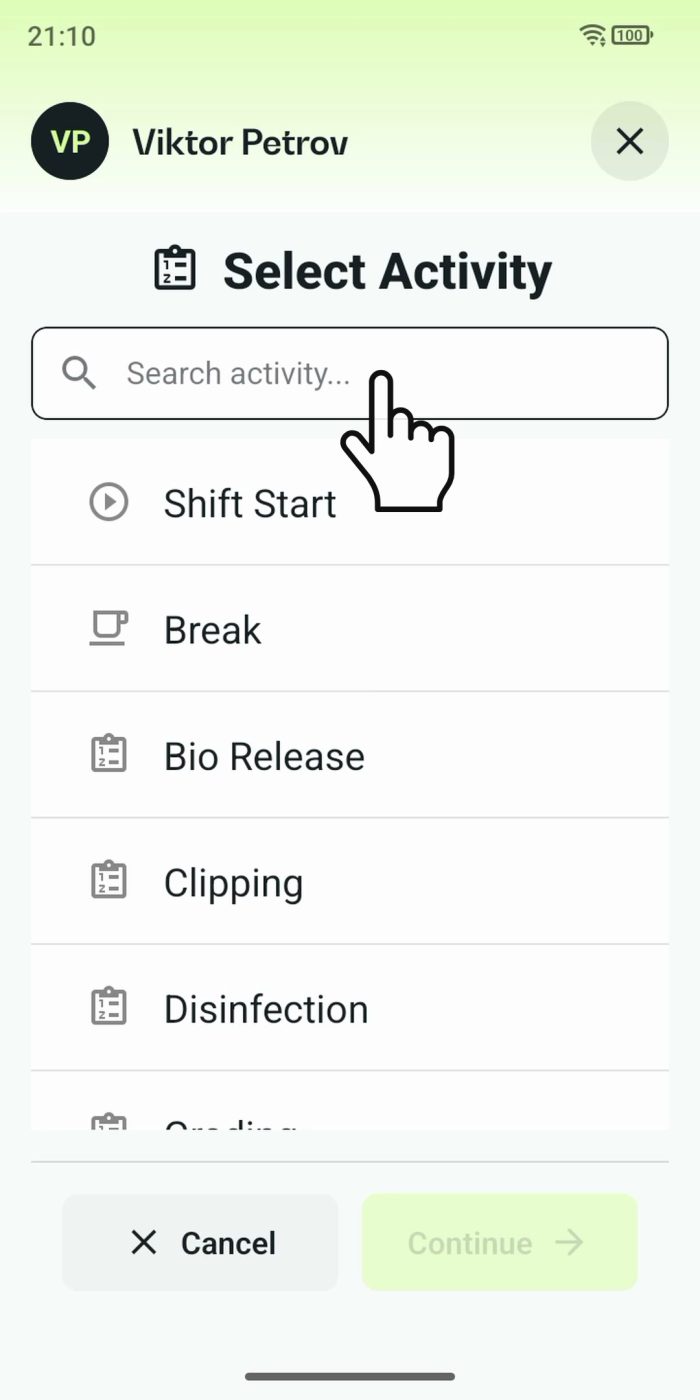
Terminal mode turns one phone into a terminal for a whole crew, at a fixed spot or moving with the team. Workers tap their personal tag, choose the task they finished, answer a few questions, and the screen resets for the next person.
Read the story