Everything in your operation, one or two clicks away
Start the day on the Overview, search with a few letters and find every screen in a clear menu. Getting around Agromigo Workforce takes seconds.
Your morning starts before the first coffee is cold. A supervisor wants to know why hours are missing, a contract needs checking, and someone asks where last week’s figures went. Every minute spent clicking through menus is a minute not spent in the greenhouse.
Agromigo Workforce is built so you never have to hunt. You open it, see what needs your attention, and get where you are going in one or two clicks. From the Overview, the search or the menu.
In this video
Migo shows you how to find your way around Agromigo: the Overview, the search and the menu.
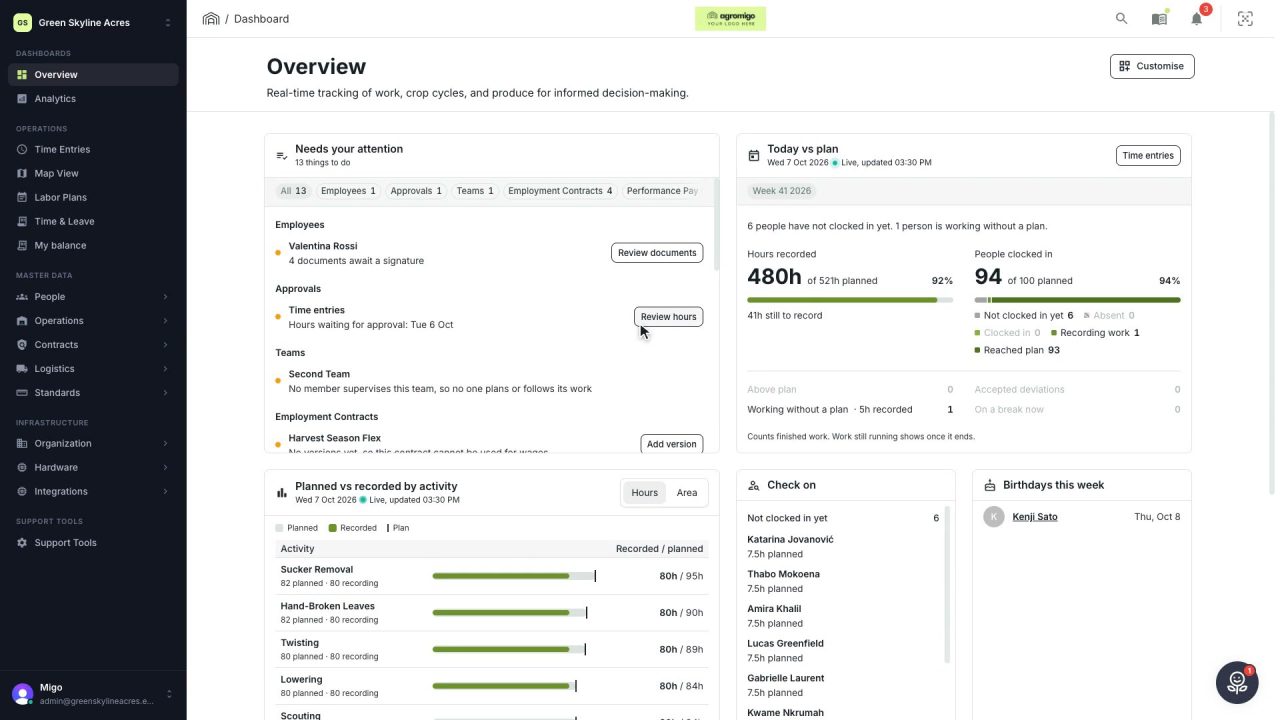
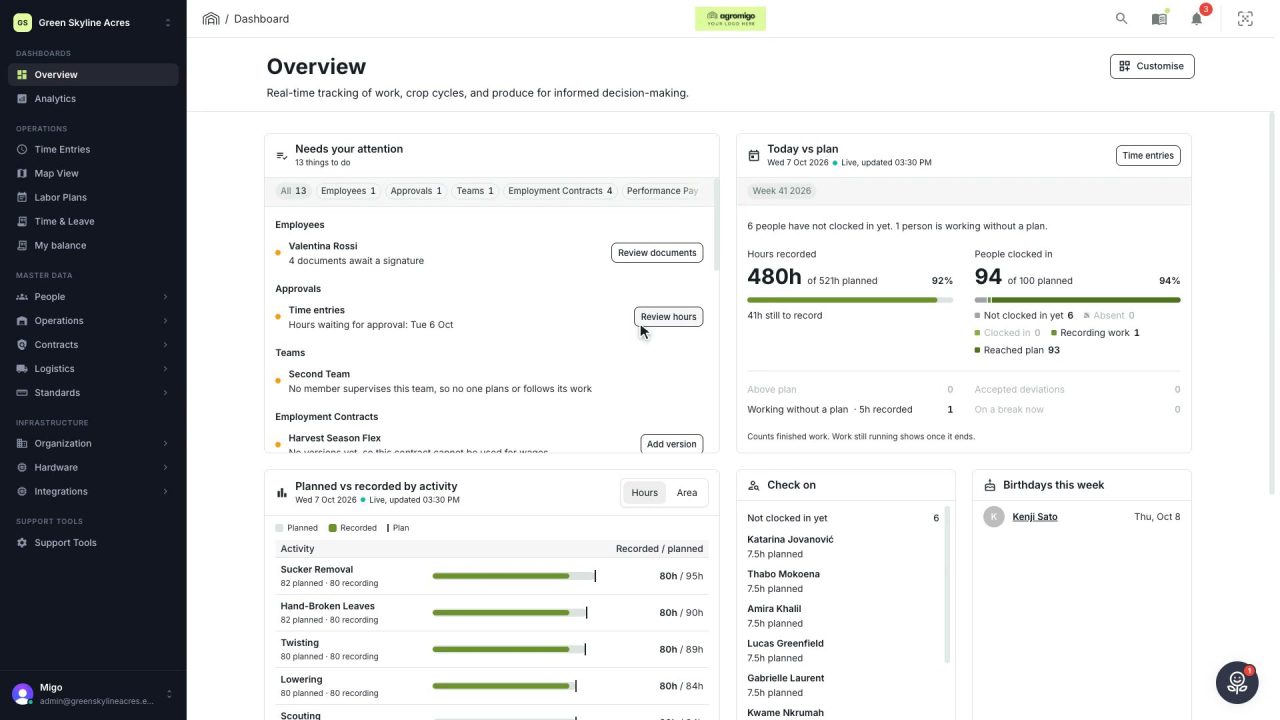
The page. You start on the Overview, the dashboard’s home page. Below its title, the Needs your attention card lists what is still open, with the trends further down. Knowing your way around saves time every day: any record, screen or setting is only a click or two away.
- The Needs your attention card. Everything still open, grouped by topic. The chips just below the heading narrow it to one kind of work.
- The trends. Further down, they show how the last days went: hours worked, people at work and the plan against what was recorded, each compared with the days before.
- Search. The magnifier in the top right corner searches people, sites, activities, records and the manual. Type three letters in the box at the top, and everything that matches appears at once, best match first: people, activities and groups side by side, so an activity is as quick to find as a colleague. A typo still finds the right result.
- Jump. Pick a result and that record opens beside its list, without clicking through a single menu.
- The menu. On a phone it folds into a drawer, behind the menu button in the top left corner. It sorts every screen under four headings: dashboards, operations, master data and infrastructure.
- Organization and Holiday calendar. Near the bottom of the menu: your company details, and the public holidays that count toward time-for-time balances.
- Switch organization. The switcher at the top of the menu, with your operation’s name, moves between the organizations you work in, without signing out.
- Your account. The button with your email address, at the bottom of the menu, holds your settings, your language, the manual and the API portal.
Wherever you start, everything in your operation is one or two clicks away, so your time goes into the work, not into finding it.
Tips
- Search without the mouse. Press Ctrl + K (⌘ + K on a Mac) on any screen to open the search. The arrow keys move through the results and Enter opens the one you want.
- Ask it a question, too. The same box searches the user guide, so "how do I approve" works as well as a worker’s name. Open it without typing and it shows the records and screens you opened most recently.
- Your language is your own. Changing it in the account menu (Alt + L, or Option + L on a Mac) applies right away, and only for you. Your crew keeps the language set on their own employee record.
Read more
The user guide explains the Overview, everything the quick search can do, and where to find your account and language.
Try it free for 1 month, no credit card needed.
More stories
-
 2 min
2 min See how today is going against the plan, while it is still going
The Today vs plan card on the Overview follows today's labor plan live. You see whether the day is on track, who is in and who to check on, without opening the plan or the time entries.
Read the story -
 2 min
2 min Arrange the Overview the way you work
Move, resize and hide the cards on the Overview, so the figures you check every day are at the top and a long list has the room it needs.
Read the story -
 2 min
2 min See whose day went differently from the plan
Check a work day against the labor plan, see who worked something else or did not show up, and accept a change of plan that had a good reason.
Read the story