Show each phone only the work that happens around it
Limit a device to the work areas where it is used and the activities that belong there, so your crew picks from a short list and a phone with one work area records it by itself.
A phone in the packing hall offers forty greenhouse rows. A picker who only ever harvests scrolls past sixty activities to find the one they do every day. Each extra row in a list is a moment of doubt, and now and then the wrong tap, which someone in the office corrects later.
Agromigo lets you shorten those lists where the work happens. A device knows where it is used, so it offers only the work areas around it. A device profile knows what that kind of place is for, and an employee’s record knows what that person does, so the activity list fits as well. And where a device is used in exactly one work area, nobody is asked at all.
In this video
Migo shows you how to limit a device to the work areas and activities around it, so your crew picks from a short list.
The list. Devices lists every phone your crew records work on, one row each, with its profile and device key under the name. Select a row, and that device opens beside the list. Per device, you decide which work areas and which activities it offers.
- Open a device. Its record opens beside the list (from the bottom on a phone), with a Details card.
- Allowed work areas. The Details card lists the work areas this device offers. As long as nothing is chosen, it offers every work area.
- Edit. The pencil at the top of the record opens the edit sheet. Its Work areas card holds the same list, with a Choose work areas button.
- Choose work areas. The button opens a list of every work area, with its type and where it is located. You tick the ones this device should offer.
- A zone brings its rows along. Tick a zone, and every row and station inside it is included. Tick a single row, and the device offers only that row.
- One work area, no question. With exactly one work area, nobody is asked where they work. That work area is set automatically on every time entry recorded on this device.
- Nothing saved. Cancel closes the list, and Cancel once more closes the sheet.
- A new device. To add a device, click New, the green button in the top right corner. In the sheet you give it a name and pick its device profile, and Cancel closes it without saving.
- Activities, on the profile. Activities are filtered one level up, on the device profile, which several devices can share. In a profile’s edit sheet, Activity filter groups takes one or more activity groups, and every device on that profile offers only the activities in those groups.
- Activities, per employee. An employee can carry a filter as well: Allowed activities, in the employee’s edit sheet, takes one or more activity groups for what that person actually does.
- Both have to agree. An activity is only offered when both the device and the employee allow it. Starting a shift and taking a break are always offered.
Each device shows a short list that fits the place where it is used, and a phone with a single work area records it without asking anyone.
Tips
- Choose the zone, not its rows. A row you add to that zone next season is offered on the device straight away, without anyone opening the device again.
- Use a single work area for a fixed workplace. A phone at one packing bench or one grading table is the clearest case: every task started there is recorded at that bench, also for an activity that never asks for a work area. An activity that asks which part of a block was done still asks how much.
- Keep an eye on the attention dot. When a work area on a device’s list is made inactive, the device offers one fewer, and the device list flags it. That matters most when two become one, because from then on everything is recorded in the one that is left.
- Tags follow the same list. A tag for a work area the device does not offer is refused with a message, so work is never quietly started somewhere else.
- Split the two activity filters by purpose. Use the profile’s groups for what a place is for, and the employee’s groups for what a person does. An employee allowed only harvesting, on a phone filtered to packing, sees just the shift and break buttons, so check the combination before you roll it out.
Read more
The user guide explains each filter and how they combine. Read Device form for the work areas a device offers, Device profiles for the activity filter groups, and Activity groups for how the device’s and the employee’s filters work together.
Want to see how it fits your operation? Book a demo.
More stories
-
 2 min
2 min See whose day went differently from the plan
Check a work day against the labor plan, see who worked something else or did not show up, and accept a change of plan that had a good reason.
Read the story -
 1 min
1 min Agromigo on your computer, in a window of its own
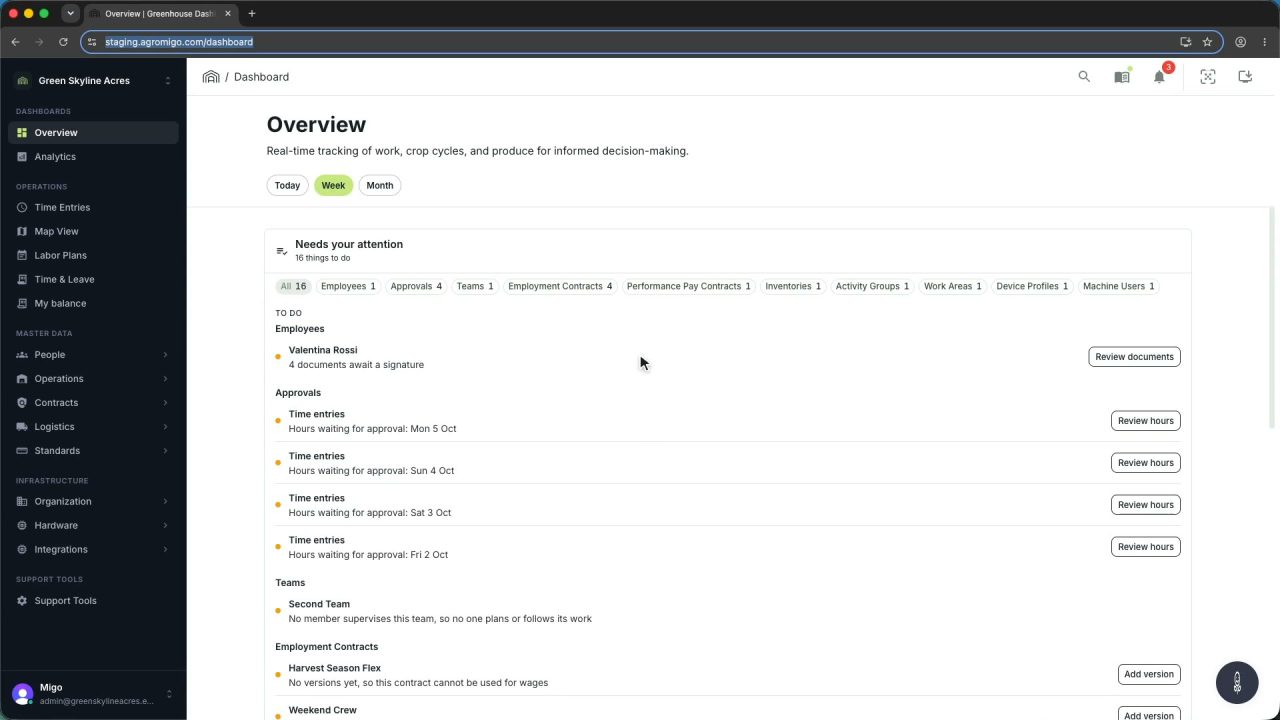
One click on the install icon and Chrome's Install button put the dashboard among your programs, opening in its own window, straight to your dashboard, always the latest version.
Read the story -
 2 min
2 min One shared phone where the crew taps in with a tag
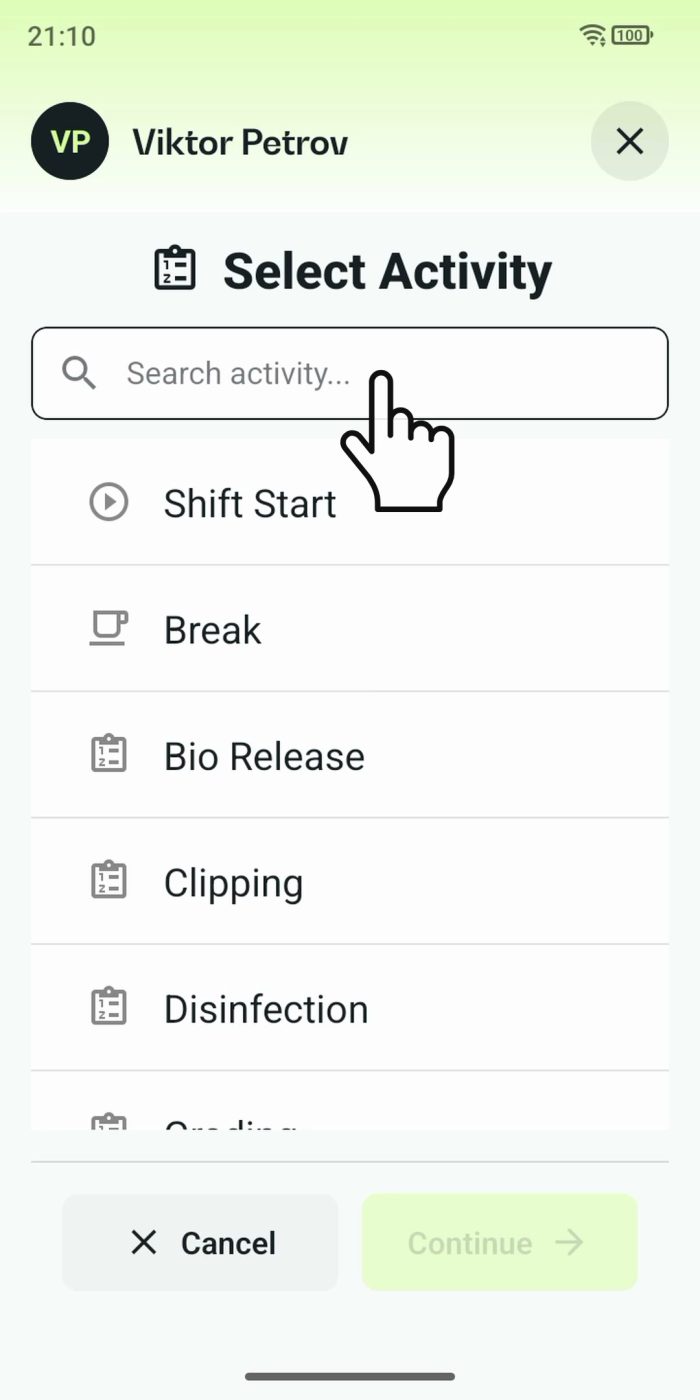
Terminal mode turns one phone into a terminal for a whole crew, at a fixed spot or moving with the team. Workers tap their personal tag, choose the task they finished, answer a few questions, and the screen resets for the next person.
Read the story