Your whole day on one page
One page shows what needs your attention, how today is going against the plan, who to check on and how the last days went, each with the button or screen that takes it further.
A contract without a version, a worker who never accepted the privacy notice, a device that stopped reporting. None of these announce themselves. They sit on the screen they belong to, and you only find them when somebody is paid wrongly or an inspector asks.
The Overview exists so you do not have to go looking. It gathers every open item from the screens you manage onto one page, most urgent first, each one with the button that resolves it. Beside it, today’s work against the plan, live, and further down the trends, so one page tells you both what to do and how the day is going.
In this video
Migo shows you how to start the day from the Overview: what needs your attention, and the button that fixes it.
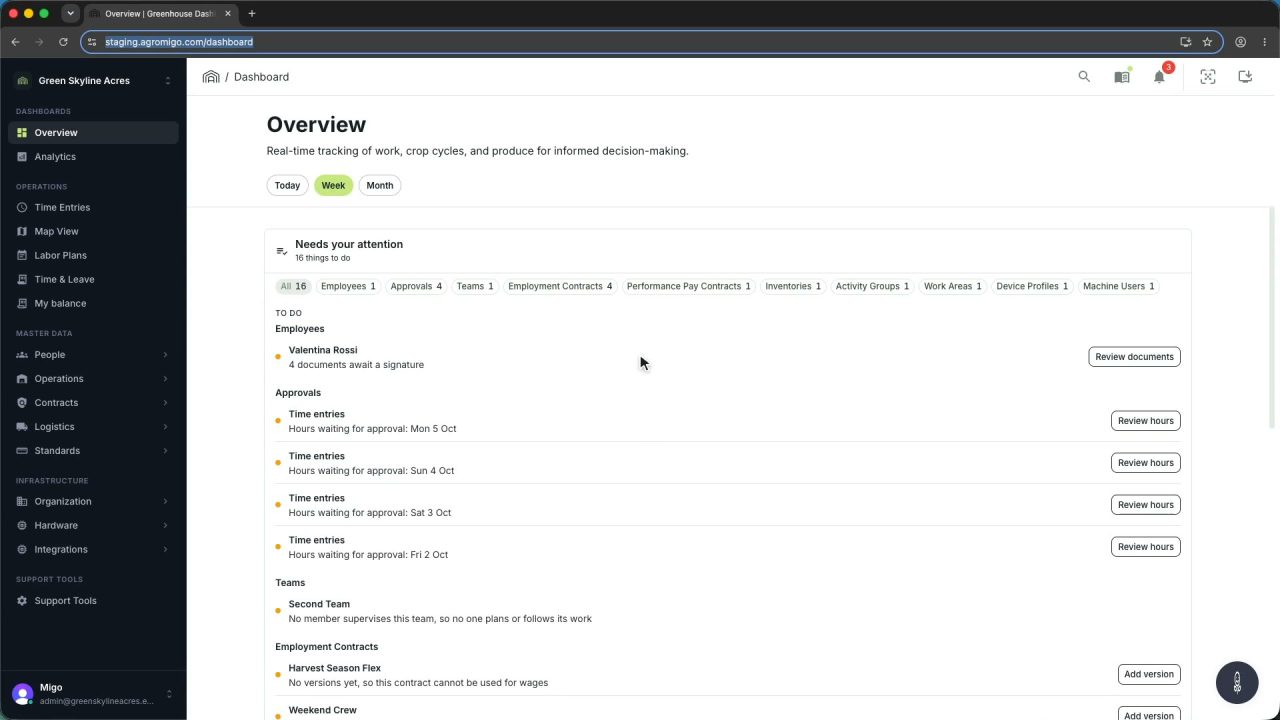
The page. The Overview is the dashboard’s home page: the Needs your attention card with everything still open, today against the plan beside it, who to check on, and the trends further down.
- The Needs your attention card. It gathers every open item from the screens you manage: the most urgent first, then grouped by topic.
- Rows that explain themselves. Each row names the record and says in plain words what is missing and why it matters. The button on the right of the row fixes it.
- One topic at a time. The chips in the bar at the top of the card clear a single topic. Employment Contracts leaves only the contracts still waiting for a version.
- Fix it where it belongs. Add version, on the right of a contract’s row, opens that contract with a new version already started.
- The record agrees. Its Next steps card, near the top, lists the same item until a version is saved.
- Back to the list. You carry on with the next item, working down until nothing is left for today.
- Today against the plan. Beside the list, the Today vs plan card shows how today is going against the labor plan, while your crew records their work.
- Hours recorded. The hours your crew has recorded today against the hours planned, and what is still to record.
- People clocked in. Who has started against who was planned, split into not clocked in yet, recording work, and already at their planned hours.
- The exceptions. Work above plan, people working without a plan, accepted deviations, and who is on a break right now.
- Per activity. The Planned vs recorded by activity card shows a bar for the hours recorded on each activity, and a mark where its plan ends.
- Who to check on. The Check on card names the people planned for today who have not clocked in yet, with the hours they were planned for.
- Birthdays. The Birthdays this week card makes sure nobody’s birthday goes by unnoticed.
- How the last days went. Further down, the trends. Last 7 days and Last 30 days, beside the Trends heading, set their period.
- Compared with before. The line under each figure compares it with the days before, so a sudden drop in hours or in people at work stands out.
- People and plan. People at work shows how many people work on a typical day, and Plan vs recorded how much of the planned time was actually recorded.
- Your own page. Customise, at the top right, chooses which cards the Overview shows, and in what order.
Starting the day here means nothing slips through. You begin with what matters today, instead of hunting for it across screens.
Tips
- Work by topic when the list is long. Clearing all the contracts at once is faster than jumping between a contract, a worker and a device.
- The same item appears on its own record. The Next steps card on the record says exactly what the Overview says, so a colleague who starts from the record sees the same thing.
- An item disappears when the data is fixed. There is nothing to tick off and nothing to forget to tick off.
- Read the comparison line, not just the number. A week that looks normal can still be well below the week before it.
- Arrange it the way you work. Customise, at the top right, moves, resizes and hides the cards; see arranging the Overview.
Read more
The user guide explains the Overview and, for a new operation, the quick start that gets these figures filled in.
Book a Demo.
More stories
-
 2 min
2 min See whose day went differently from the plan
Check a work day against the labor plan, see who worked something else or did not show up, and accept a change of plan that had a good reason.
Read the story -
 1 min
1 min Agromigo on your computer, in a window of its own
One click on the install icon and Chrome's Install button put the dashboard among your programs, opening in its own window, straight to your dashboard, always the latest version.
Read the story -
 2 min
2 min One shared phone where the crew taps in with a tag
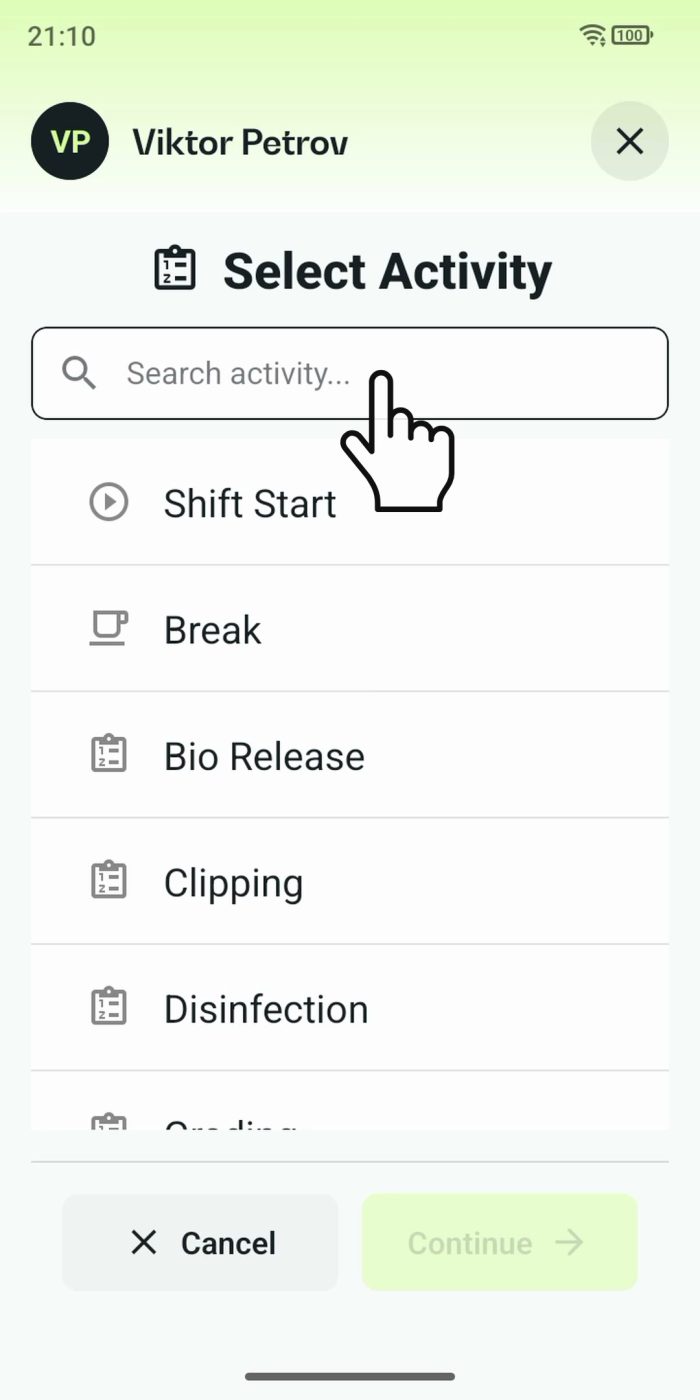
Terminal mode turns one phone into a terminal for a whole crew, at a fixed spot or moving with the team. Workers tap their personal tag, choose the task they finished, answer a few questions, and the screen resets for the next person.
Read the story