Set up your operation once, and every screen follows
Your operation's identity, regional settings, data retention and holiday calendar, set once and used by payroll and every report.
A clock-in at ten to midnight. Does it count for today or tomorrow? A public holiday worked in full. Does it earn extra time off? Questions like these are settled long before the workday starts, by a handful of settings nobody looks at until something goes wrong.
In Agromigo those settings live in two places: the Organization page and the holiday calendar. You set them up once. After that, every screen, every balance and every report builds on them, so you never have to answer the same question twice.
In this video
Migo shows you how to set your operation’s identity, regional settings, data retention and holiday calendar.
The page. Organization holds your operation’s own details in cards: Identity and Addresses at the top, Regional Settings and Data Retention below. Edit is in the top right corner (below the title on a phone). You set it up once, and every screen, time entry and payroll run follows it.
- Identity. The first card: the operation’s name, its slug and whether this is a live or a demo environment.
- Regional Settings. The time zone, language, first day of the week and measurement system that every screen uses.
- Data Retention. How long a time entry stays linked to the worker who recorded it, for each type of contract.
- Agromigo staff access. The card at the bottom lists every day our support team entered your operation.
- Edit. Opens a sheet with every detail grouped in cards, from the logo down to the billing address. Select, beside the logo, picks a new one; the Banner card picks a wide banner, previewed before anything is saved.
- Nothing saved. Cancel, bottom right in the sheet’s footer, and Discard.
- Holiday calendar. Right below Organization in the menu. It decides which days are public holidays and how much extra time-for-time the hours worked on them earn. Its Details card sets the default multiplier, 100 percent for an ordinary day.
- Date Rules. The card lists every public holiday with its multiplier: at 150 percent, an hour worked on it earns an extra half hour of time-for-time. Add public holidays, at the top of the card, fills in your country’s holidays for this year and the next two, with an Undo.
Your operation’s details and its holiday calendar are what payroll and every report build on.
Tips
- Match the time zone to where your people work. It decides which calendar day a clock-in at 23:50 belongs to. Your sites don’t carry a time zone of their own; they all follow the one on this page.
- Check your address before adding the public holidays. Add public holidays reads the country from your organization’s address, and saves straight away with an Undo, so review the multipliers afterwards. A sector agreement rarely treats every holiday the same.
- Type multipliers as percentages. Time-and-a-half is
150, an ordinary day is100. The holiday calendar decides how much time-for-time a worker banks, and for a seasonal worker paid by the hour it shows in pay too. - Decide on retention. You get one field per contract type: Fixed-Term, Seasonal and Agency. Leaving a field empty means the link is kept forever, and that is a choice too.
Read more
The user guide covers each part in its own chapter: Organization for identity and regional settings, Holiday calendar for holidays and multipliers, and How long data is kept for every retention period the platform runs.
Try it free for 1 month, no credit card needed.
More stories
-
 2 min
2 min See whose day went differently from the plan
Check a work day against the labor plan, see who worked something else or did not show up, and accept a change of plan that had a good reason.
Read the story -
 1 min
1 min Agromigo on your computer, in a window of its own
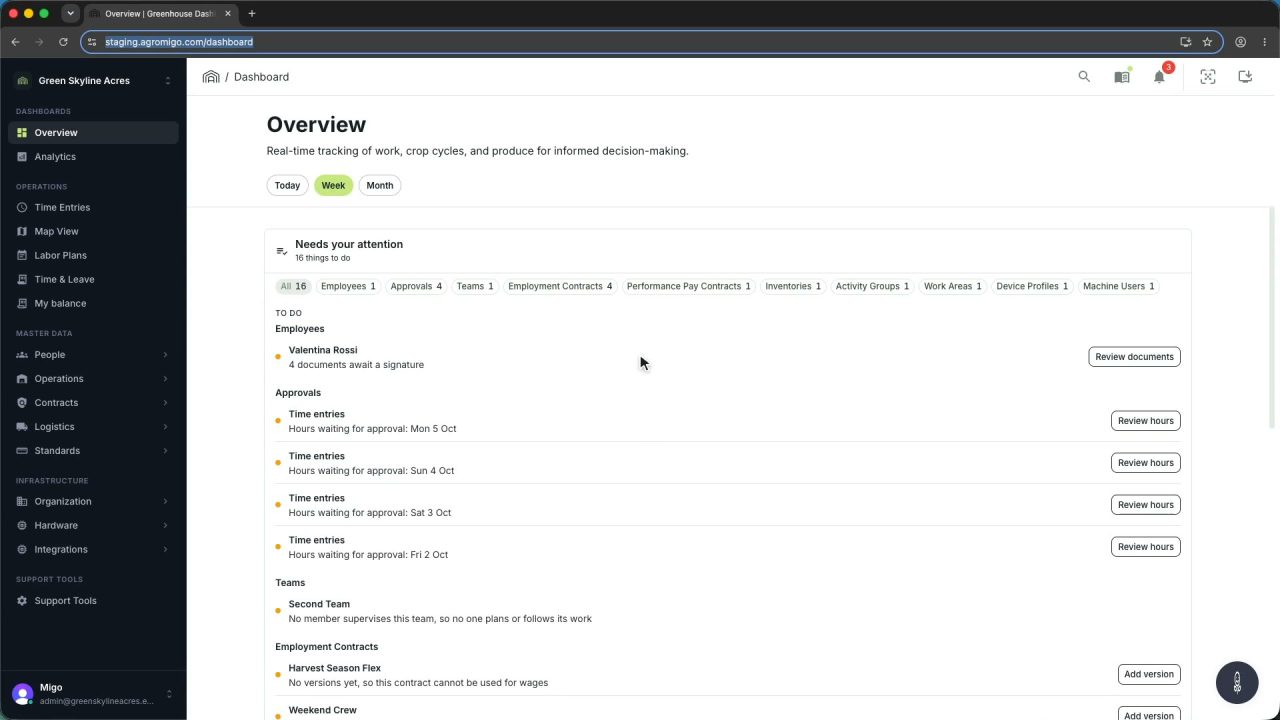
One click on the install icon and Chrome's Install button put the dashboard among your programs, opening in its own window, straight to your dashboard, always the latest version.
Read the story -
 2 min
2 min One shared phone where the crew taps in with a tag
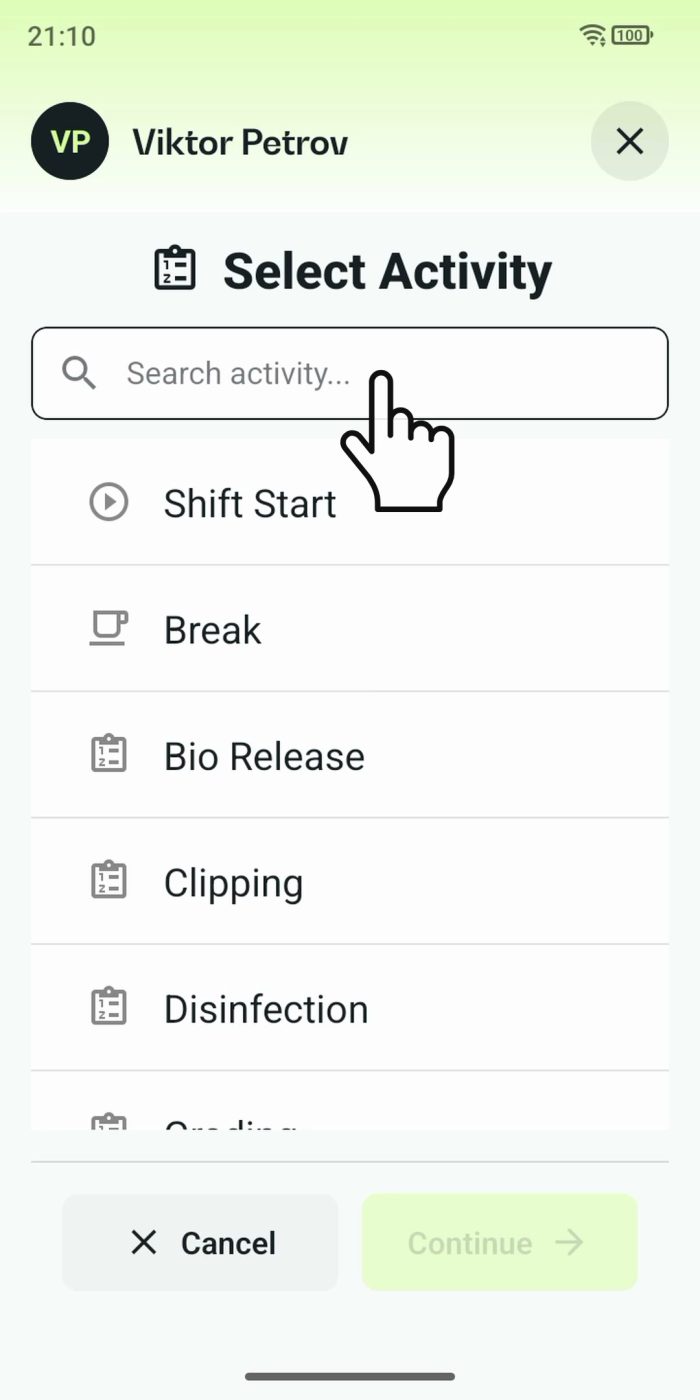
Terminal mode turns one phone into a terminal for a whole crew, at a fixed spot or moving with the team. Workers tap their personal tag, choose the task they finished, answer a few questions, and the screen resets for the next person.
Read the story