A whole season’s crew, added in one go
Import your seasonal workers from the spreadsheet you already have. Agromigo matches the columns, checks every row, and adds nobody twice.
The season starts on Monday and the agency has sent its list: forty names, email addresses, phone numbers and dates of birth, in a spreadsheet with its own column headings. Typing them in one by one takes an afternoon, and somewhere in that afternoon a date of birth goes in the wrong way round.
Import that list as it is. Agromigo works out which column is which, checks every row before anything is saved, and leaves out anyone who is already there.
In this video
Migo shows you how to add a whole season’s workers at once, from the spreadsheet you already have.
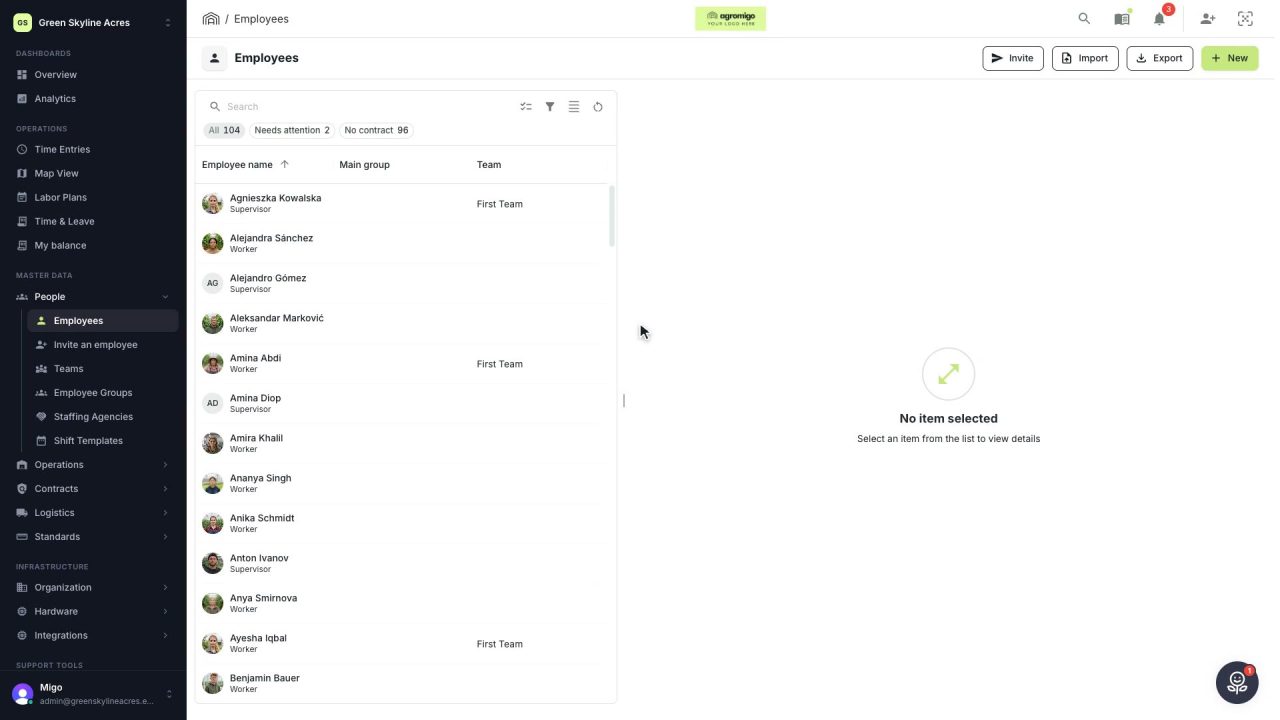
Where it is. The Import button sits at the top of the Employees list, beside Export. Only an administrator sees them.
- Four steps. Import walks you through them, and nothing is saved until the last one. A file can hold up to five thousand rows.
- The file. Choose it, or drop it on the dashed area. A CSV, an Excel workbook, JSON or plain text all work.
- The columns. Agromigo reads them and matches each one to a field. Your own headings are fine, in any language.
- Private by design. Email addresses and phone numbers show only their shape, which is enough to recognise the column.
- Your call. Not the right field? Open the dropdown and pick another, or leave the column out.
- Every row checked. Names, email addresses, dates and roles are checked before anything is saved.
- Nobody twice. A row that would add someone twice is left out, and so is a row with a problem. Each one says what is wrong.
- Import. The ready rows become new workers, active and ready to be planned.
Import the same file again later, and the people already added are recognised and skipped.
Tips
- Keep your own headings. _Voornaam_, _Nachname_ or _First name_: the column is matched either way, and you can change any match.
- One value for everyone. When every row should get the same role or language, set it once under _The same value for every row_ instead of adding a column.
- Fix and import again. Rows with a problem are left out. Correct them in the file and import it once more; the rows already added are skipped.
- Bank details only on purpose. Citizen service numbers and IBANs are imported only when you tick the box for them on the first step.
- Let them finish their own details. After the import, invite each person to add their photo, signature and identity document on their phone.
Read more
The user guide explains every step, which files work and what is checked. Start with Import and export, then Employees for what happens to a record after it is added.
Try it free for 1 month.
More stories
-
 1 min
1 min Your list of workers, as a file, in a few clicks
Download your workers as an Excel or CSV file with the name you choose, without bank or identity numbers unless you ask for them.
Read the story -
 2 min
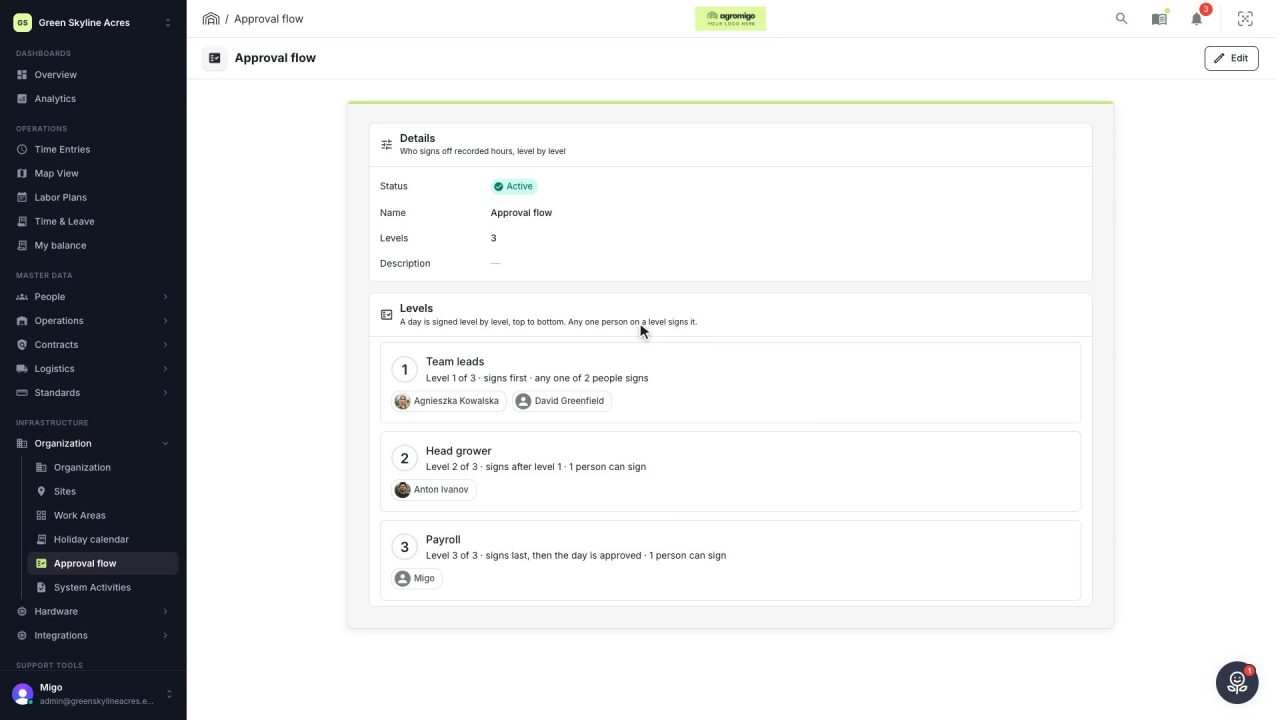
2 min Decide who signs off the hours, level by level
An administrator sets up the approval flow, the levels a day's hours are signed through, and names the people who sign each one.
Read the story -
 2 min
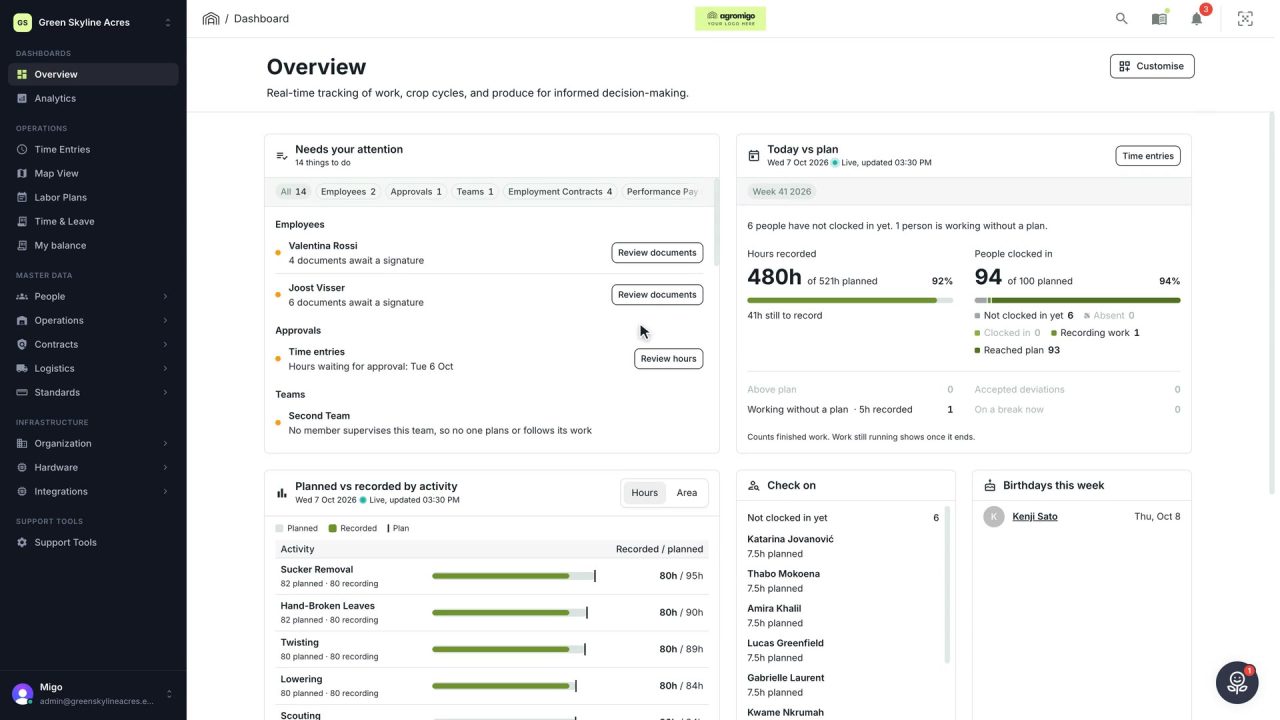
2 min See how today is going against the plan, while it is still going
The Today vs plan card on the Overview follows today's labor plan live. You see whether the day is on track, who is in and who to check on, without opening the plan or the time entries.
Read the story