Your list of workers, as a file, in a few clicks
Download your workers as an Excel or CSV file with the name you choose, without bank or identity numbers unless you ask for them.
The payroll office wants this season’s names and start details, the agency wants to check who it placed with you, and an auditor wants a list of everyone on the books. Each of them asks for a spreadsheet, and each time someone copies it together by hand.
Export gives them one in a few clicks: every worker, one row each, as Excel or CSV, under the name you choose.
In this video
Migo shows you how to download your workers as an Excel or CSV file, with the name you choose.
Where it is. The Export button sits at the top of the Employees list, beside Import. Only an administrator sees it.
- The name. The file is named after the list and today’s date. Type any name you like.
- The file type. Next to the name you choose Excel, or a comma separated file, a CSV.
- The separator. For a CSV you also choose what separates the values. Pick the semicolon when your spreadsheet uses commas in numbers.
- Which workers. Everyone, or only the active workers. In select mode you can export just the people you ticked.
- Sensitive details stay out. Citizen service numbers, IBANs and identity documents are left out unless you tick the box, and only people allowed to see them get the choice.
- Download. The file is saved, and a message tells you how many workers it holds.
The columns are named the way an import reads them, so you can add rows in Excel and import the file again.
Tips
- Excel or CSV. Choose Excel to open the file straight away. Choose CSV for a system that reads text files, such as a payroll package.
- Semicolon for Dutch Excel. A spreadsheet set to Dutch uses commas in numbers, so it expects a semicolon between values.
- Readable from the first line. Every column is headed in your language, and a role, tag or site is written by its name, so the file needs no explanation.
- Add people through the file. Add rows to an export, leave their ID empty and import it again: only the new rows are added.
- Treat it as personal data. A file with names and contact details is personal data. Keep it no longer than you need it, and never mail one with bank details by ordinary email.
Read more
The user guide explains what goes into an export and how it comes back in. Start with Import and export, then GDPR and privacy for your responsibilities with the file.
Try it free for 1 month.
More stories
-
 2 min
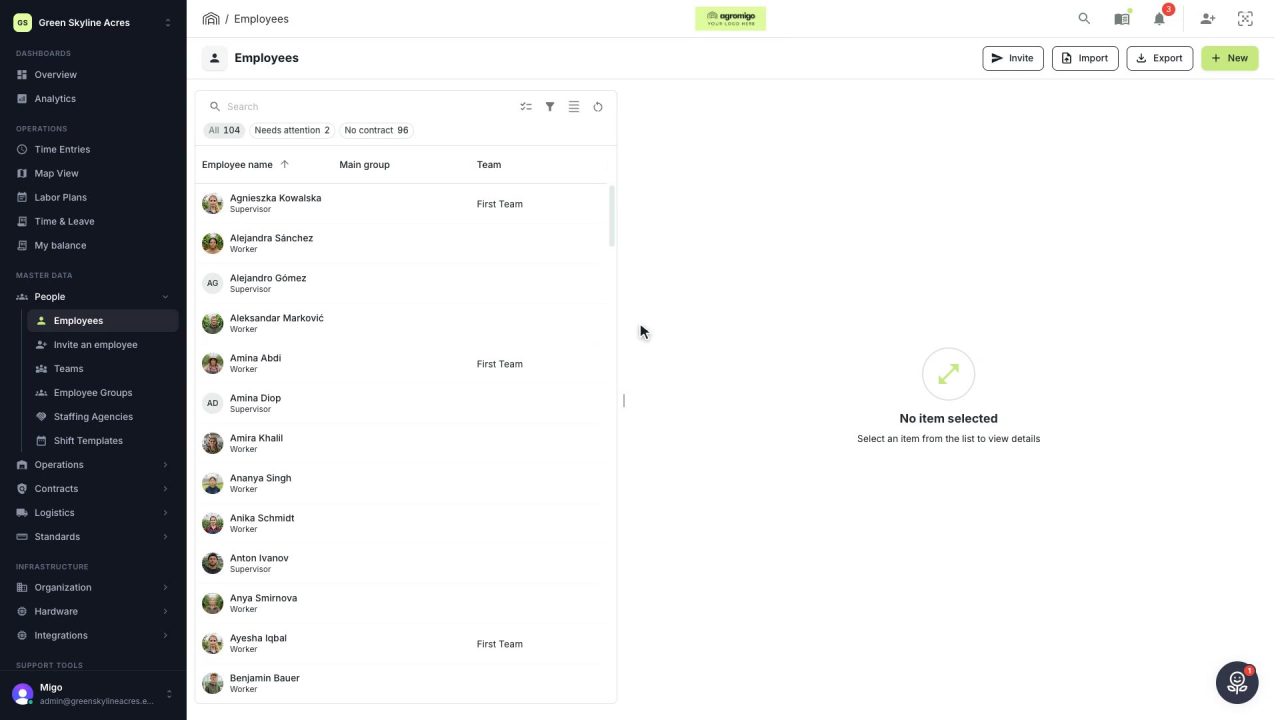
2 min A whole season’s crew, added in one go
Import your seasonal workers from the spreadsheet you already have. Agromigo matches the columns, checks every row, and adds nobody twice.
Read the story -
 2 min
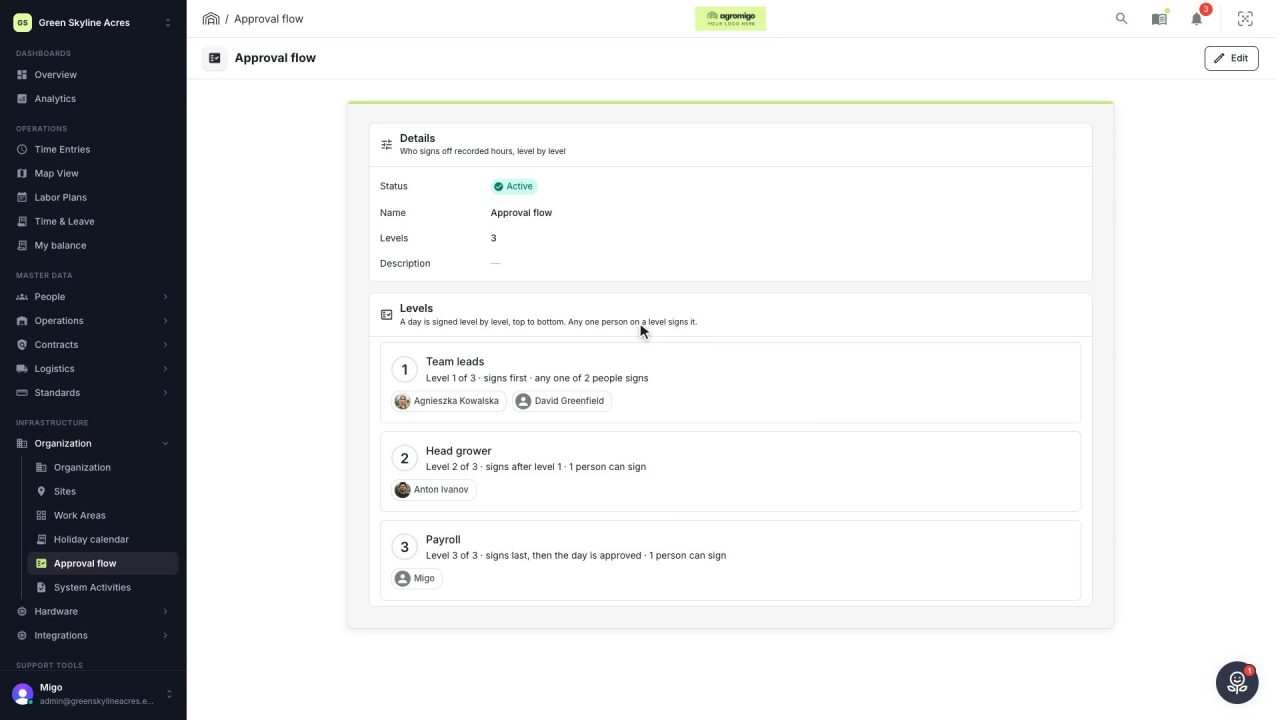
2 min Decide who signs off the hours, level by level
An administrator sets up the approval flow, the levels a day's hours are signed through, and names the people who sign each one.
Read the story -
 2 min
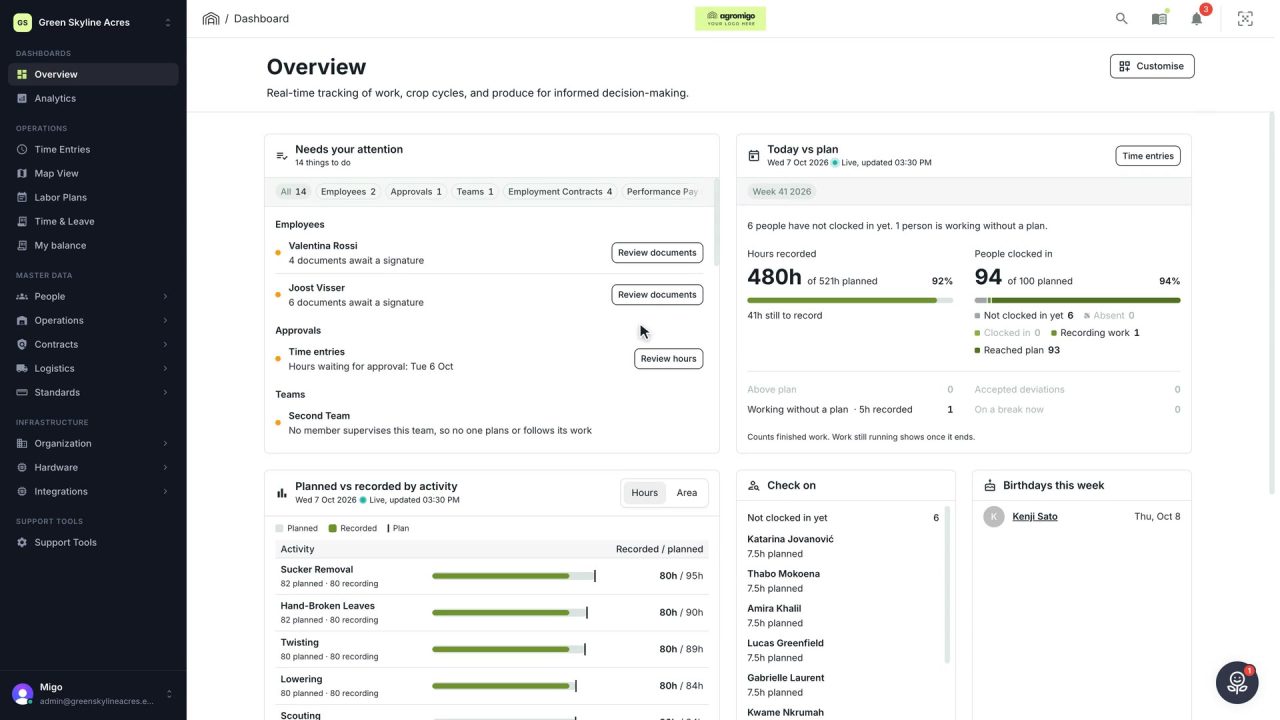
2 min See how today is going against the plan, while it is still going
The Today vs plan card on the Overview follows today's labor plan live. You see whether the day is on track, who is in and who to check on, without opening the plan or the time entries.
Read the story