Decide who signs off the hours, level by level
An administrator sets up the approval flow, the levels a day's hours are signed through, and names the people who sign each one.
In most greenhouse operations, who signs off the hours has little to do with job titles. The head grower checks first, the owner signs last, and payroll wants to see the day before it is paid. Software that decides the order from someone’s role makes you bend the roles to fit.
Agromigo lets you write the order down as it really is. The approval flow lists the levels a day goes through, each with a name you choose and the people who sign it, and hours are signed off by exactly those people, in exactly that order.
Why it matters
Hours become pay, balances and reports. Approval is where the people responsible for a day put their name on its hours, so everything that follows rests on someone who checked them.
- The right people, in your order. The person who saw the work signs first and the person who pays it signs last, named by name instead of by job title.
- One place to look. Who will approve a day, and why a day is still waiting, is on one page and in the day’s approval status, not in someone’s memory.
- Roles stay about access. Giving someone HR to reach contracts no longer makes them an approver by accident.
- Nothing gets stuck. A level whose people have all left is passed and flagged, and replacing someone moves the waiting days to the new person straight away.
- A record you can trust. Each signature keeps the level, the person, the time and the note, and an approved day is locked before it reaches payroll.
In this video
Migo shows you how to decide who signs off your operation’s hours, level by level, and who is on each level.
The page. Approval flow lists the levels from top to bottom, each with the people who sign it. Edit is in the top right corner. You decide who vouches for the hours, whatever job title the software gives them.
- A level. Each level is a card with a numbered circle and its name; the grey line below says which level it is, when it signs, and how many people can sign it. A day waits on the first level that has not signed it yet.
- The people on it. They are shown with their photo. Any one of them signs the level, and the day moves on to the next.
- The next level. It takes over once the one above has signed. A level whose people have all left gets a warning, and days pass it until you add someone.
- Edit. The button in the top right corner opens a sheet with every level as a card of its own.
- Active. The switch at the top of the sheet works as on every other record, and here it decides whether hours are approved at all. Inactive, hours count as recorded and nobody is asked to sign them, while the levels stay for when you make it active again.
- Name and Who signs. The name is what the level is called everywhere, in the approval status and in its email. Who signs picks the people, from the active employees whose role may approve hours.
- Order and Add level. The handle in the top left corner of a card drags the level into place, and Add level puts a new one at the bottom.
Nothing was saved in the video. A change you do save applies straight away to every day still waiting, from the level it is on, and days already approved keep the levels they were signed through.
Tips
- Name levels after what they mean to you. _Team lead_, _Head grower_ and _Payroll_ read better in an email than a job title, and they stay as you typed them in every language.
- Two people on one level means either one. When both should look at a day, put them on separate levels.
- Replace someone who leaves. Swap them on their level, and the days waiting there go to the new person straight away.
- Watch the warnings. A level nobody can sign is passed without a signature, so a warning on the page is worth fixing the same day.
- Role still matters for reach. Being on a level decides what someone signs; their role decides whether they may approve at all and which entries their signature covers.
More stories
-
 1 min
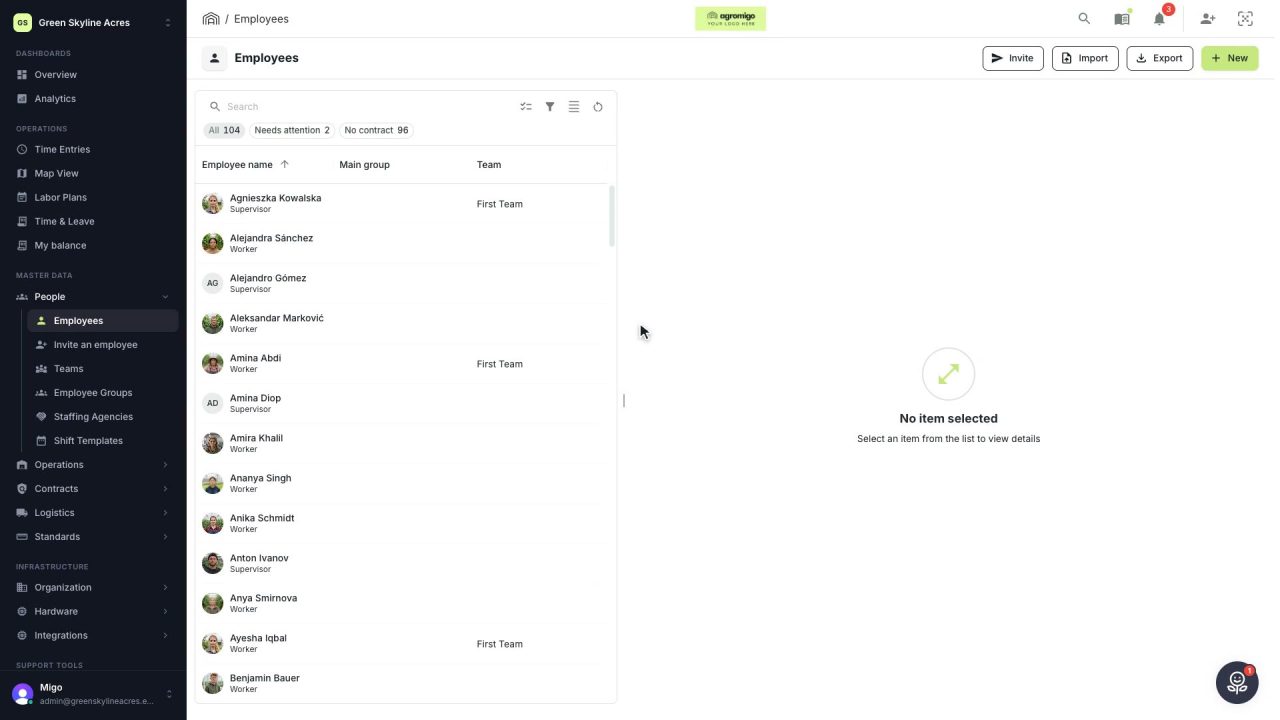
1 min Your list of workers, as a file, in a few clicks
Download your workers as an Excel or CSV file with the name you choose, without bank or identity numbers unless you ask for them.
Read the story -
 2 min
2 min A whole season’s crew, added in one go
Import your seasonal workers from the spreadsheet you already have. Agromigo matches the columns, checks every row, and adds nobody twice.
Read the story -
 2 min
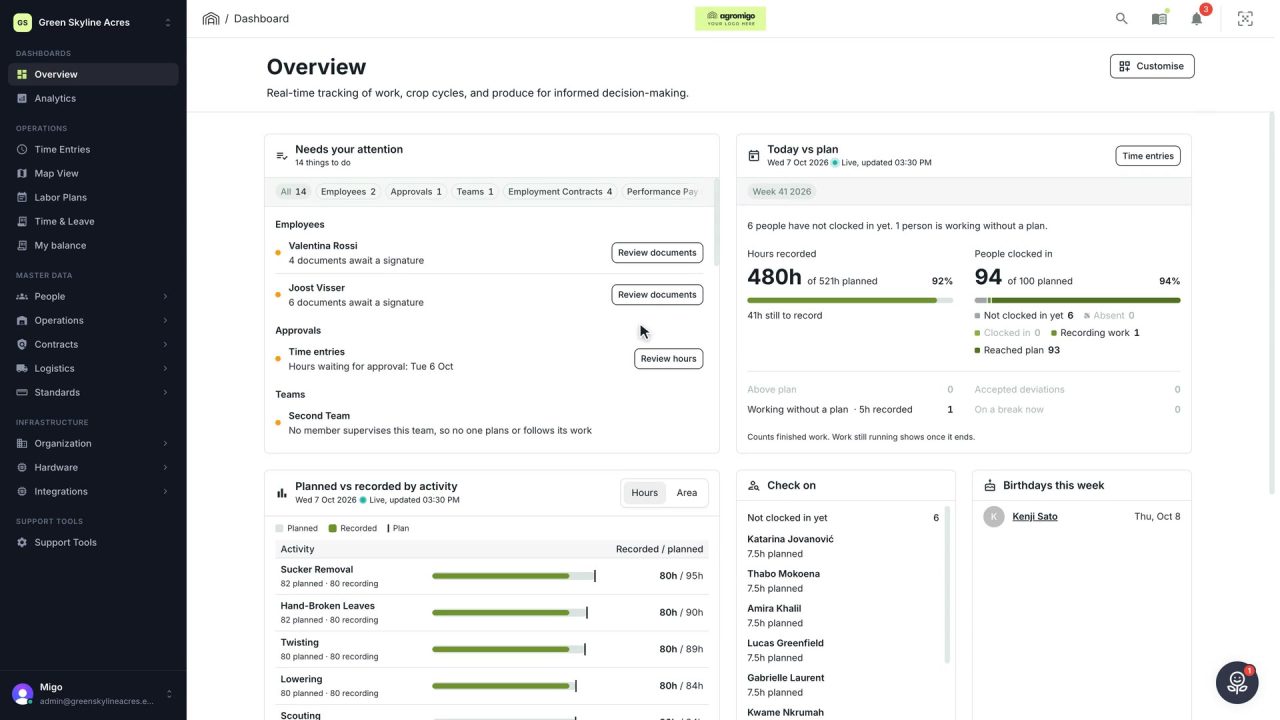
2 min See how today is going against the plan, while it is still going
The Today vs plan card on the Overview follows today's labor plan live. You see whether the day is on track, who is in and who to check on, without opening the plan or the time entries.
Read the story