See who worked last, and who has not clocked in for weeks
One report lists every employee with the moment their most recent time entry ended, sorted so the people who have not worked for the longest come first.
A season is about to start and you are making the crew list. Who is still around? Someone last clocked in three weeks ago, someone else has a contract running out, and the only way to find out is to scroll through time entries one person at a time.
One report answers it for everyone at once: each employee, with the date and time their most recent entry ended. Sort it, and the people who have not worked for the longest are at the top.
In this video
Migo shows you how to see, for every employee, when their most recent time entry ended.
- A template. The New Report button, at the top right of the Analytics gallery, starts a report. Pick Latest End Time per Employee: it starts with exactly that question answered.
- A name. Give the report one you will recognize in the gallery.
- The design. Employee is in Rows, so there is one line per person. Latest End Time is in Values.
- Maximum. The gear icon on the value opens its settings. Latest End Time is the end time summarized as its Maximum: the latest moment an entry of that person ended.
- Only what makes sense. For a date and time, the list offers Maximum, Minimum and two counts. Minimum gives the first entry of the period instead.
- Finish. The report is saved and opens at once. Pick This year from the period picker, so people who stopped months ago are listed too.
- Sort. Click the Latest End Time column header. Oldest first puts the people who have not worked for the longest at the top.
The sort saves itself, so the report opens in that order every time.
Tips
- Choose a long enough period. An employee with no entries at all in the period has no row, so pick a period that covers everyone you are looking for.
- Group by team or site. Add a row above Employee to see who worked last per team.
- A running entry is not counted yet. An entry still in progress has no end time, so it shows once it ends.
- The same trick works for the start. Add Start Time as a value and choose Minimum to see when each person first worked in the period.
- Send it on. The report can go out by email as an Excel or CSV file, straight from the table.
Read more
The user guide has a chapter on the latest end time per employee report. Reports covers building your own, and What every entry carries lists every field you can use.
Try it free for 1 month.
More stories
-
 1 min
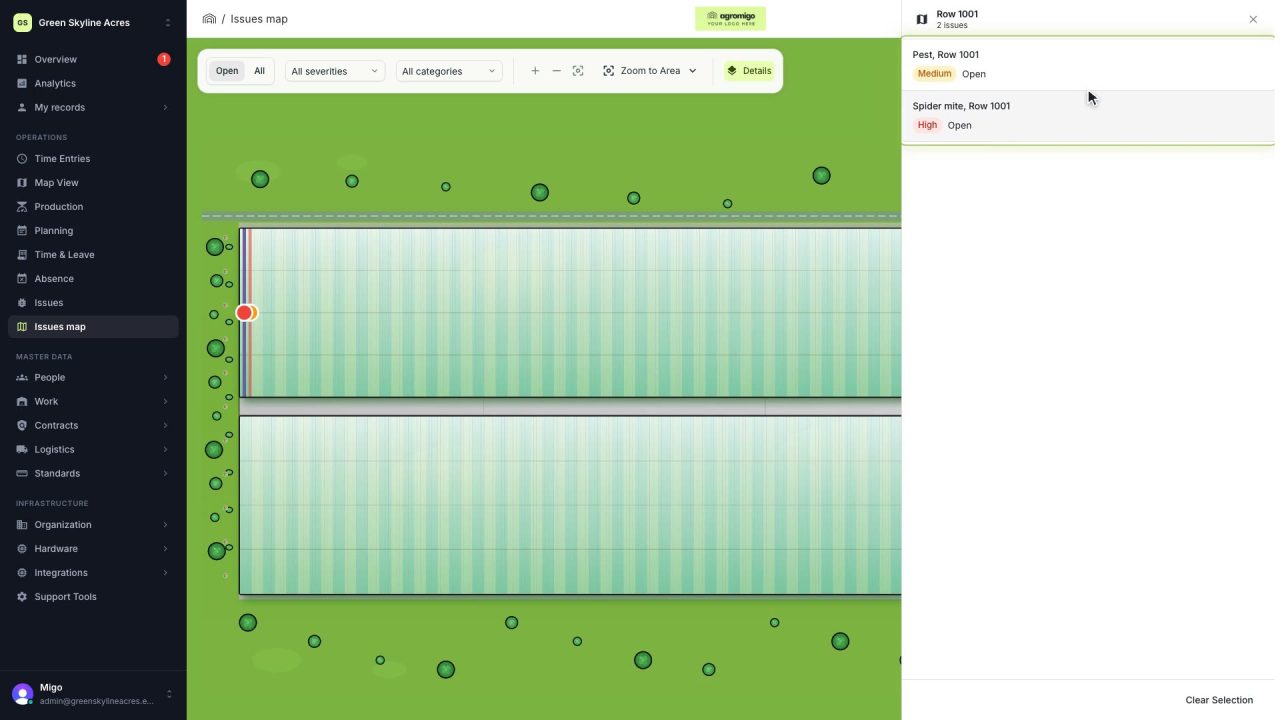
See on one map where every open issue on your site is
The Issues map colours every work area by its most severe open issue, so you see at a glance which rows have a problem and how serious it is.
Read the story -
 1 min
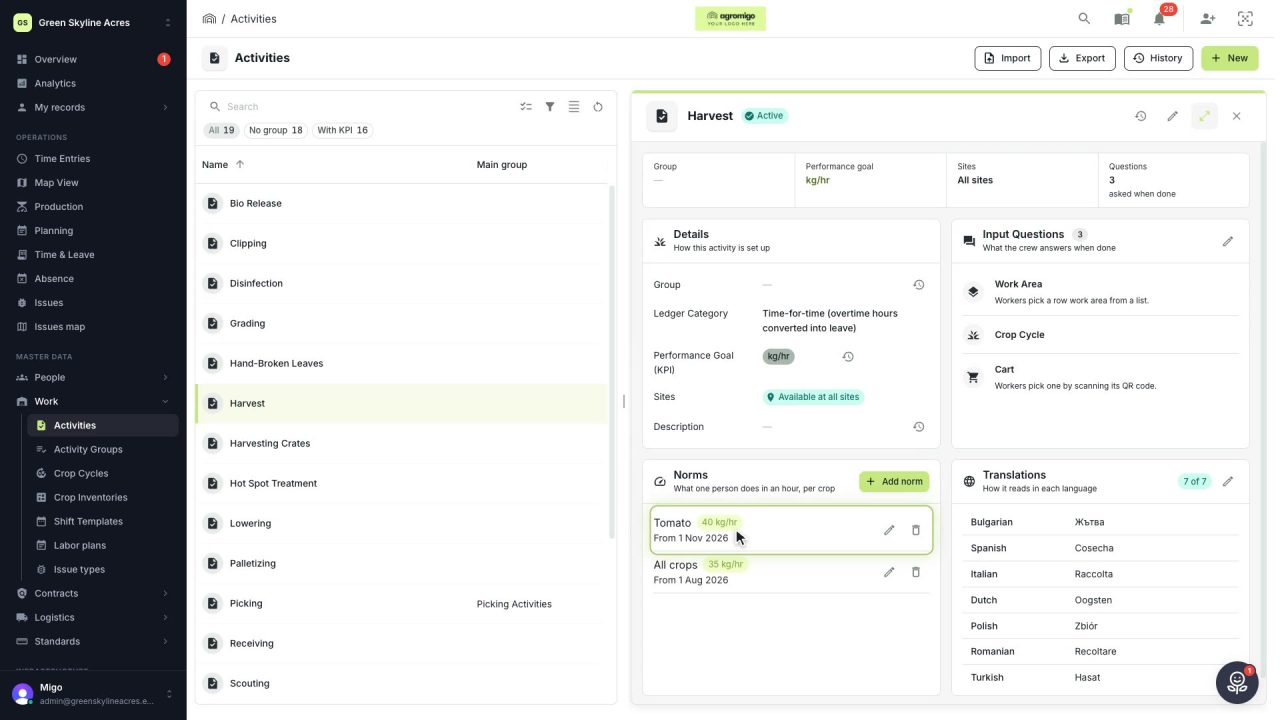
Know how fast the work goes, per crop
Set what one person does in an hour for each activity, per crop cycle and season, so every labor plan turns a target into the hours and people it takes.
Read the story -
 2 min
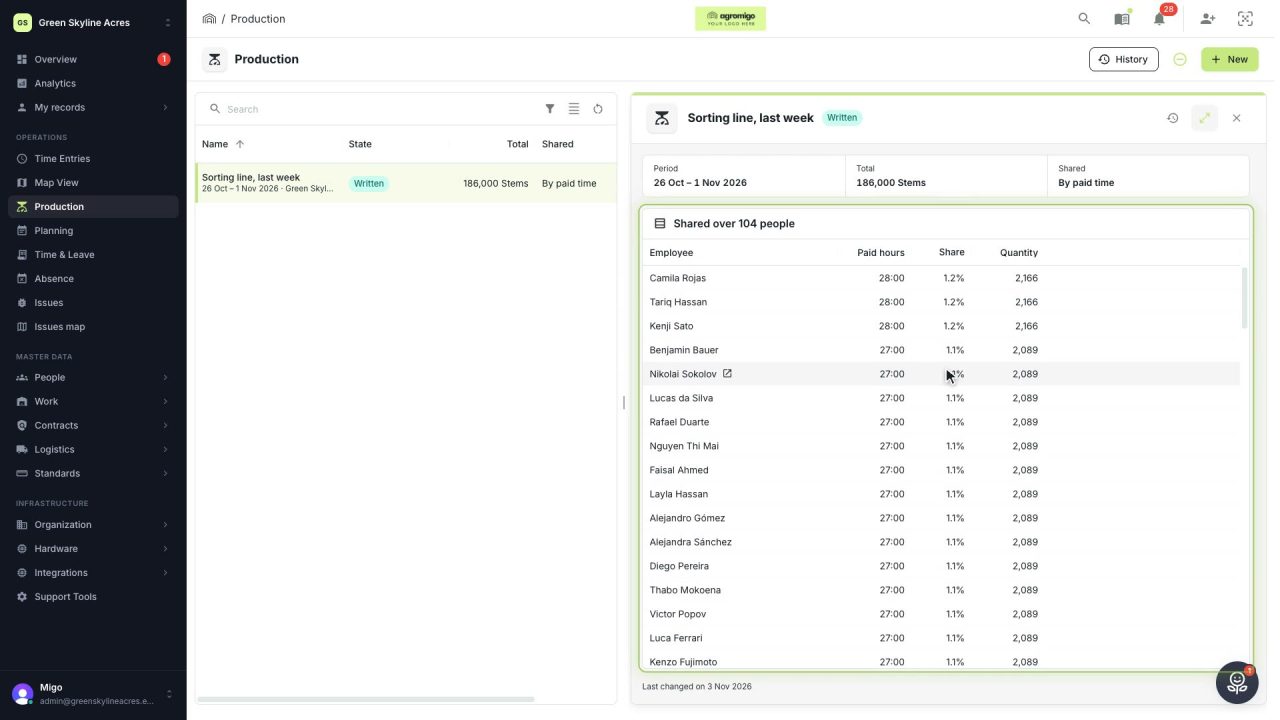
Share a week of production over the people who did the work
A total that is only known in bulk, such as a week of chrysanthemum stems from the sorting line, shared over everyone who worked by their paid hours, onto their own time entries, where it becomes stems per hour per person, team and crop.
Read the story