Turn a shared device into a crew terminal
One provisioning code carries your Wi-Fi, the Agromigo Crew app and your operation. Six taps on a factory-reset device and a scan, and it runs the Agromigo Crew app and nothing else.
A phone by the packing line is used by everyone and owned by nobody. Left as an ordinary Android device it collects browsers, games and a flat battery, and the morning it is needed it is showing something other than the app your crew clocks in on.
A provisioned device cannot do that. It runs the Agromigo Crew app and nothing else, so it is a clock-in terminal that happens to be a phone, and anyone on the team can pick it up.
In this video
Migo shows you how to turn a factory-reset device into a crew terminal that runs only the Agromigo Crew app.
The page. Every screen’s top bar carries a QR icon on its right-hand side. That is where devices get set up.
- Which app. Keep Crew, the top card: only the Agromigo Crew app can lock a device to itself.
- How to install. A shared device, locked to the app makes a dedicated crew terminal with Android device provisioning.
- The catch, stated up front. The Erases the device chip beside its title is real: provisioning starts from a clean device, so back up anything you want to keep first.
- A network step appears. A wiped device has no Wi-Fi of its own, so you give it the network to join during setup: Network Name (SSID) and Password.
- One code for everything. The Connect step shows your Wi-Fi, the Agromigo Crew app and your operation, in one scan.
- Factory reset the device. Settings, System, Reset options, erase all data.
- Six taps. On the welcome screen after the restart, tap six times on the same empty spot. A QR scanner opens.
- Scan. The device joins the Wi-Fi, installs the Agromigo Crew app, locks itself to it and connects to your operation.
Finish closes the wizard. The device is now a crew terminal, ready for anyone on the team to clock in.
Tips
- Provision before you need it, not on the morning you do. The wipe and the setup take a while, and a factory reset cannot be hurried.
- Have the Wi-Fi password to hand. The device has no network of its own until the code gives it one, so a wrong password means starting over.
- Use a shared terminal where people work in one place. A packing hall or a grading line suits it; a crew spread across the greenhouse is better served by their own phones.
- Set the device to a single work area. Everything recorded at that bench is then recorded there without anyone being asked.
- A locked device is recoverable, not disposable. If one goes missing, the guide’s chapter on lost devices is the first thing to read.
Read more
The user guide covers devices, device profiles and what to do with a lost or stolen device. What happens on the device has a video of its own.
Book a Demo.
More stories
-
 2 min
2 min See how today is going against the plan, while it is still going
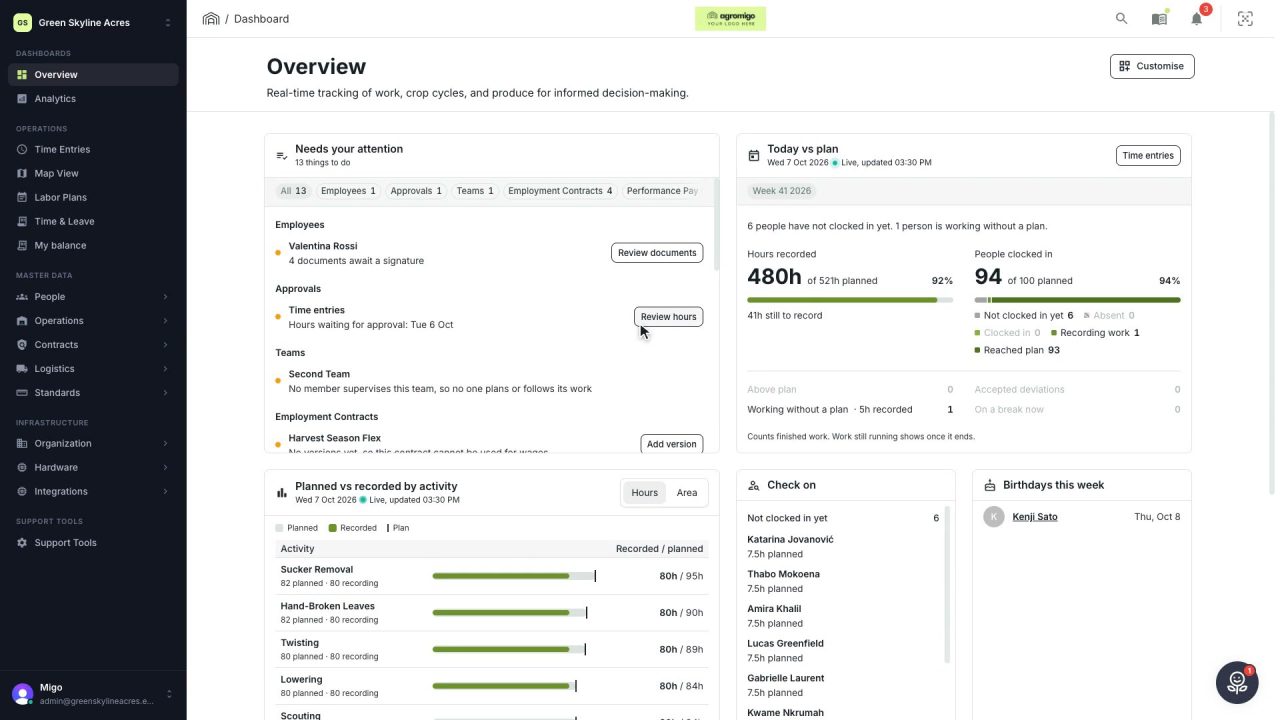
The Today vs plan card on the Overview follows today's labor plan live. You see whether the day is on track, who is in and who to check on, without opening the plan or the time entries.
Read the story -
 2 min
2 min Arrange the Overview the way you work
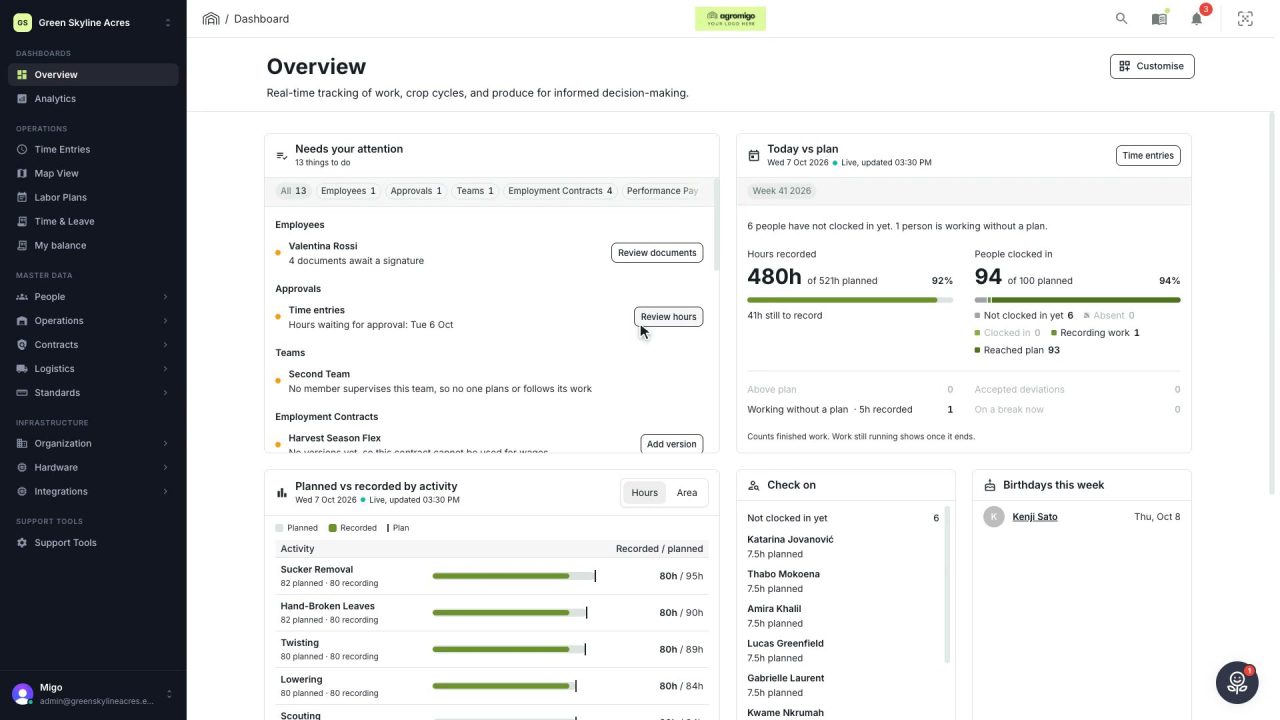
Move, resize and hide the cards on the Overview, so the figures you check every day are at the top and a long list has the room it needs.
Read the story -
 2 min
2 min See whose day went differently from the plan
Check a work day against the labor plan, see who worked something else or did not show up, and accept a change of plan that had a good reason.
Read the story