Collect exactly the detail your operation needs
Decide per activity what your crew is asked when they record work, from nothing at all to the row, the kilos and every crate, and add a question whenever your operation asks for more.
No two greenhouse operations are the same. A tomato grower wants kilos per picker and the time each row takes, because a bonus depends on it. A propagator counts cuttings per variety, so tomorrow’s plan can be made at the end of today. A young plant nursery wants the labour that went into each batch. A pot plant nursery may only need to know which zone the hours belong to.
Software that asks everyone the same fixed questions fits none of them. Either it asks too little and you keep a spreadsheet beside it, or it asks too much and your crew taps through screens that mean nothing to them.
In Agromigo, how much detail you collect is yours to decide, per activity. Each activity carries its own input questions: what the crew is asked when they record that work. Start with none, and add one when you need the answer.
In this video
Migo shows you how to decide, per activity, what your crew is asked when they record work.
The list. Activities lists every task your crew can record work on, one row each. Select a row, and that activity opens beside the list. What an activity asks when the work is recorded is something you set yourself. No two greenhouse operations are the same: a tomato grower wants kilos per picker and the time each row takes, a propagator counts cuttings per variety, and a pot plant nursery may only need the zone.
- Open an activity. Harvesting Crates opens beside the list (from the bottom on a phone). Its Input Questions card shows what the crew is asked: the work area, the container type and a count of crates.
- Edit. The pencil at the top right of the record opens the edit sheet. The questions are listed in the Execution and Metrics card, in the order the crew answers them.
- A work area question. Click a question to open its settings. A work area question can be narrowed to one type, such as rows. The crew answers from a list, with a QR code or with an NFC tag.
- How much was done. Percentage Step adds a follow-up question: how much of the work area was done. That helps when one person starts a row and someone else finishes it.
- A container question. The crew scans each crate as they fill it. Every crate counts once, and can be traced back to the person who filled it.
- Add input question. The button under the list opens a short wizard. It starts with what you want to track: Measure, Location, Assets or Classification.
- Measure. Two ways to record output. Quantity is one number typed on the keypad, such as kilos, within a minimum and a maximum. Unit counter is a running count typed during the work, such as boxes or trays.
- Location. Where the work was done, as precisely as your layout calls for: a whole zone, a single row, or a station such as a packing bench.
- Assets. Links the work to a scanned container, a cart, a container type or an inventory. Scan each crate as it is filled, and every one traces back to the person who filled it.
- Classification. Asks which crop cycle the work belongs to, or offers a list of choices you write yourself, such as the variety or the quality grade.
- Nothing saved. Cancel closes the wizard, and Cancel once more closes the sheet.
- A new activity. To add an activity of your own, click New. The sheet opens empty: in the General Information card you give it a name and a main group, and you set up its questions the same way.
- Keep the questions few. Each one is a tap on a phone in the greenhouse, so ask only what you will actually use.
Start with the detail you need today, and add a question when your operation asks for more. Agromigo grows with you.
What growers use them for
- Harvest per row. A work area question limited to rows, plus a quantity in kilos. That gives kilos per hour per picker and per row, which is what a fair bonus needs.
- Crates without adding up. A container question: the picker scans each crate as it is filled. Every crate counts once, and nobody adds it up at the end of the row.
- Cuttings per variety. A crop cycle question and a container question, with a label on each bag. Every bag counts once, and the day’s production per variety is known when the day ends.
- Labour per batch. Sowing, pricking out and potting each ask for the crop cycle and a quantity, so the hours and the output of one batch add up to a cost per plant.
- Crop work by zone. Leaf picking or lowering asks only for the work area, with a percentage step. You see which rows are done and which are half done, without asking for a number.
- A reason, not a number. A multiple choice question with your own options, such as the quality grade in the packing hall.
Tips
- Keep the questions few. Each one is a tap on a phone in the greenhouse. A crew that is asked three questions at every change of activity starts avoiding the change.
- Scan what you want to trace, type what you only count. A container question scans each crate or bag once and keeps its trail. A unit counter is a quick running count on the keypad, for when no label is needed.
- Put the questions in the order of the work. Drag a question by its handle. The crew is asked in the order of the list.
- Let the device answer where it can. On a phone limited to a single work area, the work area question is skipped and the work is recorded there.
- Add detail when you will use it. A question added today applies from the next time the activity is recorded. Hours already recorded stay as they are.
Read more
The user guide explains every kind of question and how each one is answered on the device. Read Activity form for the questions and their input modes, Work areas for how finely to divide your greenhouse, and Container tracking and traceability for what a scanned crate or cart makes possible.
Want to see how it fits your operation? Book a demo.
More stories
-
 2 min
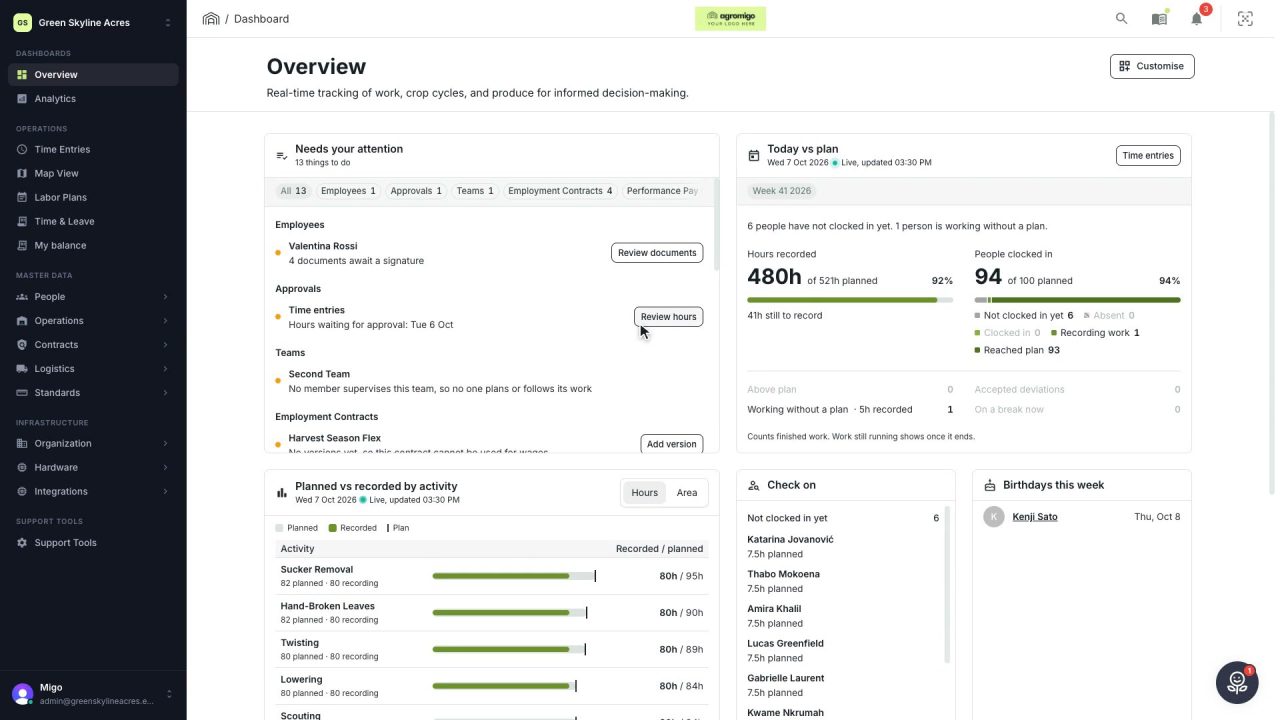
2 min See how today is going against the plan, while it is still going
The Today vs plan card on the Overview follows today's labor plan live. You see whether the day is on track, who is in and who to check on, without opening the plan or the time entries.
Read the story -
 2 min
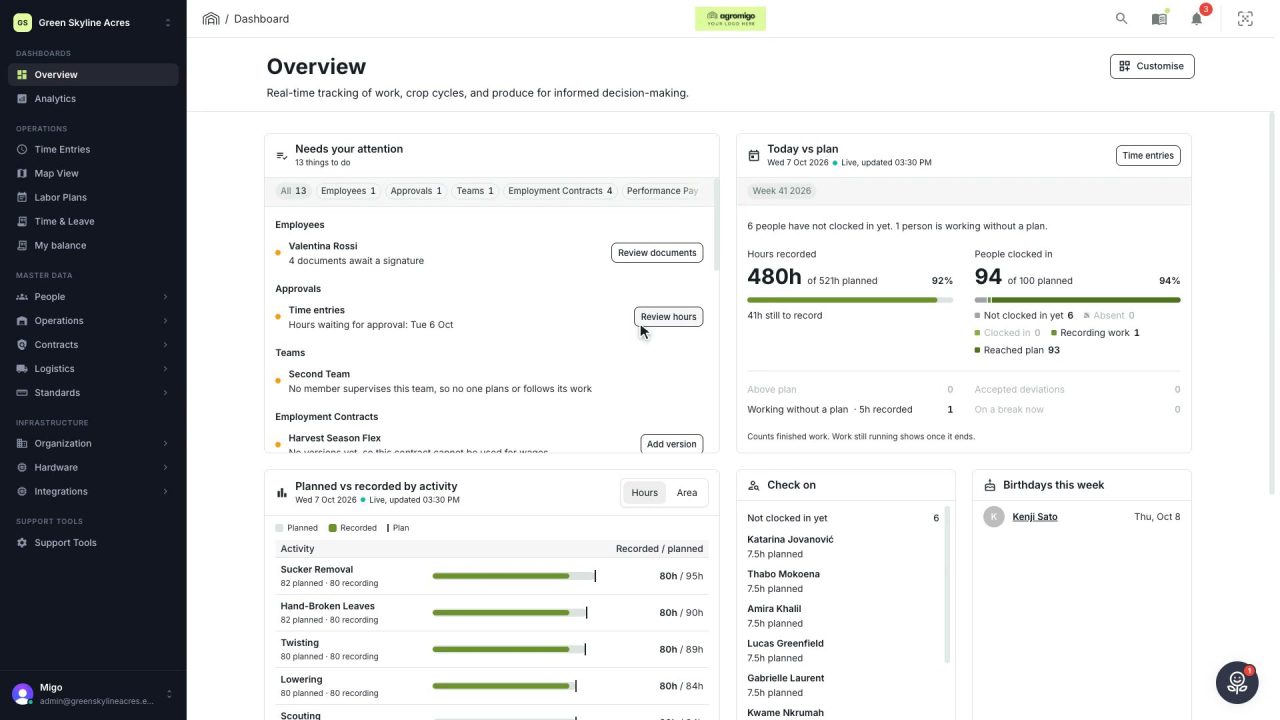
2 min Arrange the Overview the way you work
Move, resize and hide the cards on the Overview, so the figures you check every day are at the top and a long list has the room it needs.
Read the story -
 2 min
2 min See whose day went differently from the plan
Check a work day against the labor plan, see who worked something else or did not show up, and accept a change of plan that had a good reason.
Read the story