Who changed it, and what was it before?
Every site, team, role and other setting keeps a history of its changes. See who changed what and when, and put a value back in one step.
A team’s description is suddenly different. A role can do something it could not do last week. Somebody changed it, but who, when, and what was it before? Without a history, the answer is a round of messages and a guess.
In Agromigo, every site, team, work area, activity, activity group, shift template, role and machine user keeps a history of its changes. You read it in plain sentences, and you can put a value back in one step.
In this video
Migo shows you how to see who changed a record, what it was before, and how to put a value back.
The list. Teams lists every crew in your greenhouse operation. Select a row, and that team’s record opens beside the list.
- The History button. An icon of a clock with an arrow, at the top of the record, just before the pencil.
- A change in place. First Team gets a description right where you read it: select the empty value, type, and press Enter.
- One field’s history. A value you can change in place has its own History icon at the end of its row. It opens the history of that field alone.
- A change as a sentence. The History slides in from the right: Set Description to Harvest crew for the tomato greenhouses.
- Who and when. Beside each change, who made it and when. Hover the time to see the full date.
- Put back. After the change, Put back restores the earlier value. Agromigo asks first, and says what the value becomes again.
- A complete history. Put back is saved as a change of its own: the description was cleared, and the team is as it was.
- Every team at once. The History button above the list shows the changes to every team, each one naming its team first.
- The whole organization. Recent changes, in the menu under Organization, lists every change to your sites, teams, roles and other settings, newest first.
Tips
- Quick saves read as one change. Several saves by one person to the same record within a few minutes show as one change, with the number of saves beside the time.
- Say why. When you save a role or a machine user, you can give a reason. It is kept with the change and shown in the History.
- Access changes are announced. When what a role can do changes, the other administrators get a notification that links to the role.
- Narrow it down. Once the list is long, choices at the top narrow it to one person, one field or a period, and the download button saves it as a CSV file. Select a person’s picture to see only their changes.
- Ask Migo. Migo answers questions such as _What changed on Green Skyline Acres this week?_ from the same history.
- Who can see it. Seeing a history needs the See audit logs permission. Changes are kept for two years.
Read more
The user guide explains the record beside the list, with its History, and how a role’s History shows what was given and taken away.
Try it free for 1 month.
More stories
-
 1 min
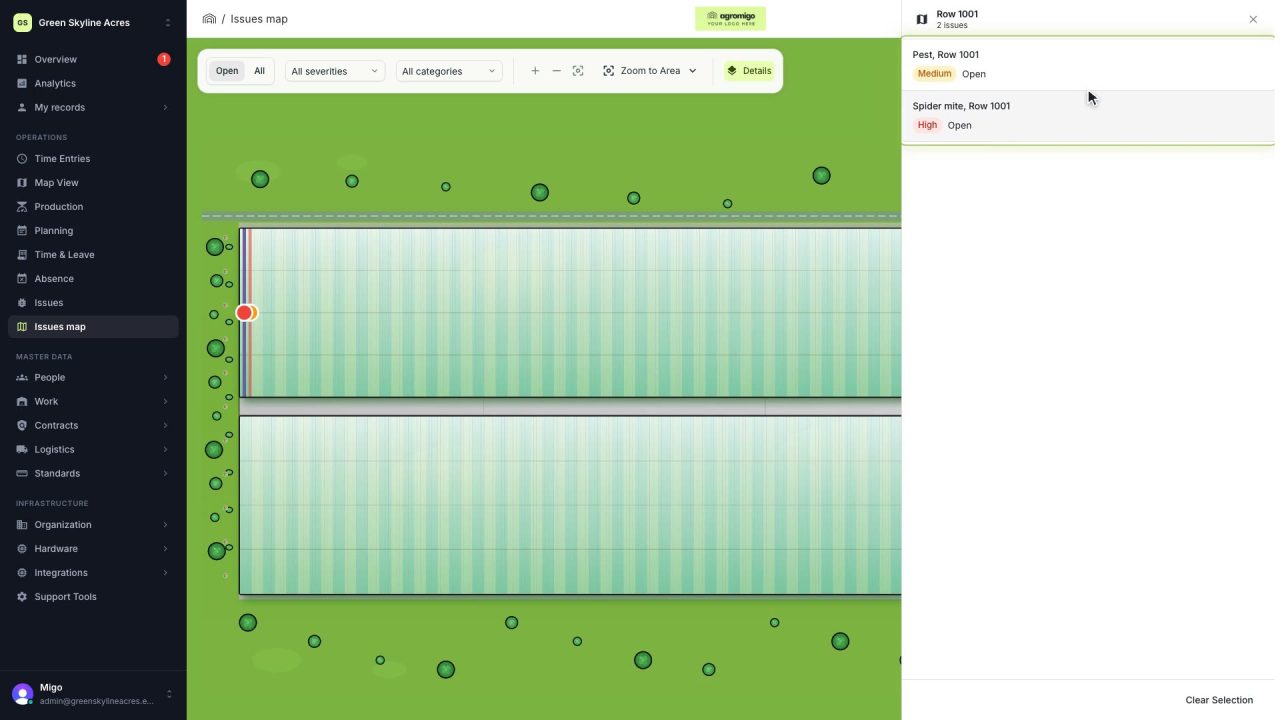
See on one map where every open issue on your site is
The Issues map colours every work area by its most severe open issue, so you see at a glance which rows have a problem and how serious it is.
Read the story -
 1 min
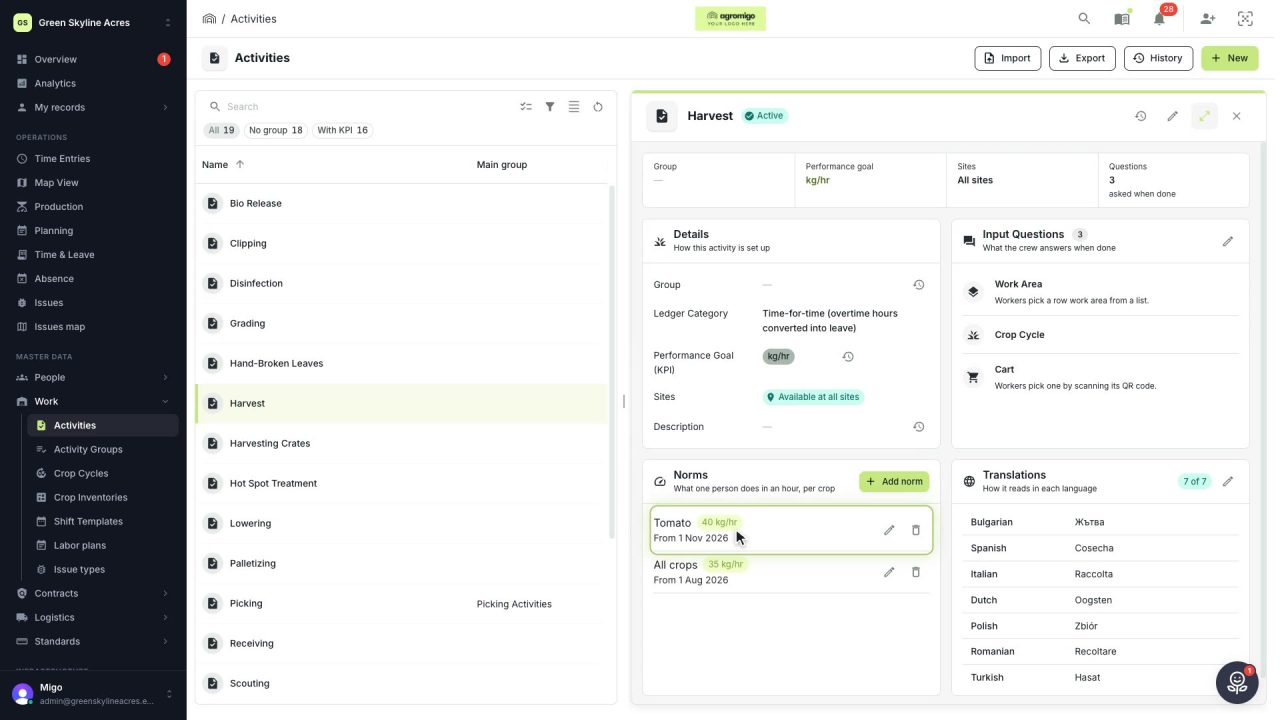
Know how fast the work goes, per crop
Set what one person does in an hour for each activity, per crop cycle and season, so every labor plan turns a target into the hours and people it takes.
Read the story -
 2 min
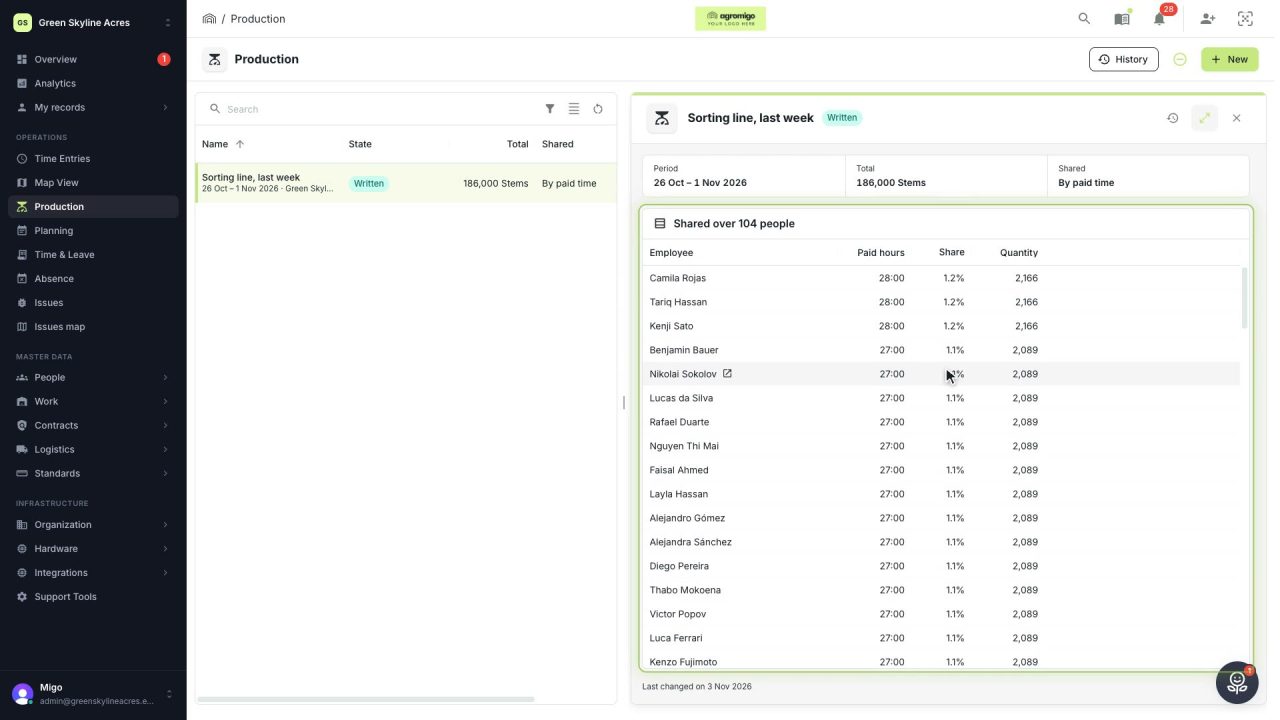
Share a week of production over the people who did the work
A total that is only known in bulk, such as a week of chrysanthemum stems from the sorting line, shared over everyone who worked by their paid hours, onto their own time entries, where it becomes stems per hour per person, team and crop.
Read the story