See who is absent, and record a whole absence at once
One board shows every employee's vacation, sickness and other leave across the month, and one record covers an absence of any length, at the hours the contract sets.
Two weeks of vacation used to mean ten days typed in one by one, each with a start and an end, and hoping none was missed. A sickness that ran longer than expected meant going back and adding more. And the question "who is off next week?" had no single place to look.
In Agromigo an absence is one record. You choose who, which kind of leave and which days, and the platform records each day at the hours the contract sets, so the timesheet and the leave balance follow by themselves.
In this video
Migo shows you how to read the Absence board and record leave for a run of days at once.
The board. Absence, in the menu on the left, sets every employee against the days of the month, and says under the title how many people are absent.
- Today, in view. The board opens on today, its column outlined, with the week before it. The arrows at the top step to another month.
- One bar per absence. Each absence is a bar in the colour of its kind of leave, from its first day to its last. The legend below names every colour.
- Days. The column on the right counts each person’s days of absence in the month shown.
- Find the employee. Type a few letters of the name in the Find employee field.
- Start from the day. Select an empty day in their row. The Record absence sheet opens with the employee and that day filled in.
- The kind of leave. The list offers only activities that count towards a leave balance you may record.
- The last day, at contract hours. Contract hours gives each day the hours the contract schedules for that weekday.
- Check before you save. Days that will be recorded lists every day with its hours, and says why a day off gets none.
- What is left. The annual leave balance shows what remains before and after the absence, and warns if it would drop below zero.
- Change it later. Select a name to open that person’s calendar, with every absence recorded for them, ready to change or withdraw.
One record covers the whole absence, and each of its days reaches the timesheet and the leave balance.
Tips
- Check the balance line before you confirm a long vacation. It counts everything already recorded up to the absence’s last week, so leave booked earlier is in it.
- Record a sickness as soon as it starts. Set the last day to the expected return, and change it when the employee is back.
- Use contract hours for part-timers. A day the contract leaves free gets no hours, so the balance is drawn down exactly as far as it should be.
- Read the preview before you save. A public holiday, a day off or a day with recorded work gets no entry, and the preview says which.
- You see only the leave you may manage. Whoever keeps the sickness balance records sickness; someone who keeps only vacation leave does not see it.
Read more
The user guide explains recording absence and time and leave as a whole.
More stories
-
 1 min
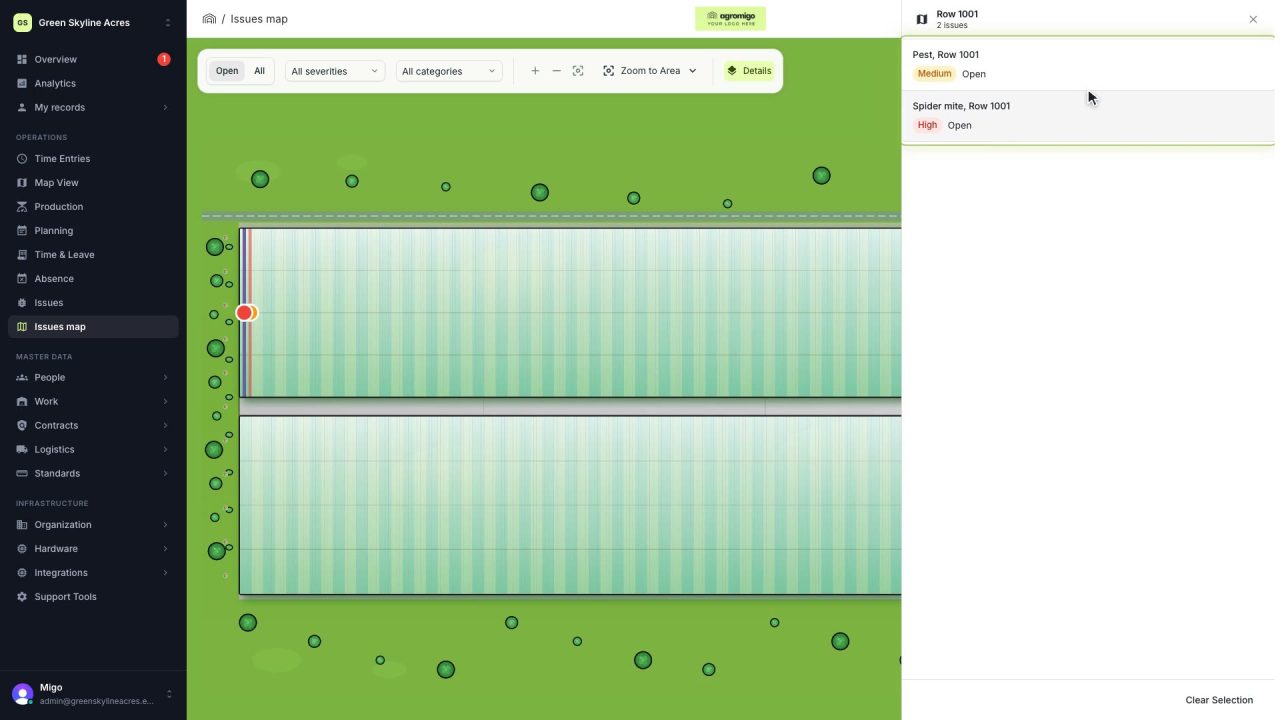
See on one map where every open issue on your site is
The Issues map colours every work area by its most severe open issue, so you see at a glance which rows have a problem and how serious it is.
Read the story -
 1 min
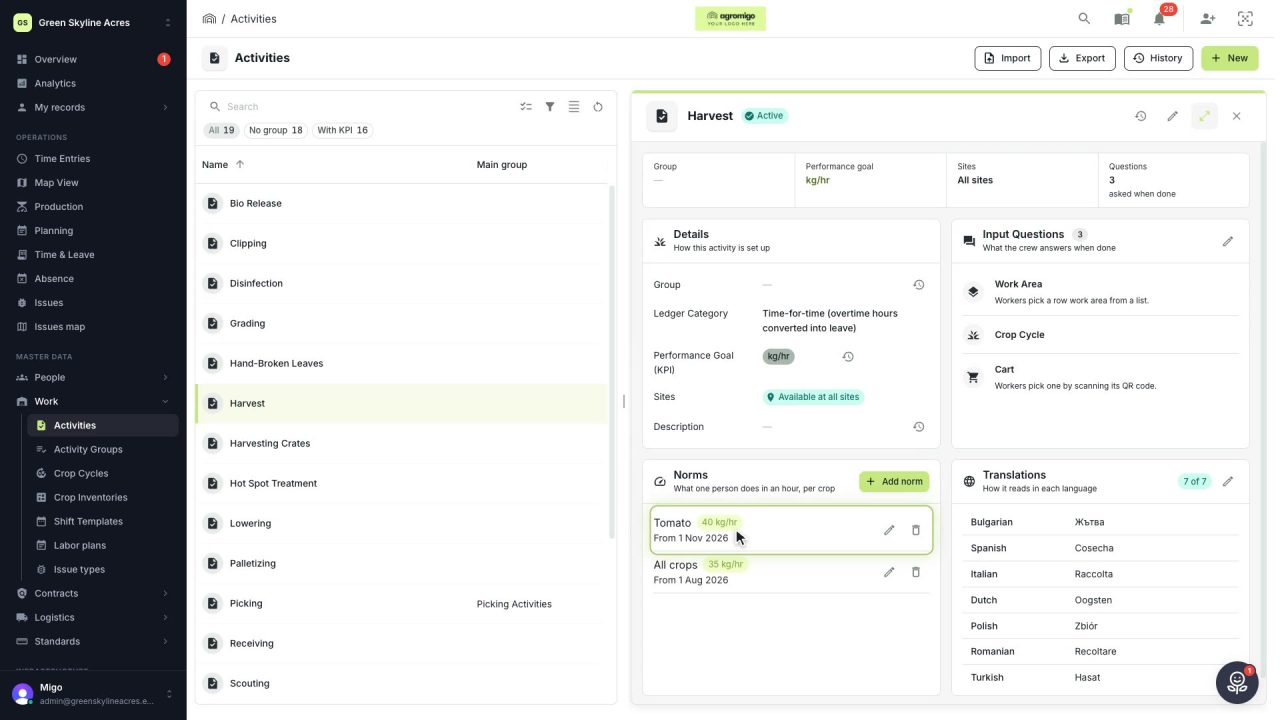
Know how fast the work goes, per crop
Set what one person does in an hour for each activity, per crop cycle and season, so every labor plan turns a target into the hours and people it takes.
Read the story -
 2 min
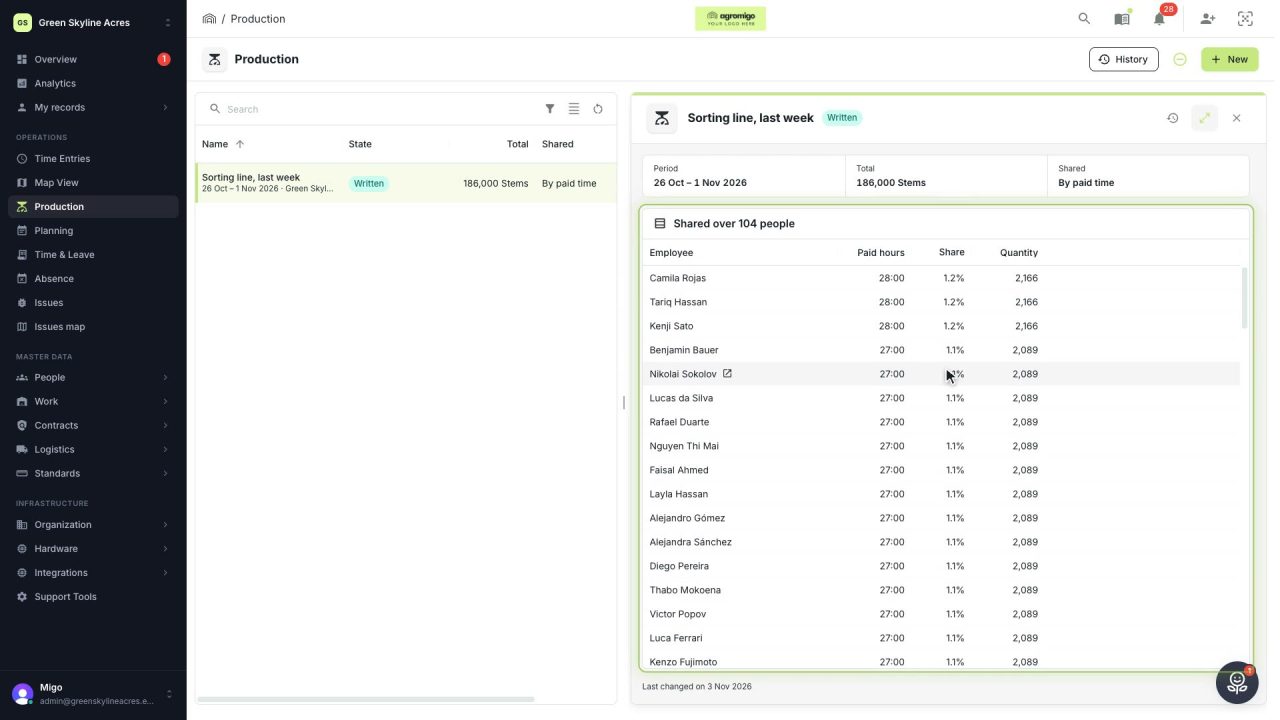
Share a week of production over the people who did the work
A total that is only known in bulk, such as a week of chrysanthemum stems from the sorting line, shared over everyone who worked by their paid hours, onto their own time entries, where it becomes stems per hour per person, team and crop.
Read the story