Every issue your crew spots has a place, an owner and an end
Pests, diseases, repairs and safety hazards reported at the row and post where they were found, listed in one place, and followed up until they are resolved.
A worker sees spider mite on the leaves, or a pipe dripping under a row. Without a place to put it, the finding lives on a scrap of paper or in someone’s head. Nobody can see where the hotspots are, and nobody knows whether anything was done.
In Agromigo, the crew reports the issue in the Crew app at the row where they stand, with the post number, the time and a photo. It lands under Issues on your dashboard, and it stays there until someone has resolved it or decided it needs no work.
For crop protection, timing is everything. Thrips hide deep in the plant, and a green product only works on contact, for a couple of hours, while pressure is still low. The sooner the crop protection team knows where a pest turned up, the longer biological control can hold it, and the later anything stronger is needed. A report with the row, the post and a photo goes straight to the group that handles its issue type. Over the season, the Issue hotspots report shows which rows keep coming back, and the Issues per week report shows whether pest reports go down once you change your approach.
In this video
Migo shows you how an issue your crew reports reaches you, and how you follow it up until it is fixed.
The list. Issues lists every pest, disease, repair and safety hazard your crew reports. Each row shows where it is, how bad it is, how far it has got and who it is assigned to.
A worker has reported spider mite in row 1001, at post 24, and nobody has picked it up yet.
- The issue. It opens beside the list. Its key facts show the site, the row, who reported it and when.
- Follow-up. The Follow-up card shows where the issue stands: open, assigned, in progress, and finally resolved or dismissed. Each step says who acted and when.
- Waiting on. Below the steps, it says who the issue waits on. No group handles spider mite yet, so it waits on whoever manages issues. Give its issue type a group, and new reports go straight to that group.
- Assign. Below the steps are the actions you can take now. Assign hands the issue to someone, who is notified and finds it under My work in the Crew app.
- Dismiss. An issue that needs no work is dismissed with a note saying why. A closed issue can be reopened if it comes back.
- Plan a task. For a bigger job, Plan a task opens a task on your labor plan, already filled in from the issue.
- Photos. The Photos card holds the pictures taken with the report. Click one to see it full screen.
- Location. The Location card names the row and the post number, and pins the spot on the greenhouse map.
- Not sure. When the reporter is not sure what they found, the Photos card suggests what the photo shows, here thrips, always from your list for that category. The Accept button takes it over; without that click nothing changes, so a person always decides.
- A new issue. New, in the top right corner, opens the issue sheet. One of your issue types fills in what was found and how bad it is; then where. Cancel closes it without saving.
- Needs your attention. Issues waiting for you also show on the Overview, in the Needs your attention card.
From the first report to the fix, every issue has a place, someone on it, and an outcome you can look back on.
Tips
- High stands out. A report comes as low, medium or high, and a high one shows in red, in the list and on the map.
- A note closes the loop. Resolve and Dismiss both ask for a note, so the record says what was done, or why nothing was.
Read more
The user guide explains what an issue records, how the crew reports one and how you follow it up.
Try it free for 1 month.
More stories
-
 1 min
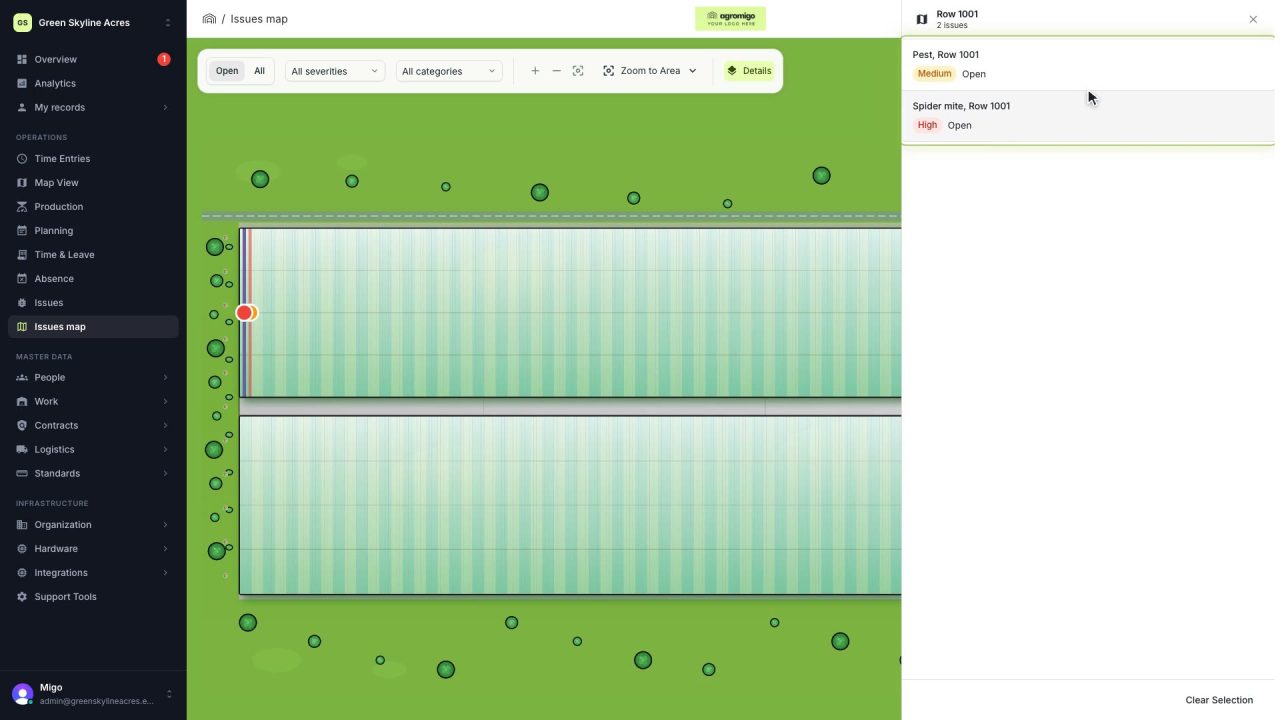
See on one map where every open issue on your site is
The Issues map colours every work area by its most severe open issue, so you see at a glance which rows have a problem and how serious it is.
Read the story -
 1 min
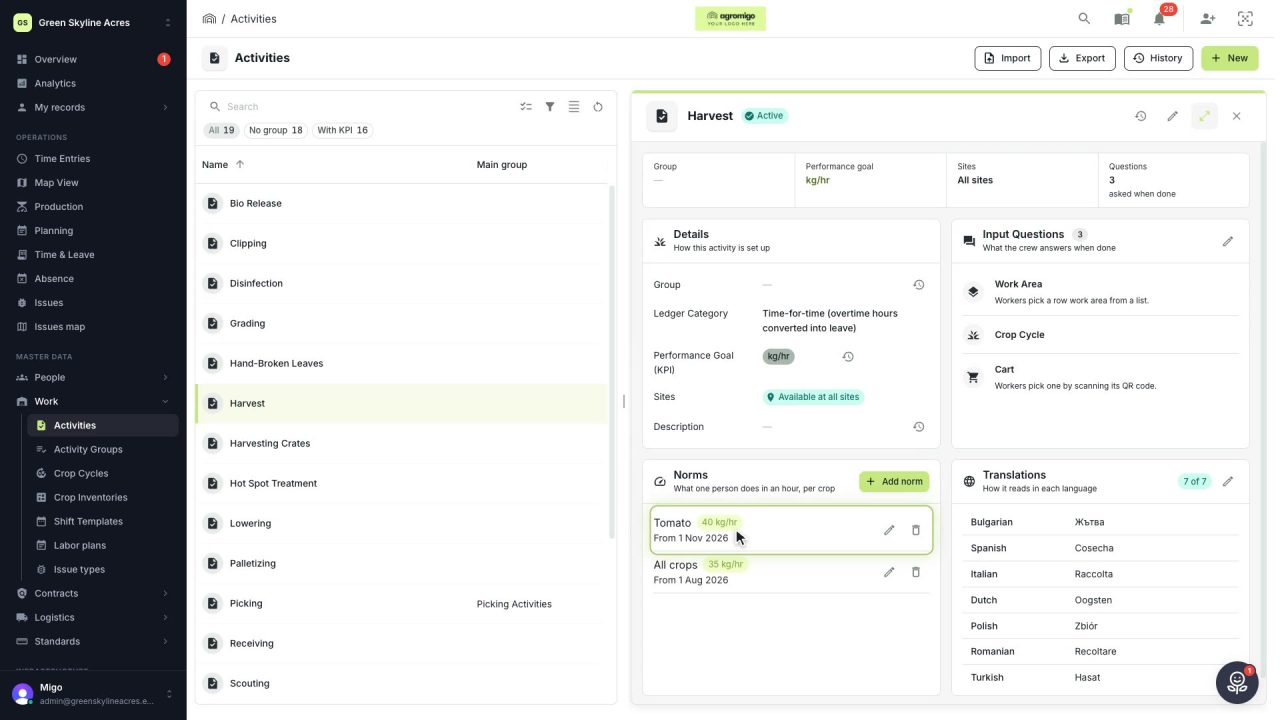
Know how fast the work goes, per crop
Set what one person does in an hour for each activity, per crop cycle and season, so every labor plan turns a target into the hours and people it takes.
Read the story -
 2 min
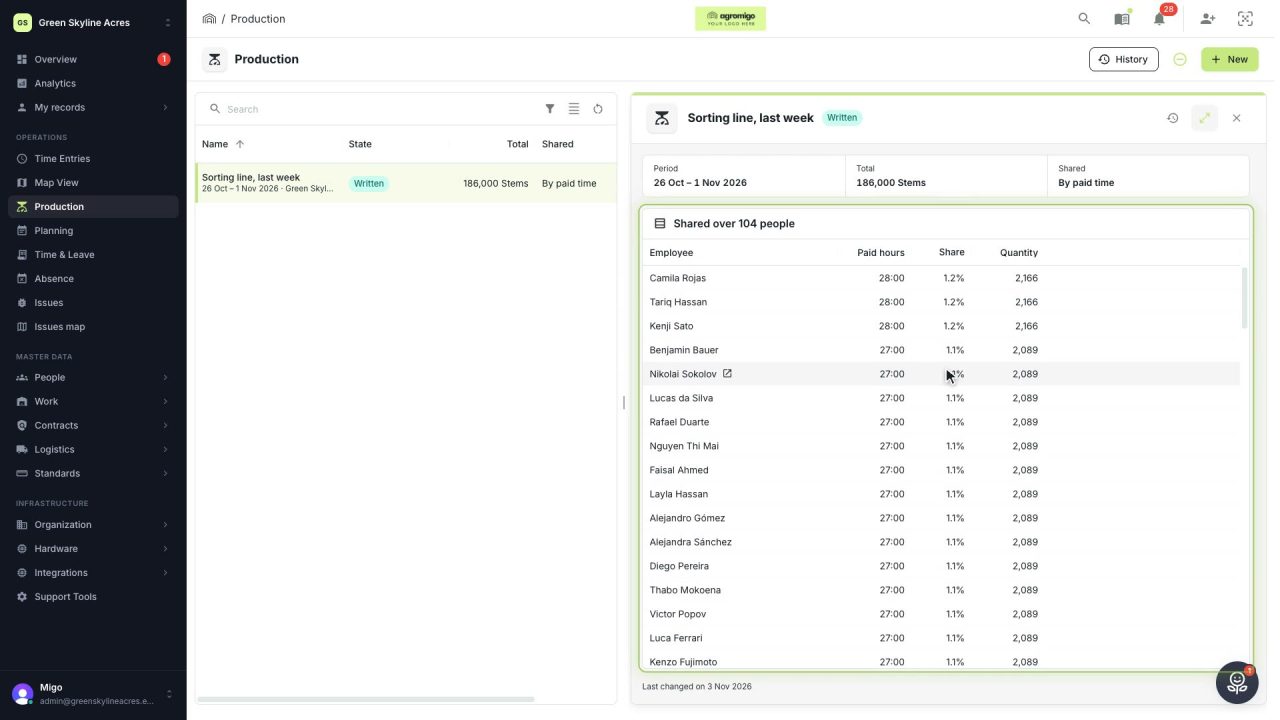
Share a week of production over the people who did the work
A total that is only known in bulk, such as a week of chrysanthemum stems from the sorting line, shared over everyone who worked by their paid hours, onto their own time entries, where it becomes stems per hour per person, team and crop.
Read the story