Plan the work in hours, and see where the crew falls short before the day starts
Set what each line must deliver, let the plan work out the hours and people it takes, and see per day and per activity where the crew falls short, with absences already taken out.
This week’s harvest is 15,000 kilos. How many people does that take, each day? Most planners answer from memory, and find out at the morning roll call that two of them are on leave and one is sick.
A plan in hours starts from the work instead. Each line gets a target in the unit its activity is measured in, the plan turns it into hours and people at the activity’s norm, and the people who cannot work that day are already taken out. Where the crew falls short shows on the board days ahead, while you can still do something about it.
Why plan in hours, from targets
- Plan the work first. A target of 15,000 kilos at a norm of 40 an hour is 375 hours of work. The plan does that sum for every line and every day.
- Required, planned and available, apart. What the targets need, the hours you planned, and the crew that can work at all are three numbers side by side, so over- and understaffing read at a glance.
- Absences come off, not on. Someone on leave, sick or not contracted that day does not count towards their line. The target stays what it was: the work is the same, there are only fewer people to do it.
- Shortage per activity. Every activity short on the board is listed with its missing hours, so you know where to move people before the week starts.
- The plan becomes a budget. The week’s hours per task and per day are the labor you expect to spend, before you spend it, and the time entries show whether it took them.
People is the default for a new plan, because most growers plan who works where. Choose hours when the time a task takes is what you manage.
In this video
Migo shows you how to plan the week in hours, set what each line must deliver, and see where the crew falls short before the day starts. It ends with a short tutorial: a new plan from scratch, with two lines and their people.
The plans. Planning lists your site’s labor plans. The card marked Hours opens a plan that also sets how long each person works.
The board. It looks the same as a plan in people, but every person’s day holds the hours they are planned for.
- Tasks. A task is an activity as this plan needs it, with a name of its own, plus instructions and a work area. Point at it, and the pencil edits them.
- Rename a task. The pencil opens the task editor. This take overwrites the name, then cancels, leaving the plan as it was.
- Hours per person. The arrow opens a task to show its people, with their hours on each day. You type hours as 8, 7.5 or 7:30.
- Totals in hours. The column on the right totals each row, and the row at the bottom adds up each day’s hours.
- Targets and coverage. Above the grid, the hours each day’s targets need stand against the hours planned, with the crew that can work.
- Shortage per activity. Every activity that falls short on the board is listed with its missing hours. A click shows only its lines.
- A line’s target. A line with a target shows its planned hours against the hours needed, per day, and how the target turns into hours and people.
- Change a target. This harvest is spread over the week at the norm of 40 an hour set for the Tomato crop cycle. Each day needs 75 hours, or 10 people at 8 hours, and you can still set the hours by hand.
- Views. The menu at the top right groups the rows by activity, then task, or by employee.
- Plan a day. Plan a day from its column header: lines of work with the people under them, and each line’s target against the people on it.
- Who cannot work. Someone whose allowed activities leave a line’s work out stays greyed on it, and Add people offers only those who may do it. Someone on leave, sick or not contracted that day is greyed too, and does not count. Replace offers only people who are free.
- Hours for a line. Each line’s menu has Allocated Hours. They apply to everyone on the line, and a person’s own hours change in the grid.
- Compare. Compare with recorded hours, in the same menu, opens today’s time entries, where each person’s recorded day sits beside the hours planned.
- A plan from scratch. Back in Planning, New Plan starts one. Give it a name and choose Hours. Hours per person-day turns a target into people for anyone without a contract, eight unless you change it.
- Its board. Save the plan, and Open on the board takes you there. A new plan starts empty, and Plan a day opens tomorrow.
- Two lines, with people. Add line starts a line of work: pick its activity, here Harvest, and save the line. Add people lists everyone at the site; tick who works the line. A second line, Hand-Broken Leaves, gets two more people the same way.
- Saved. The day is on the board: two lines, five people, eight hours each. The next day you plan starts from this one.
You plan the work first, see the people it takes, and fill the gaps before the day starts.
Tips
- A week at once. In the target dialog, Spread over days shares one target over the days you tick, and leaves out a public holiday.
- From the place. For work done per area, From the place takes the target from the rows it covers: their area, or the crop cycle’s plant or stem count in them.
- Norms per crop. The norm a target starts from is set on the activity, per crop cycle and season. See Know how fast the work goes, per crop.
- Hours per person-day. People count at their contracted hours that day. Anyone without an in-house contract counts at the plan’s hours per person-day, eight unless you change it.
- Follow it live. The Overview’s Today vs plan card shows what today’s targets require and how much is short, and Needs your attention lists tomorrow’s short lines.
Read more
Start with Labor plans for the board, targets and comparing the plan with what was recorded, then Labor plan details for cells and the hours on a line. To plan in people instead, see Know who works where.
Try it free for 1 month.
More stories
-
 1 min
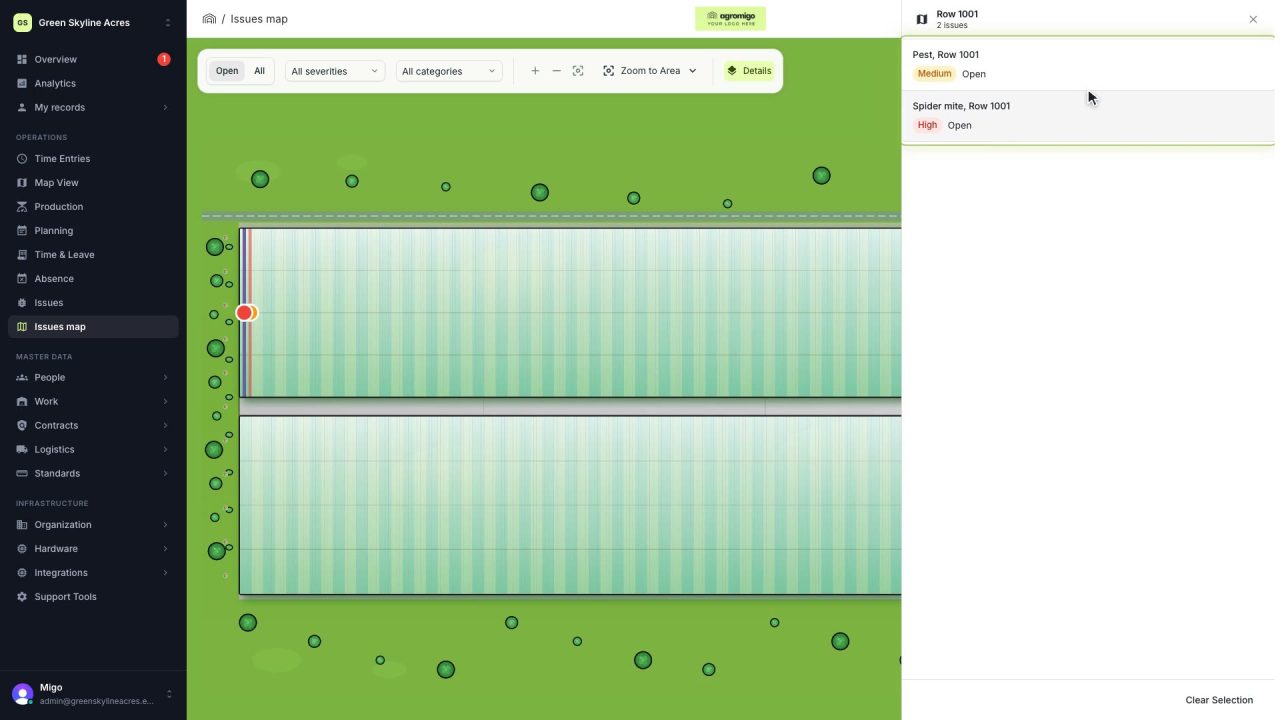
See on one map where every open issue on your site is
The Issues map colours every work area by its most severe open issue, so you see at a glance which rows have a problem and how serious it is.
Read the story -
 1 min
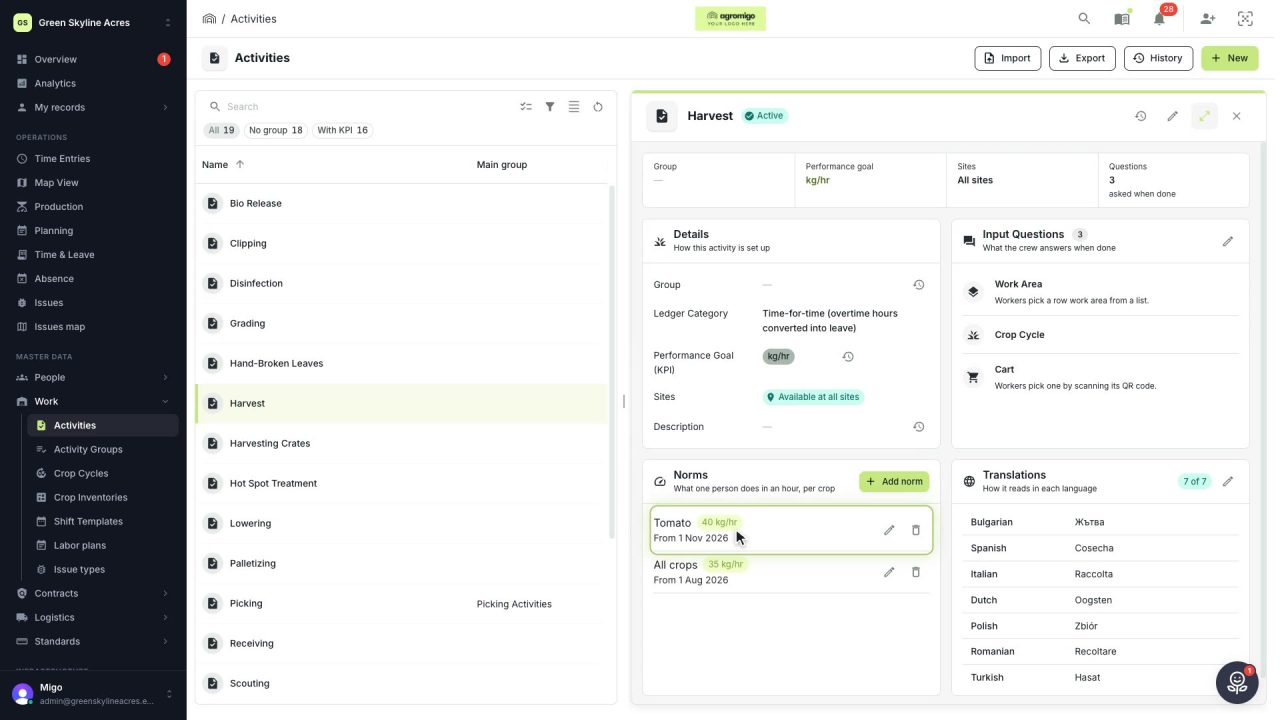
Know how fast the work goes, per crop
Set what one person does in an hour for each activity, per crop cycle and season, so every labor plan turns a target into the hours and people it takes.
Read the story -
 2 min
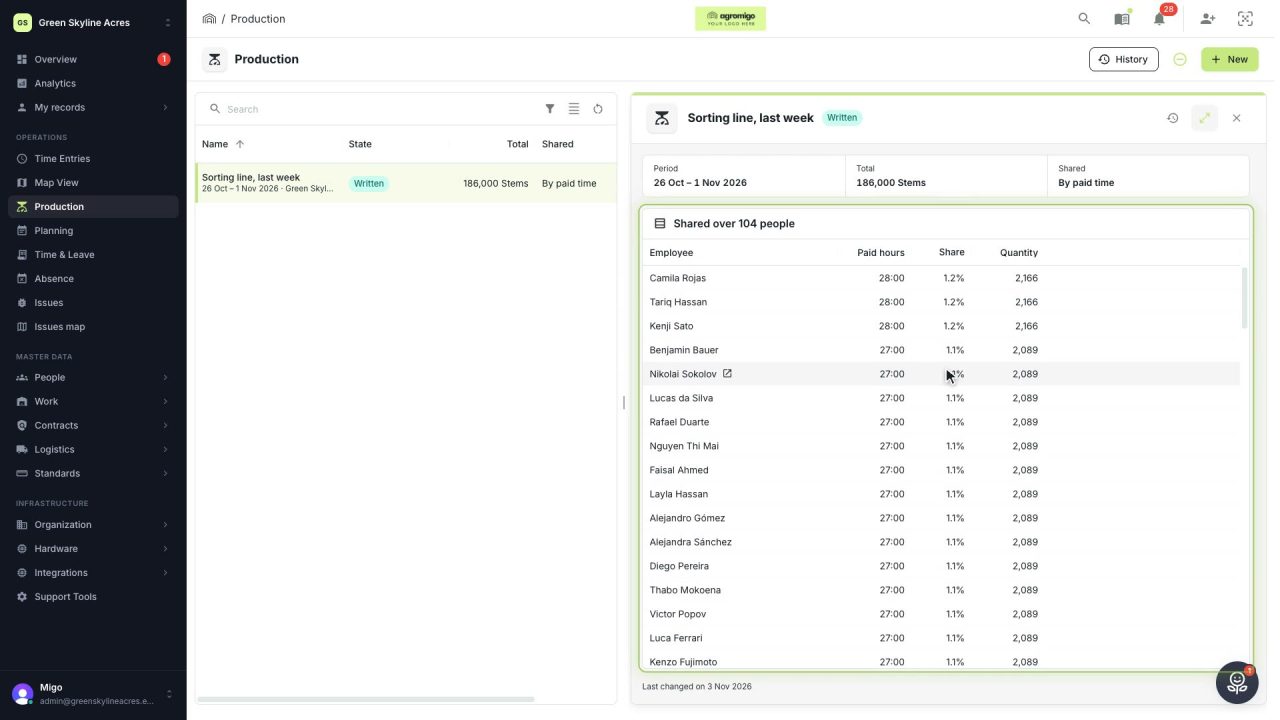
Share a week of production over the people who did the work
A total that is only known in bulk, such as a week of chrysanthemum stems from the sorting line, shared over everyone who worked by their paid hours, onto their own time entries, where it becomes stems per hour per person, team and crop.
Read the story